![Full Logo Black.png]](https://servicehub.passgallery.com/hs-fs/hubfs/Logos/Full%20Logo%20Black.png?height=40&name=Full%20Logo%20Black.png)
In addition to offering a wide range of items in the store, Pass allows photographers to add their own custom products. These custom products must be self-fulfilled, with payments collected by you. Pass also enables you to automate self-fulfilled orders by directly sending product files to your lab.
Adding Custom Products
Before you begin, ensure that you’ve set up your store to collect payments directly in your Store Settings.
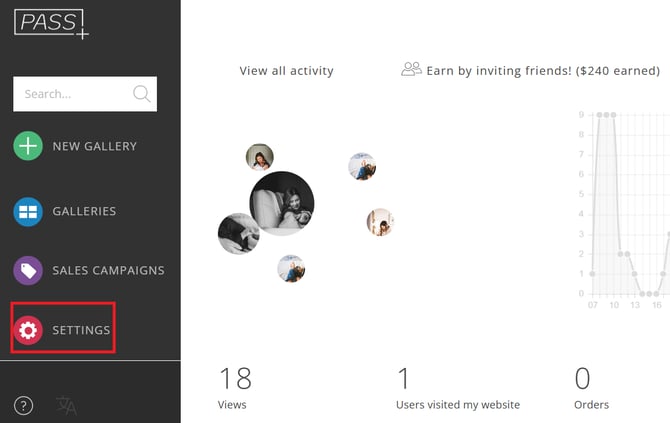
- Click Settings from your Main Dashboard.
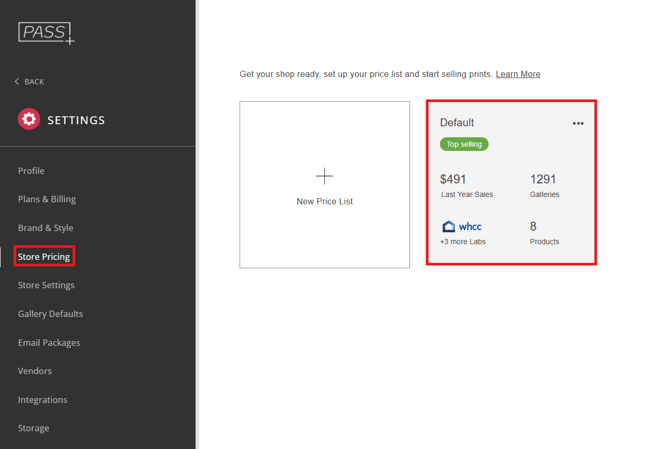
- In the Store Pricing tab, select the relevant Price List
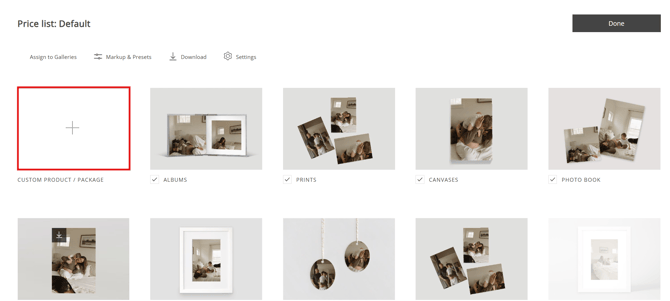
- Click on + Custom Product / Package to add a new item.
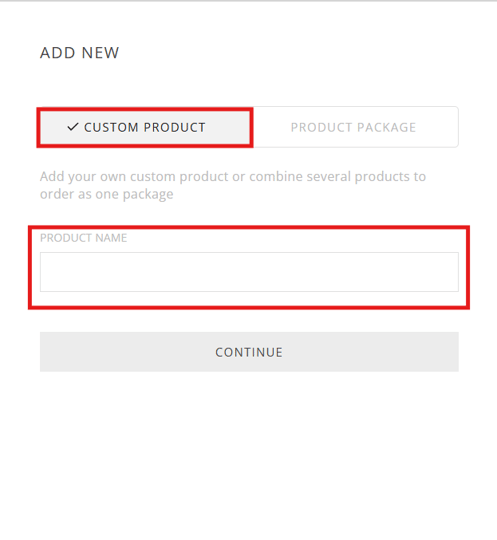
- Select Custom Product, enter the product name, and click Continue.
Editing Custom Product Infomation
-
Adjust the Product Name and Storefront Subtitle
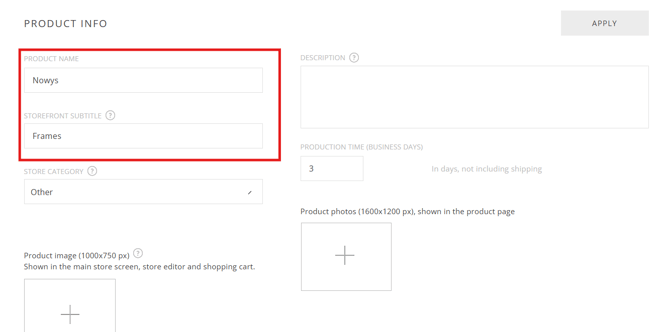
These details will be displayed on the store’s front page. -
Choose the Product Group and Product Image
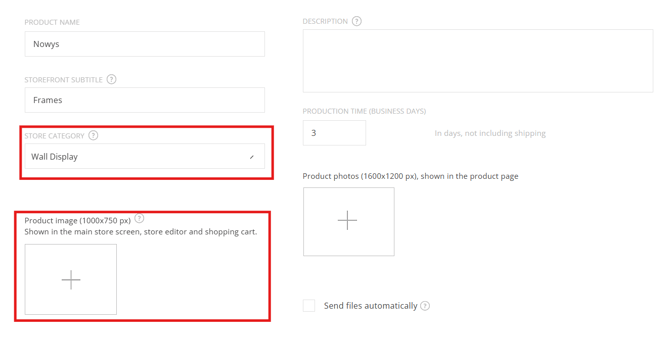
- The product image will be visible in the storefront, store editor, and shopping cart.
- Optionally, personalize the product image by using the client’s gallery photos. Learn more about this here.
-
Set Digital Delivery Options
- Checkmark This product is delivered digitally if you want the product images delivered via email after purchase.
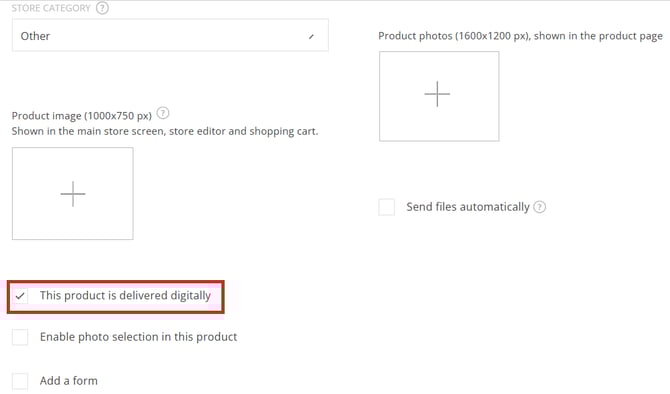
- Checkmark This product is delivered digitally if you want the product images delivered via email after purchase.
-
Enable Photo Selection
- Checkmark This Product Requires Photo Selection if the client needs to choose images for this item.
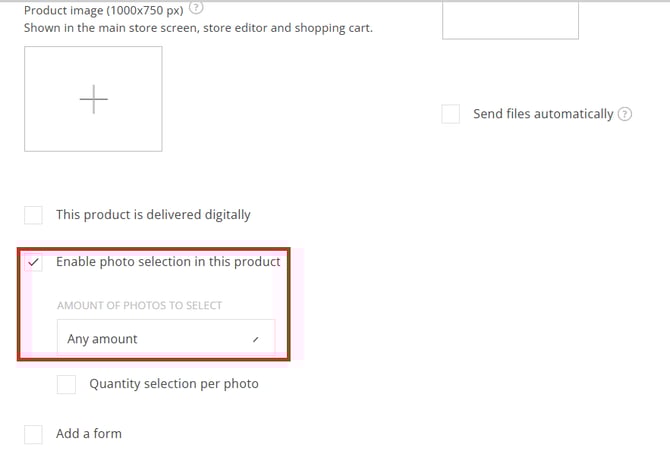
- Define the number of photos required: Any Amount, Specific Amount, or Maximum Amount.
- If digital delivery is selected and no photo selection is required, all gallery images will be delivered.
- Checkmark This Product Requires Photo Selection if the client needs to choose images for this item.
-
Allow Quantity Selection Per Photo
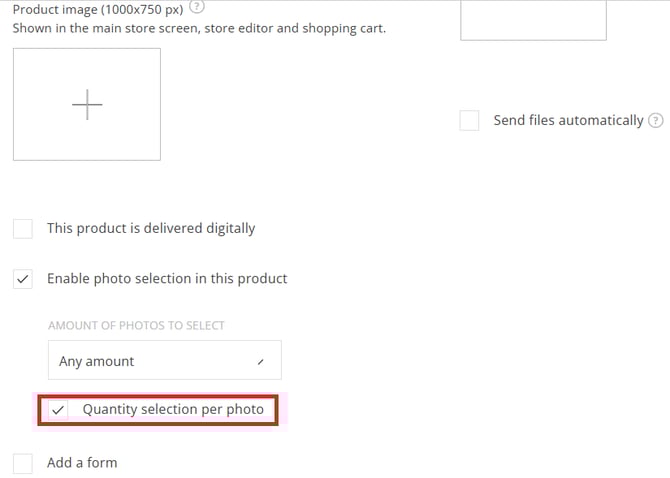
- Enable this if clients should be able to order multiple copies of a single image.
-
Add a Form to the Product
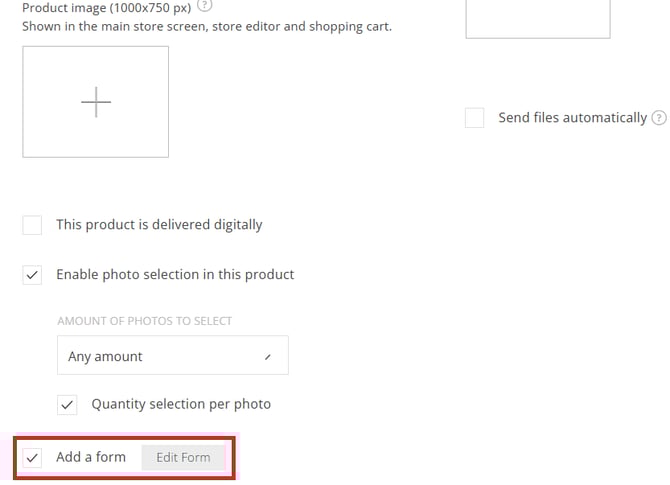
- Allow clients to fill out a form when ordering this product.
-
Enter the product description, production time, and any additional photos. Click Apply to save
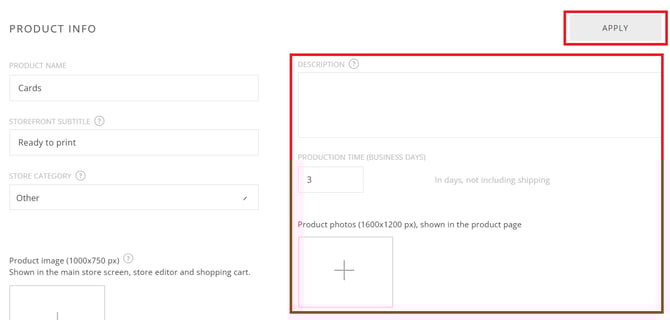
- Add a description, production time, and additional product images. Click Apply when finished.
Pricing Custom Product
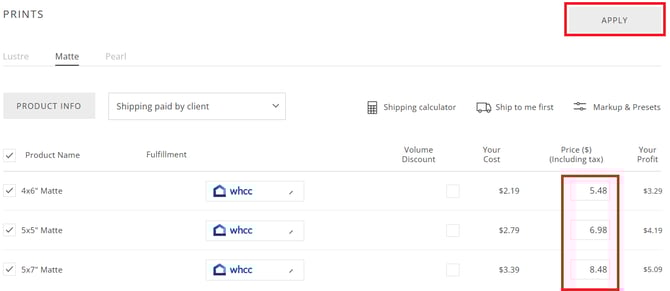
Under the pricing section for the product, you can:
- Edit the product name.
- Set shipping prices.
- Define pricing.
- Add sizes or variations.
Click Apply when finished.
Duplicate Product
- To create a new product based on an existing custom product, click the three dots under the product in Store Pricing and select Duplicate.
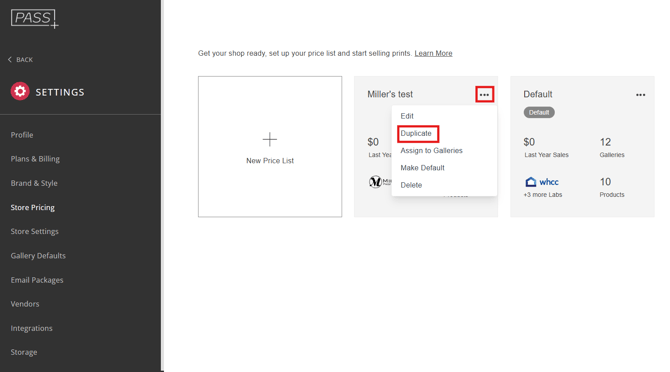
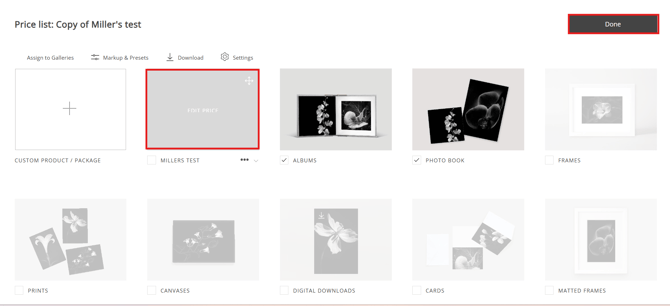
- This will create a new version of the product, which you can enable in your price list and customize as needed.
If you have any questions or need any additional information, please email help@passgallery.com