![Full Logo Black.png]](https://servicehub.passgallery.com/hs-fs/hubfs/Logos/Full%20Logo%20Black.png?height=40&name=Full%20Logo%20Black.png)
How do I add Download Terms?
Download Terms allow you to display a message that clients must agree to before downloading images. This feature is available for free Web-Size downloads, High-Res downloads, and paid custom download resolutions.
Adding Download Terms from the Gallery.
To add Download Terms to the free or paid High-Res downloads, under Galleries, go to your specific gallery.
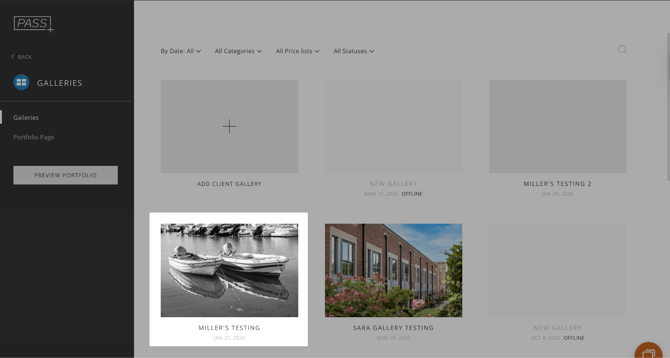
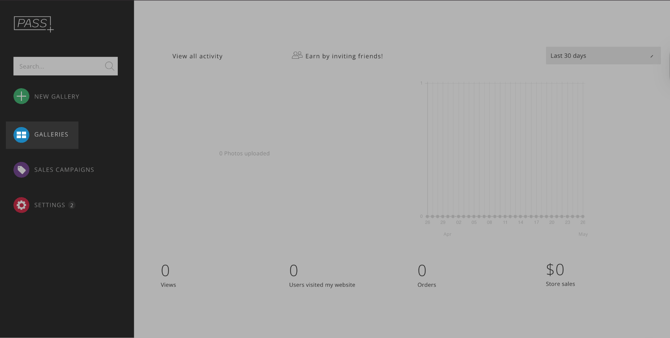
2. From the side dashboard, select Settings, under Photo Downloads, click on Settings
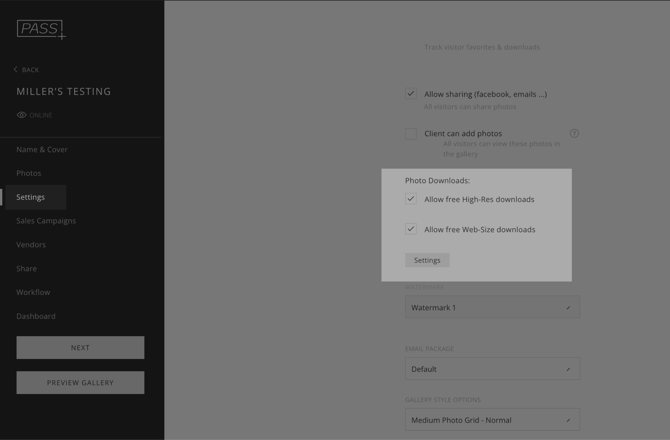
3. Check the box to Allow free High Resolution Downloads, then click the pencil icon to customize the terms.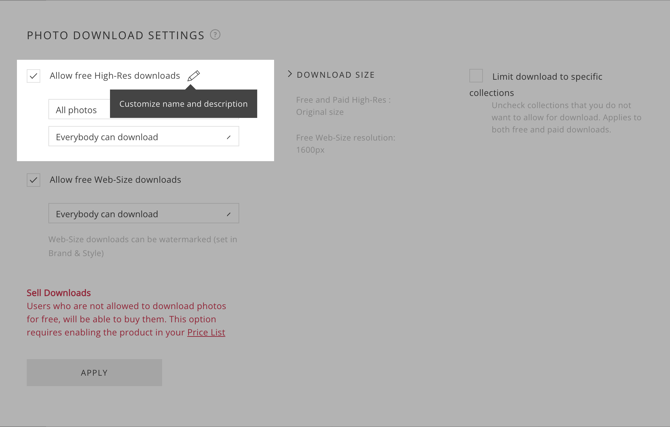
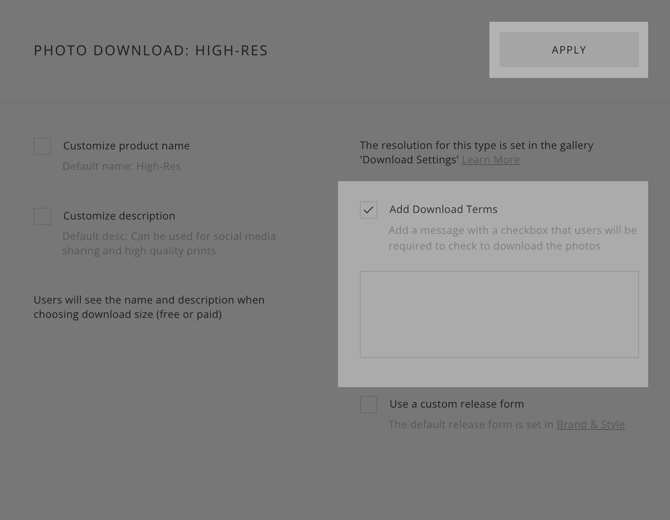
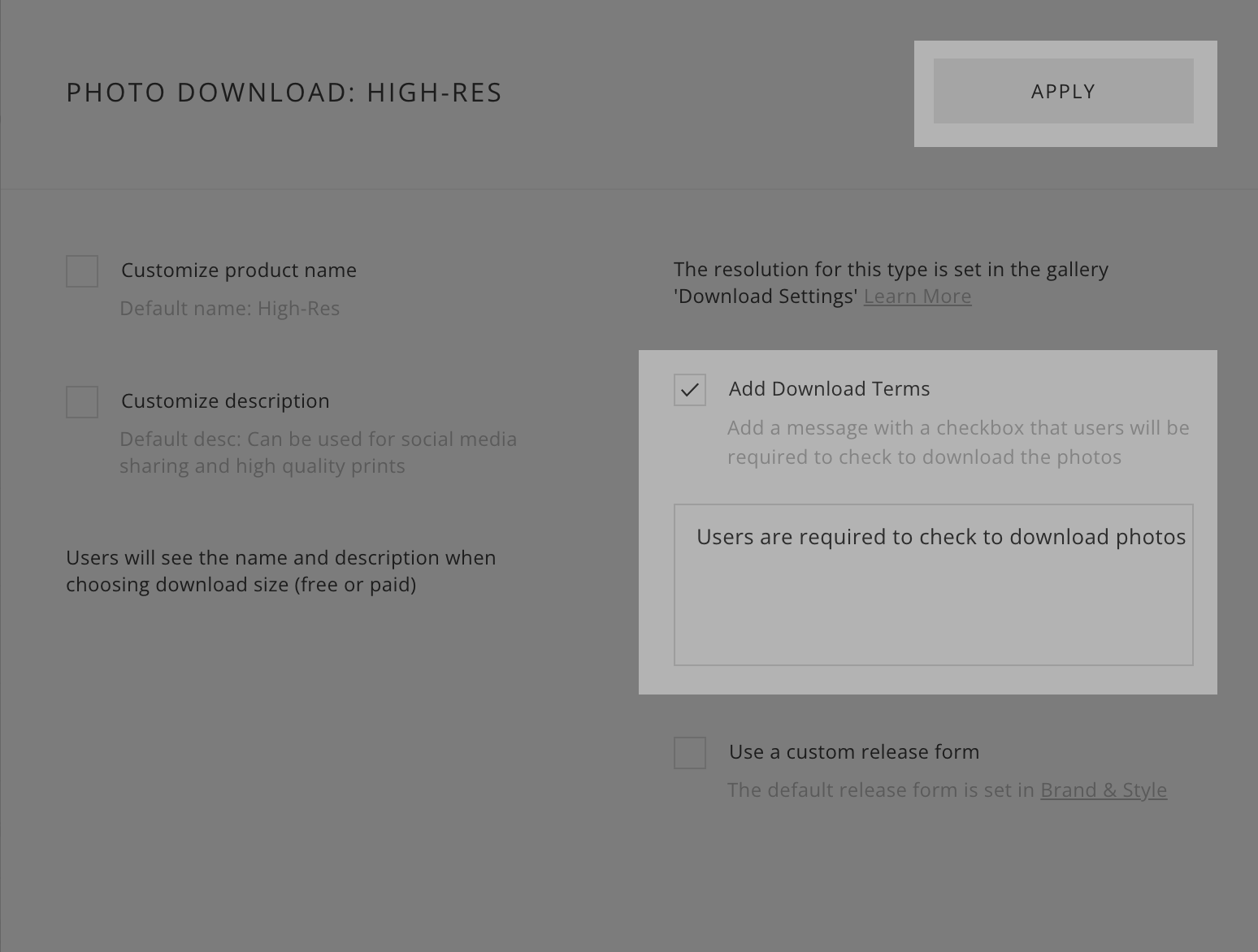
4. In the download editor check Add Download Terms, enter your message, and click Apply.
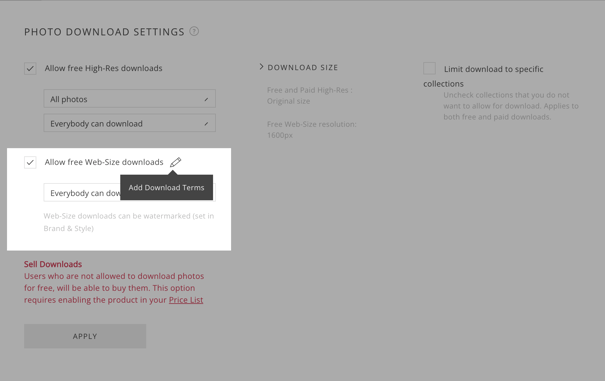
5. For Web-Size downloads, check Allow free Web-Size Downloads and click the pencil icon to edit the terms.
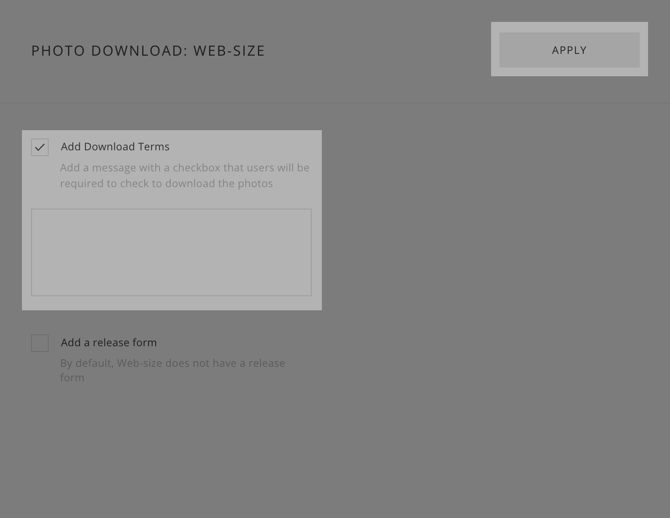
6. Check Add Download Terms, enter your message, and click Apply.
Adding Download Terms from the Shop
To add Download Terms to the High Resolution or Custom Resolution Download products in the Shop:
1. From the main dashboard, click Settings > Store Pricing. Create a + New Price List or select a Price List to edit.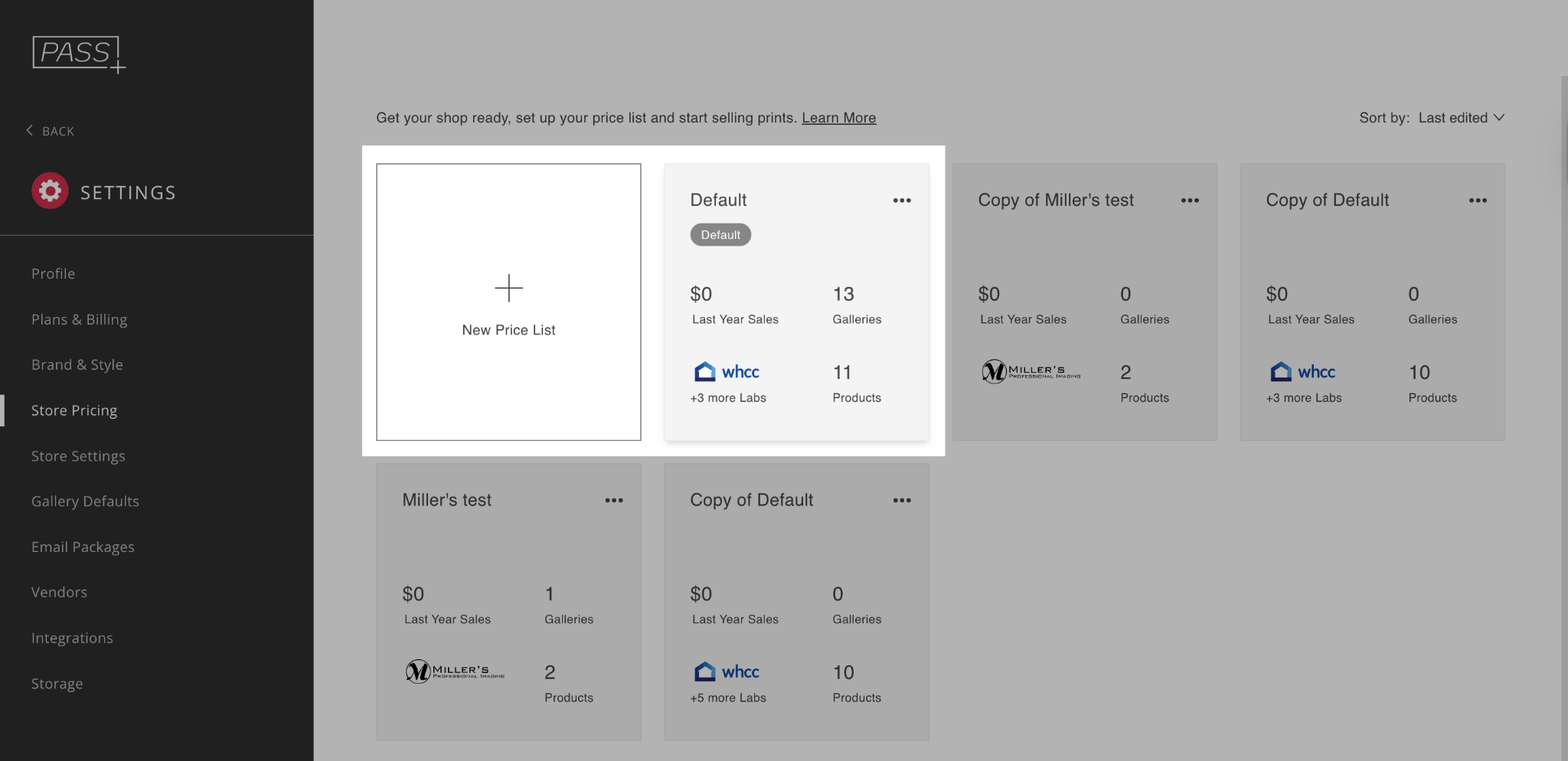
2. Then, click to edit the Digital Downloads product.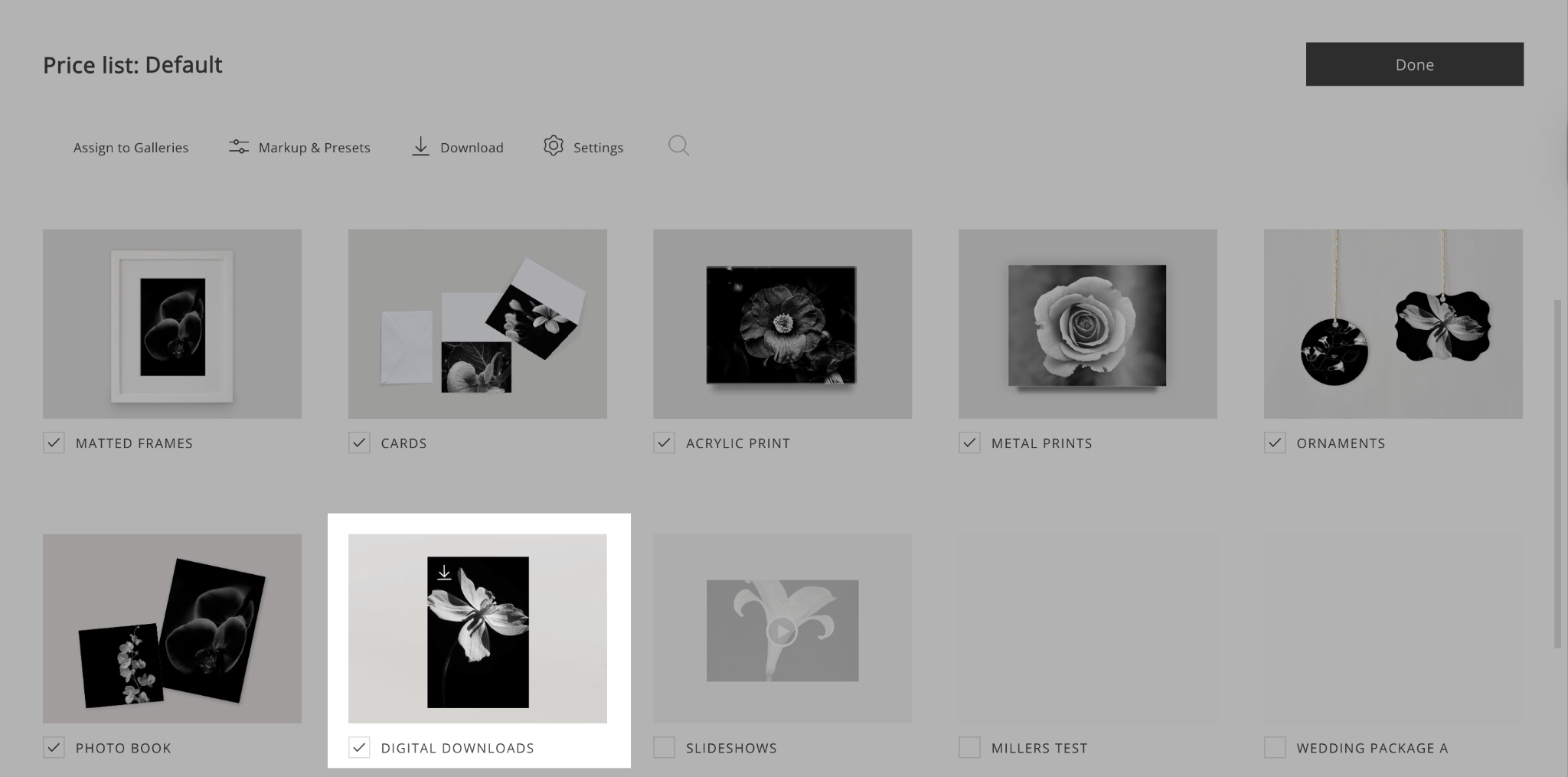
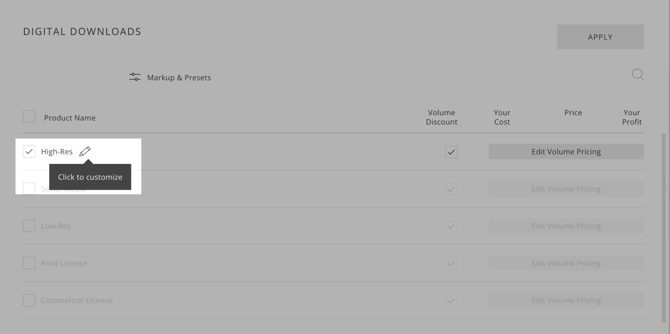
3. Click the pencil icon next to the specific product you want to edit.
4. In the download editor, check Add Download Terms, add your message, and click Apply.
Need Help?
If you have any questions or need additional assistance, please contact: help@passgallery.com