![Full Logo Black.png]](https://servicehub.passgallery.com/hs-fs/hubfs/Logos/Full%20Logo%20Black.png?height=40&name=Full%20Logo%20Black.png)
Pricing your products by quantity is a simple way to encourage clients to order more, as it allows you to offer additional items at a lower price. Volume Pricing is available for supported products within Pass Plus. Clients can also order different designs of the same product (not just duplicates) and take advantage of the pricing.
Please Note: Volume Pricing applies only within a single gallery. If a client is shopping across multiple galleries, each gallery’s pricing is calculated separately and does not combine.
Setting Up Your Pricing
1. To begin, click on Settings from your Main Dashboard.
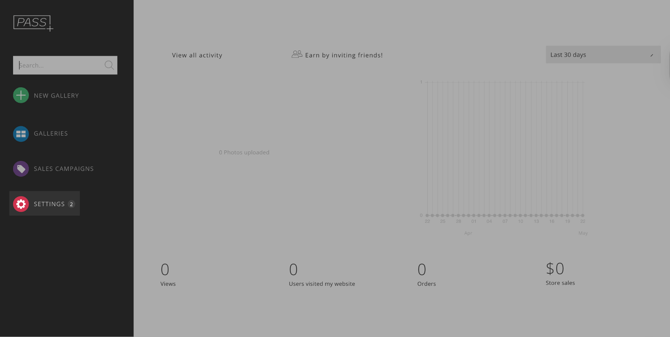
2. Go to Store Pricing, select your particular Price List, and click on a product to edit it.
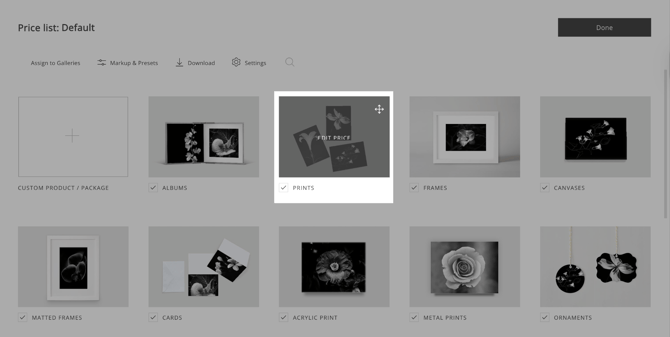
3. Select the product type. Next to product size, check the Volume Pricing option and click to Edit Volume Pricing.
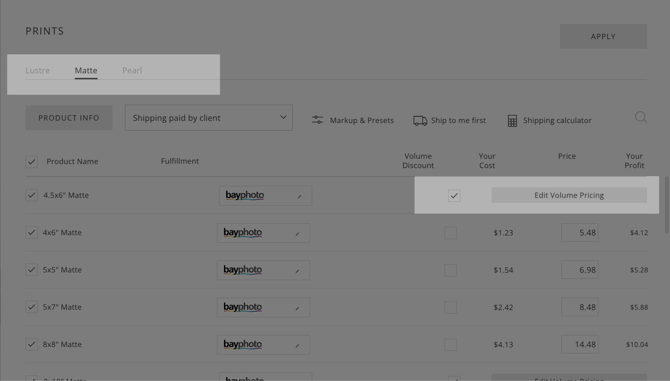
4. This will open the Volume Pricing page, where you can create multiple pricing tiers based on the quantity your client orders for that product size.
Quantity: The number of products clients can purchase at that particular price tier.
Your Cost: The production cost of a single product from the lab.
Price: The price your clients will see and pay for each product.
Your Profit: The profit you earn for each product sold at the given price.
In Volume Pricing, pricing is applied based on the quantity threshold the client’s order qualifies for. As additional pricing tiers are added, the price per product can automatically decrease once the order reaches the specified quantity.
For example, if the price for 1 copy and above is $5.98, and the price for 5 copies and above is $4.98, clients who purchase 5 or more copies will automatically receive the lower price tier.
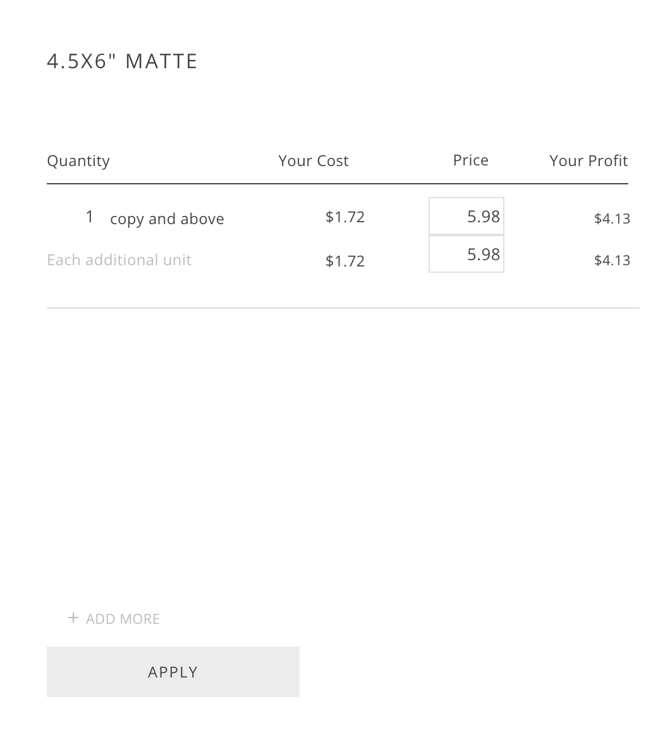
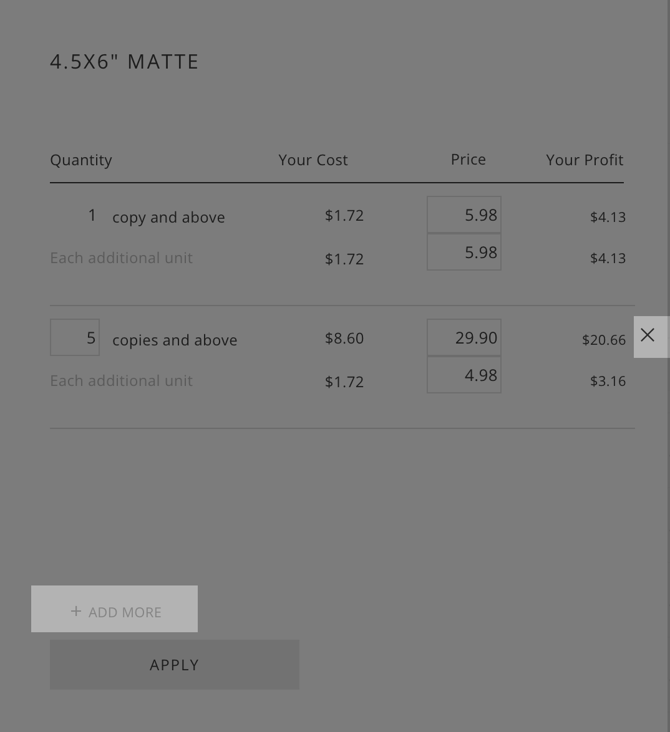
5. To add a tier, click ADD MORE. Click the X button to remove any tiers.
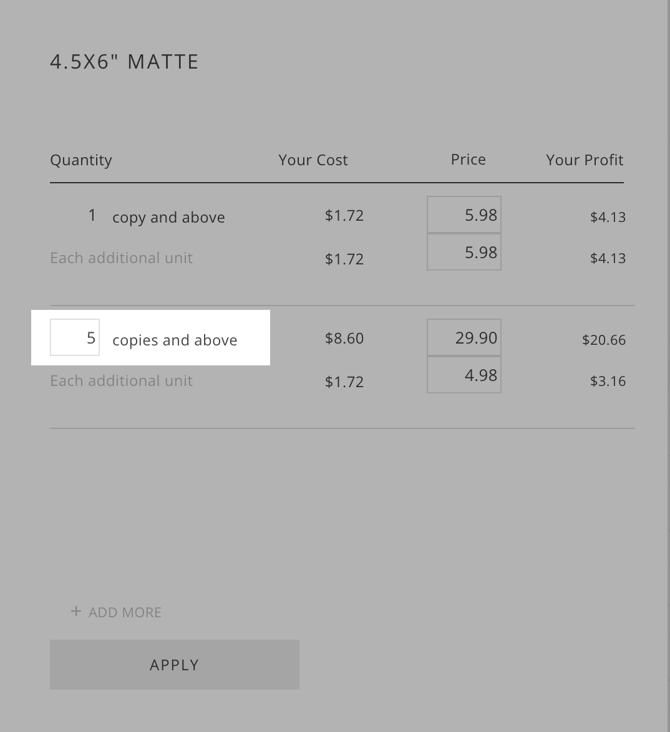
6. Enter the quantity threshold for the pricing tier.
Example: Entering a quantity of 5 will apply the pricing configured for orders of 5 copies and above.
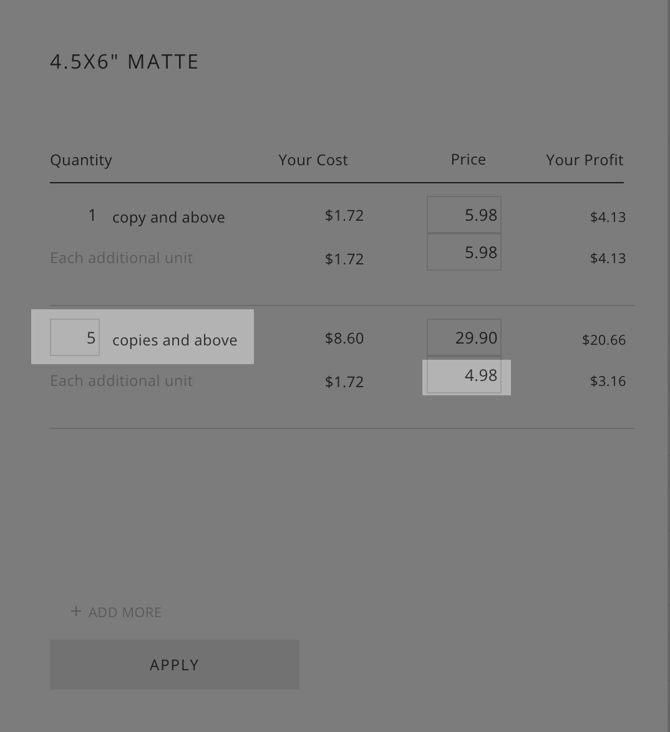
7. Next, adjust your Price. Pass will automatically calculate the pricing and profit for each tier based on the values entered.
We strongly recommend making this Price lower than the Price in the previous tier so clients feel they’re getting a discount, encouraging them to order more.
Save Your Settings
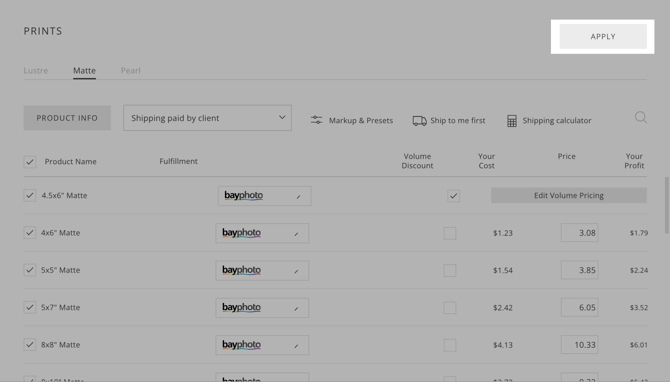
8. When you’re done updating your pricing, click Apply to set the pricing.
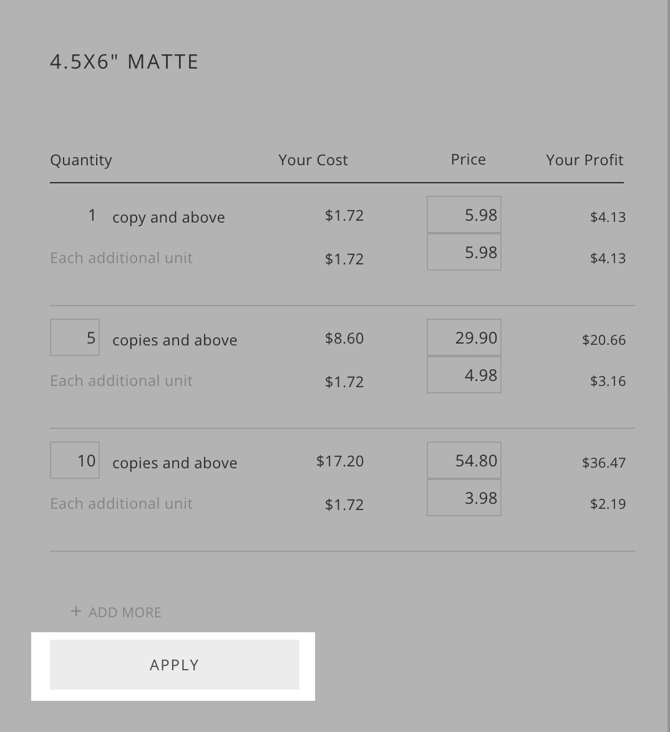
9. Then click Apply to save your changes to the product pricing.
Need Help?If you have any questions or need additional assistance, please contact: help@passgallery.com