![Full Logo Black.png]](https://servicehub.passgallery.com/hs-fs/hubfs/Logos/Full%20Logo%20Black.png?height=40&name=Full%20Logo%20Black.png)
The Abandoned Cart Default Automation helps you recover lost sales by reminding clients to complete their purchase after leaving items in their cart—without offering a discount.
This automation focuses on gentle nudges instead of promotions, making it ideal for maintaining your pricing strategy while still increasing conversions.
When Should You Use This Automation?
Use the Abandoned Cart Default Automation when you want to:
- Encourage purchases without discounting your products
- Send simple, effective cart reminders
- Pair with other campaigns that already include discounts
📌 Tip: You can combine this automation with other Sales Campaigns—such as Album Sales, Senior Sales, or seasonal promotions— if you want to introduce discounts separately.
Abandoned Cart Default vs Abandoned Cart App
|
Feature |
Abandoned Cart Default |
Abandoned Cart App |
|
Discount |
❌ No discount |
✅ 15% OFF (Code: FLASHSALE) |
|
Purpose |
Reminder only |
Conversion with incentive |
|
Strategy |
Preserve pricing |
Drive urgency with offers |
📌 Important: The Abandoned Cart Default Automation does not include any discount or promotional offer. It is designed to recover sales through reminder-based messaging only, helping you maintain your pricing strategy.
Setting Up the Abandoned Cart Default Automation
1. Install the Automation
From the Main Dashboard, go to Sales Campaigns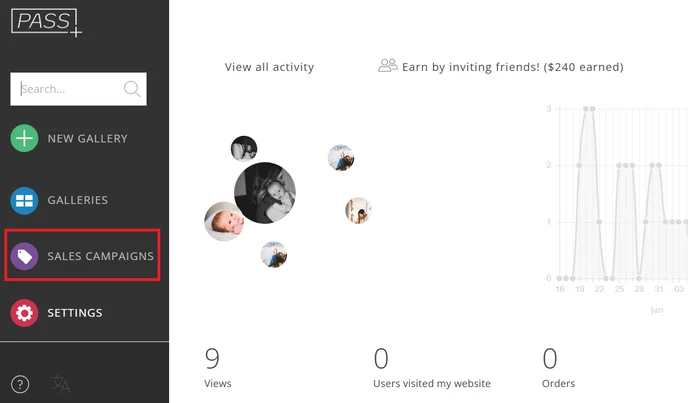
Click + More Automations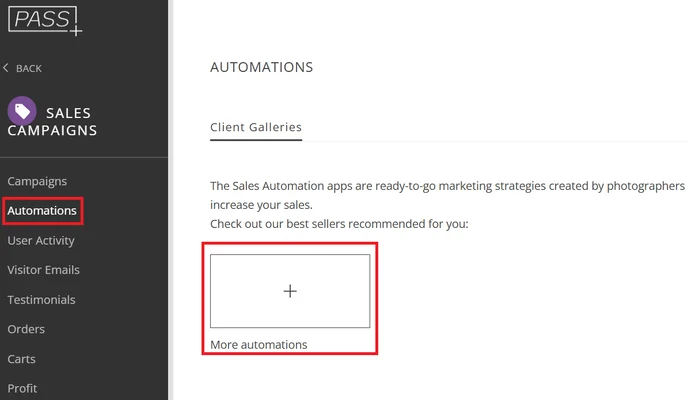
Select Abandoned Cart Default
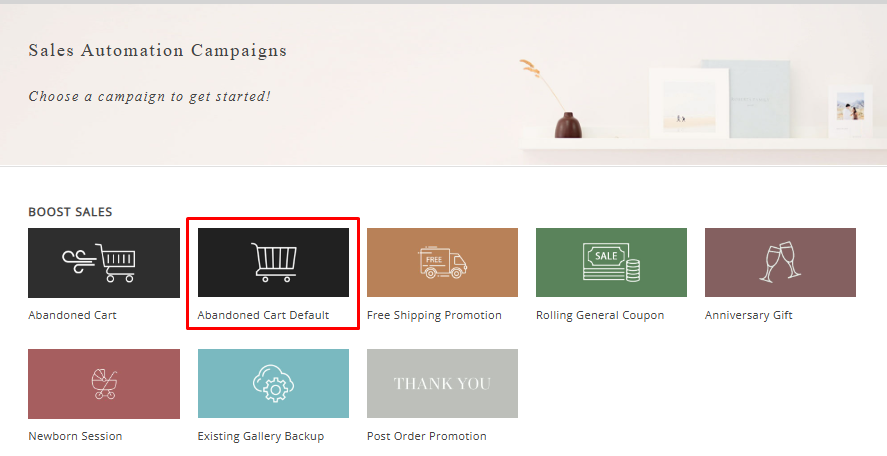
Click Install Campaign
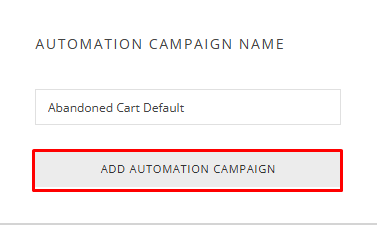
Customize the name and click Add Automation App
Configuring the Automation
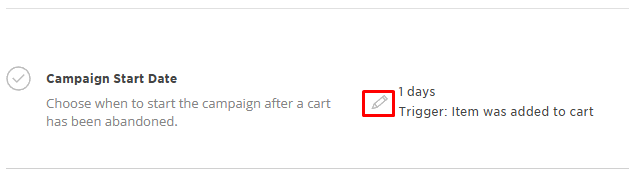
2. Campaign Start Date & Trigger
Decide when the email will be sent after cart abandonment (e.g., 1 day after an item is left in the cart).
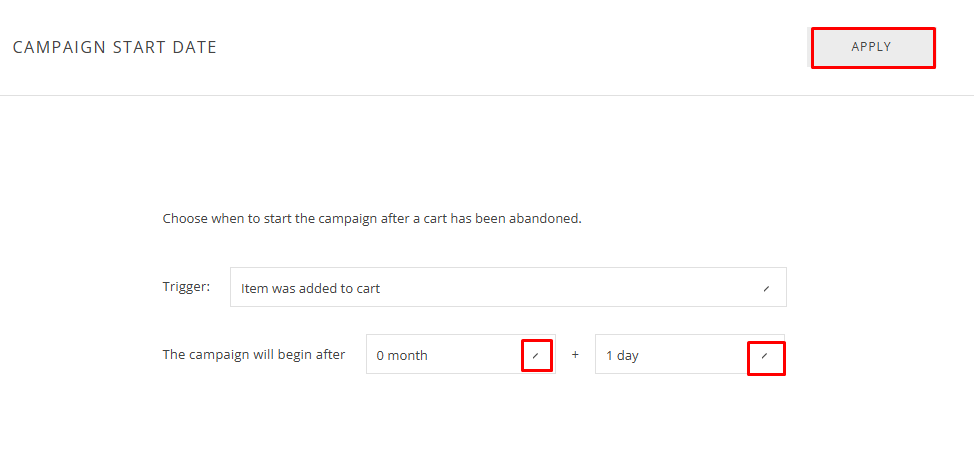
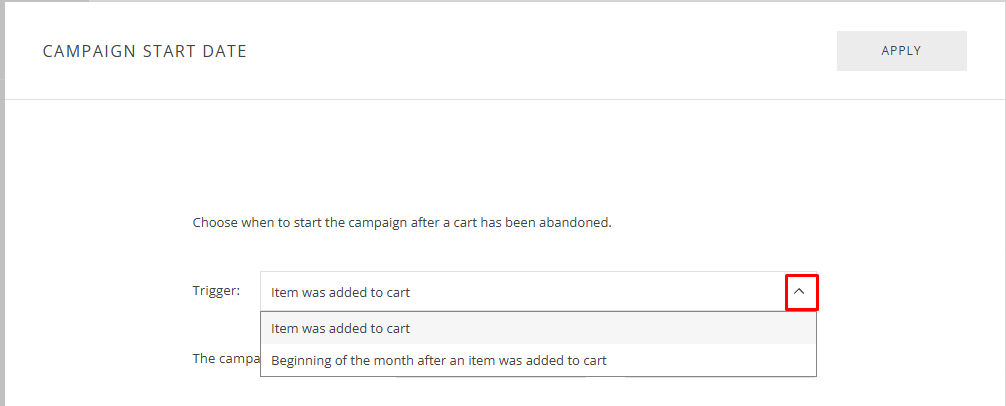
You can also set the trigger for a specific date, like the start of the next month.
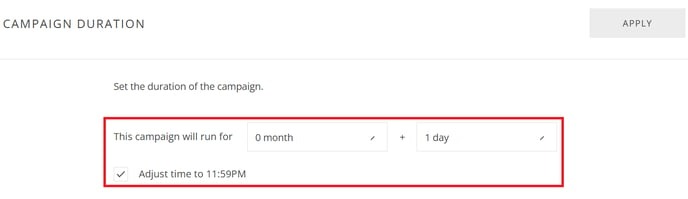
3. Campaign Duration
Set how long the automation will remain active for each abandoned cart.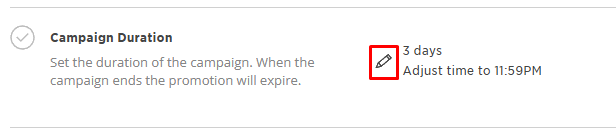
You can run it for a set number of months/days or until a specific time (e.g., 11:59 PM on a certain date).
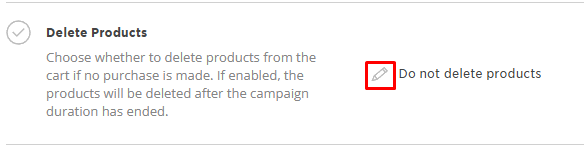
4. Delete Products (Optional)
Choose whether to remove items from a client’s cart if no purchase is made.
Click the pencil icon to configure:
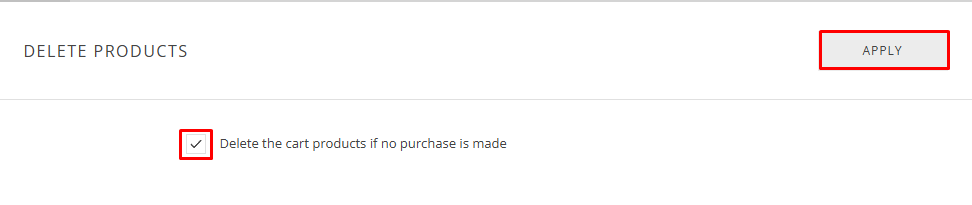
- Check the box to clear carts after the campaign ends
- Leave it blank to keep items for later checkout
Then click Apply.
📌 Tip: Clearing carts creates urgency, while keeping items allows for future follow-ups or additional campaigns.
5. Discount Settings
By default, this automation is set to:
- No discount
This is the key difference from the standard Abandoned Cart App.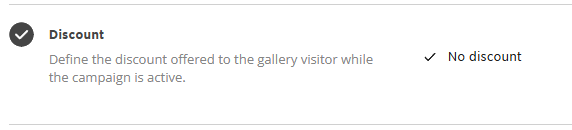
📌 Important:
If your goal is to offer a discount (e.g., 15% OFF Flash Sale), you should use the Abandoned Cart App instead.
Customizing Emails
6. Edit Email Content
Click the pencil icon on the email to customize it.
You can modify:
- Email subject (e.g., You left something in your cart)
- Title (e.g., Order Soon!)
- Message body
- Call-to-action button (e.g., Go to Cart)

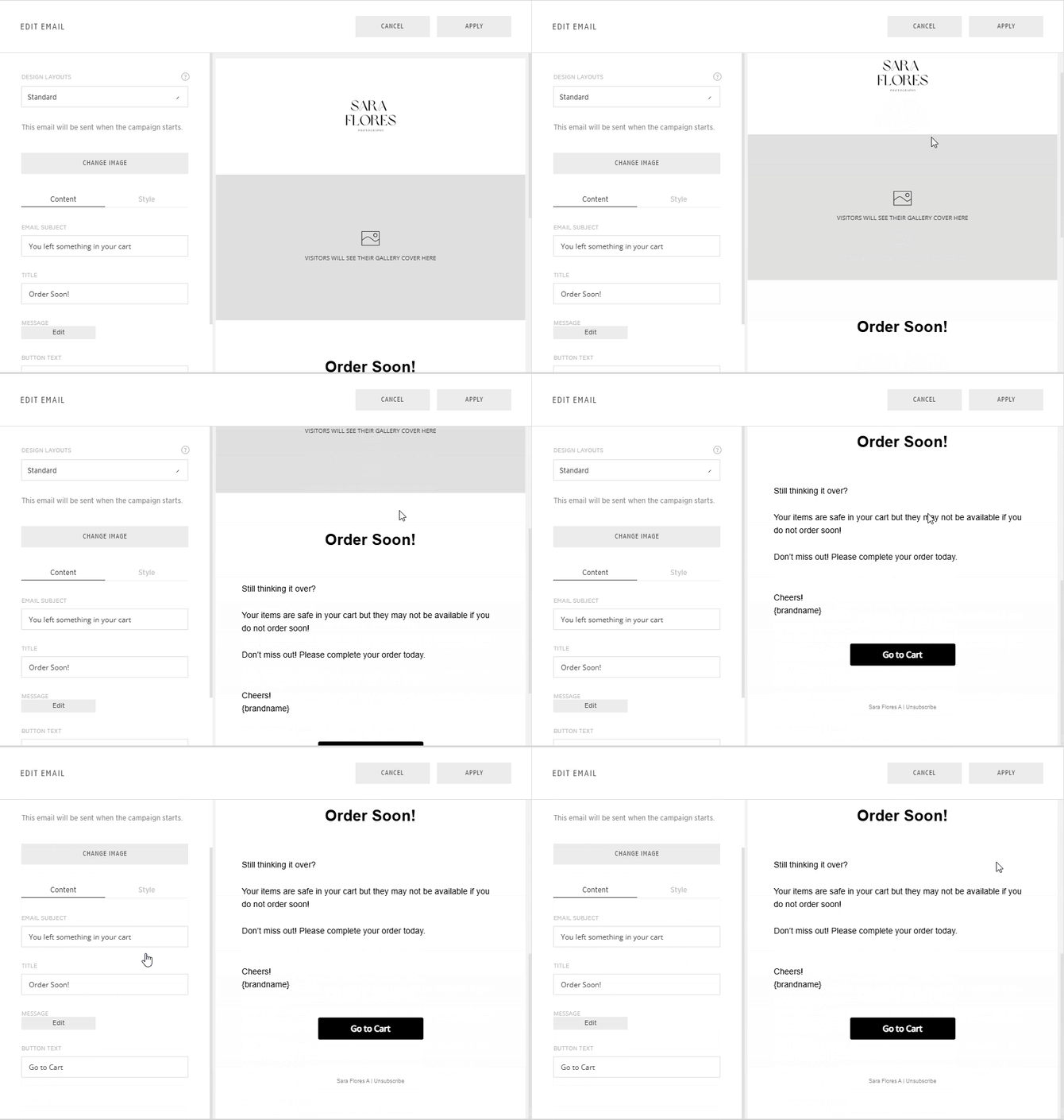
📌 Tip: Focus on urgency-driven messaging instead of discounts
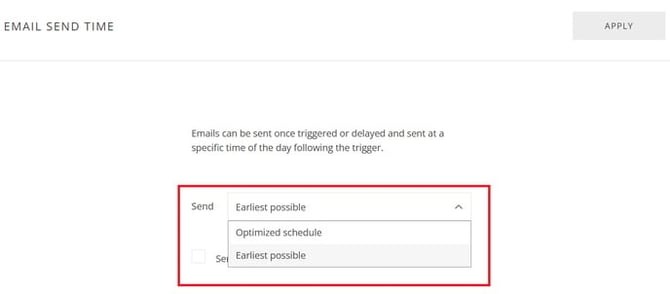
7. Email Send Settings
Click the pencil icon to adjust when emails are sent.
- Earliest Possible → Announcement email is sent immediately
- Optimized Send Schedule → Sent at recommended times (typically 8 AM, 2 PM, or 8 PM) based on your timezone

Customizing Banners (Optional)
You can display banners inside the gallery while the automation is active.
By default, the Abandoned Cart Default Automation does not include any banners, so you’ll need to add them manually if you’d like to use them.
Available banner types:
- Text Banner
- Large Banner
- Photo Banner
- Product Row
- Store Rotator
Click the + icon to add or the trash icon to remove banners.

Assigning the Automation
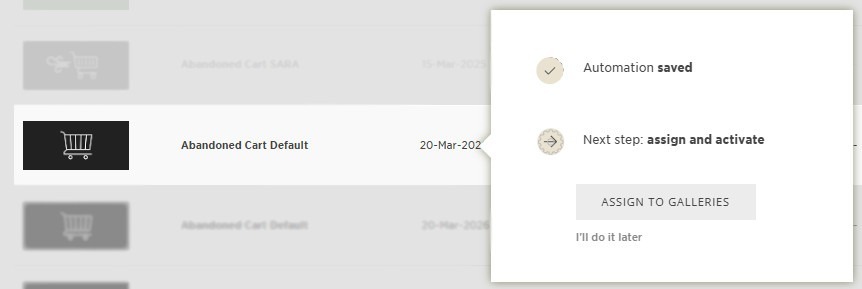
8. Activate the Automation
Click Save, then assign the automation to:
- A single gallery, or
- Multiple galleries at once
Once assigned, the automation will begin tracking abandoned carts.
Now, your Abandoned Cart Default Automation is ready to re-engage clients, recover lost sales, and drive conversions—without discounts. 🛒
Need Help?
If you have any questions or need additional assistance, please contact: help@passgallery.com