![Full Logo Black.png]](https://servicehub.passgallery.com/hs-fs/hubfs/Logos/Full%20Logo%20Black.png?height=40&name=Full%20Logo%20Black.png)
The Album Sale Campaign allows you to send promotional offers to one or more gallery guests to encourage album purchases. This campaign lets you offer percentage or fixed discounts on albums for a limited time, while automatically sending promotional emails and reminders to clients.
Once the campaign is assigned to a gallery, you can choose which clients receive the promotion and when it starts.
This guide will walk you through creating, customizing, and assigning an Album Sale Campaign to your galleries.
When to Use the Album Sale Campaign
This campaign is ideal for:
- Increasing album sales after a gallery launch
- Running limited-time promotions to encourage album purchases
- Sending automated marketing emails and reminders to clients
The campaign also includes pre-designed email templates and album-focused banners, allowing you to promote album sales without creating marketing materials from scratch.
Adding the Album Sale Campaign
- From the Main Dashboard, click Sales Campaigns.
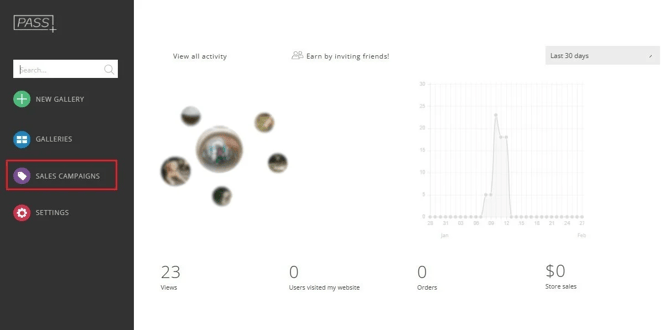
- Open the Campaigns tab. Click Add New App and select Album Sale.
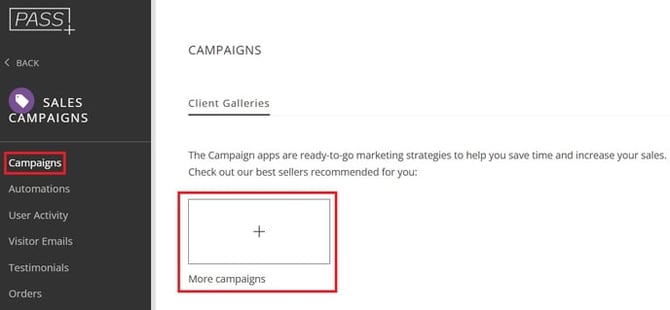
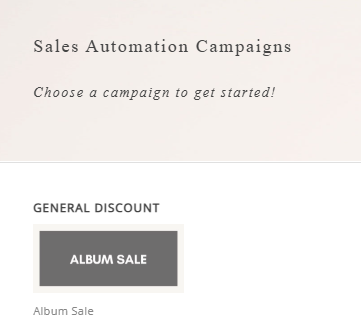
- Click Install Campaign to add it to your Marketing Dashboard.
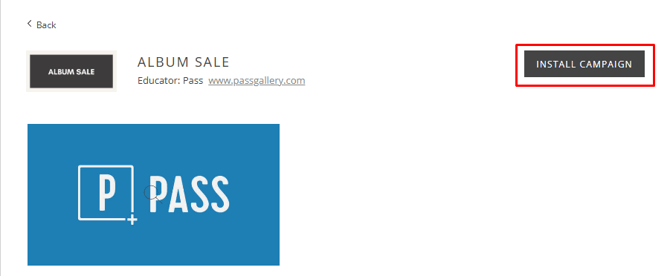
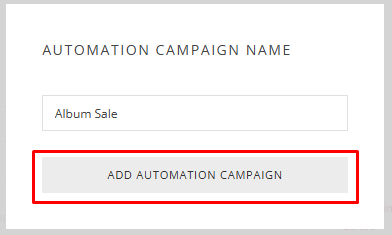
- Enter a name for the campaign and click Add Automation App.
Customizing Your Album Sale Campaign
Once the campaign is installed, you can configure the promotion settings.
1. Set Up the Discount
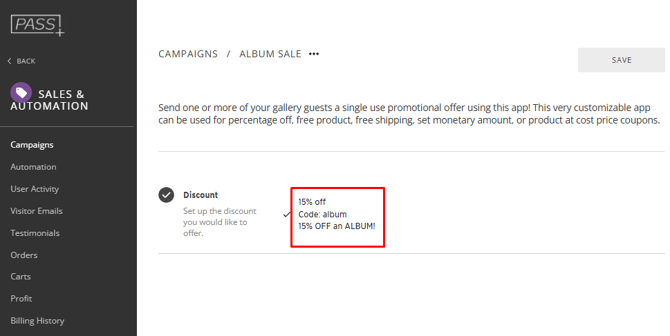 Customize your coupon details, including:
- Discount percentage or fixed amount (See Types of discounts)
- Description and coupon code
- Free shipping option (See Shipping Methods)
- Minimum order amount (optional)
- Discount stacking preferences
- Product-specific limitations
After configuring your settings, click Apply to save your changes.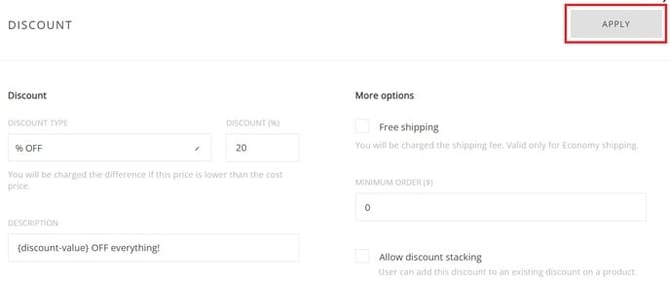
2. Define the Campaign Duration
Set how long the coupon will remain valid. This determines:
- How long clients can use the discount
- When reminder emails will be sent
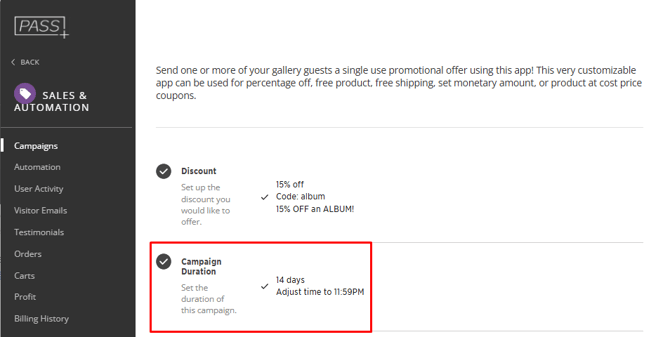
You can:
- Choose a duration in months and/or days, or
- Set a specific end date (ending at 11:59 PM on the selected day)
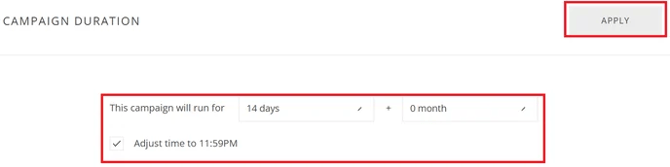
Click Apply to save.
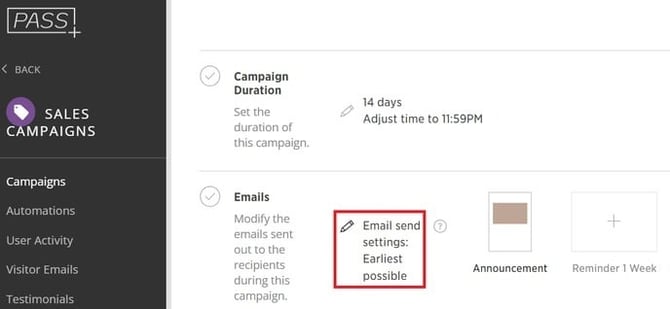
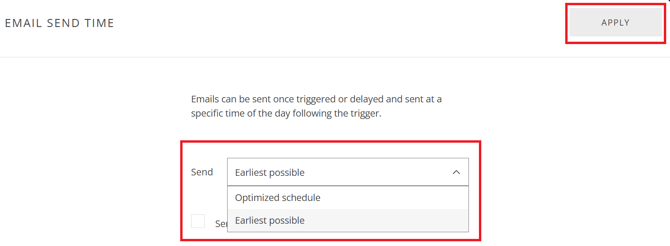
3. Configure Email Delivery
Choose when campaign emails will be sent:
- Earliest possible — emails are sent immediately
- Optimized send schedule — emails are sent at recommended times (typically 8 AM, 2 PM, or 8 PM) based on your local timezone
4. Edit Campaign Emails
You can customize or remove the emails sent to your clients.
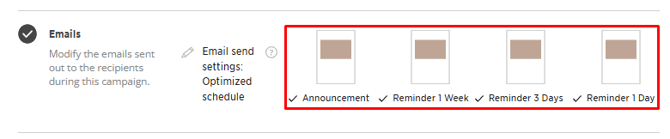
- Click the trash icon to delete an email
- Click the pencil icon to edit an email
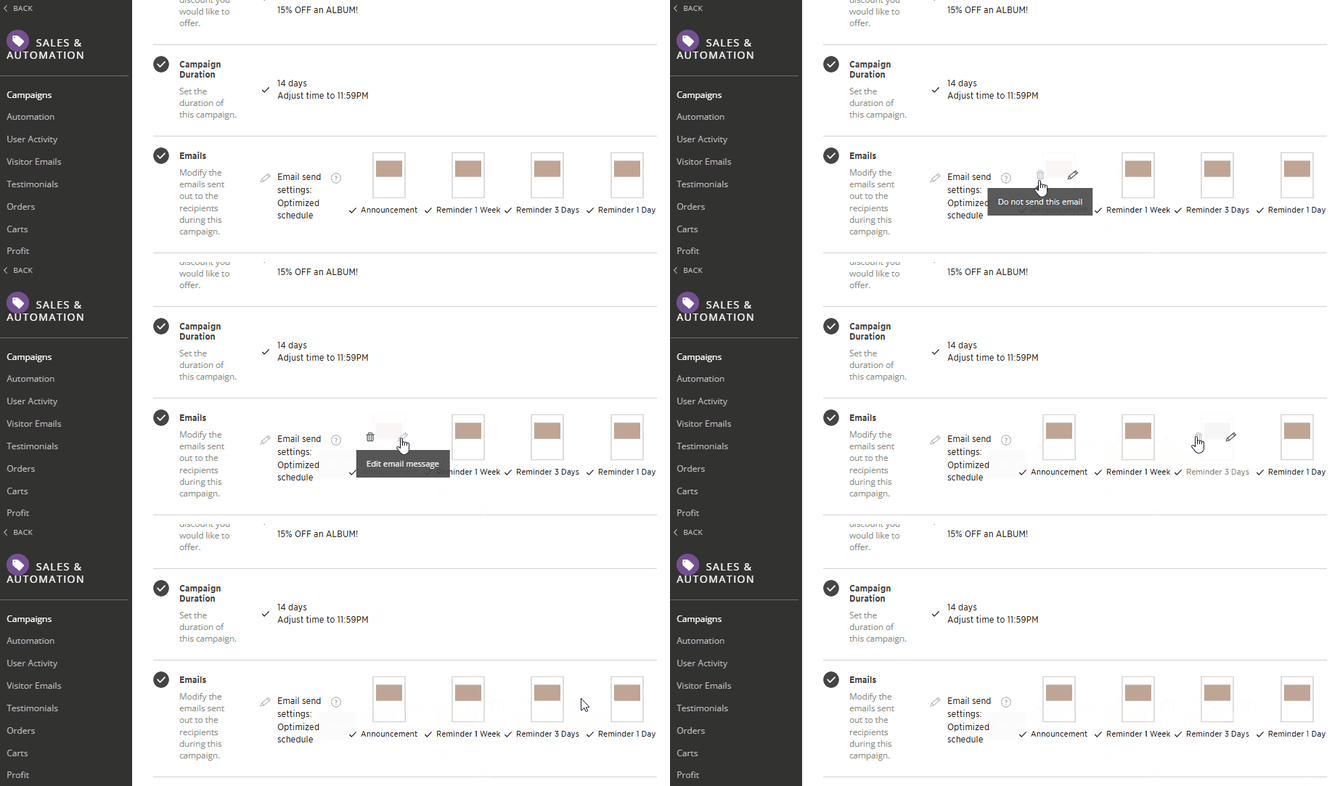
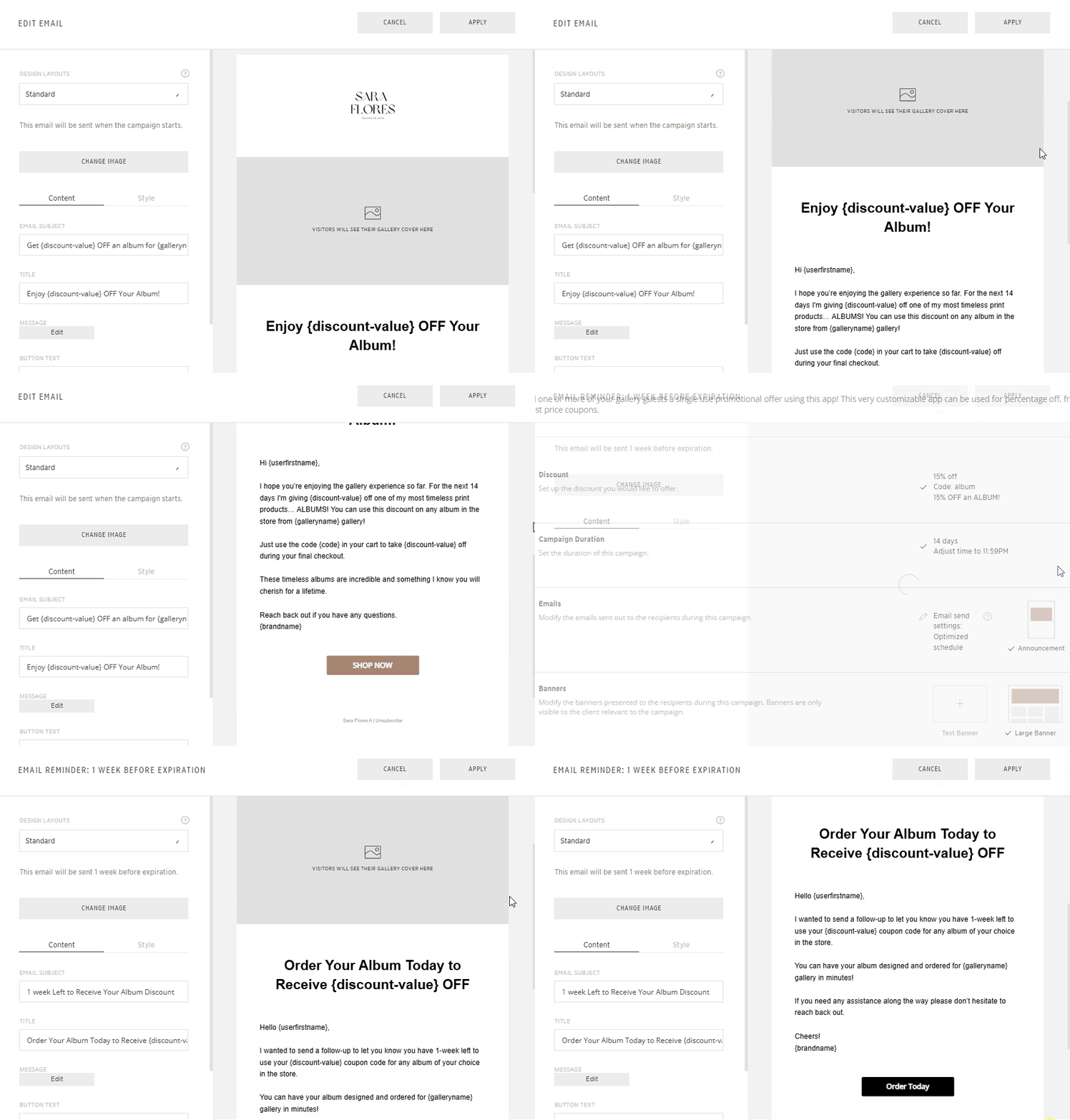
Pre-designed templates are provided, but you can modify them as needed.
You can update:
- Email cover image (use the gallery cover photo or upload a new image)
- Email subject line
- Title
- Message content
- Button text
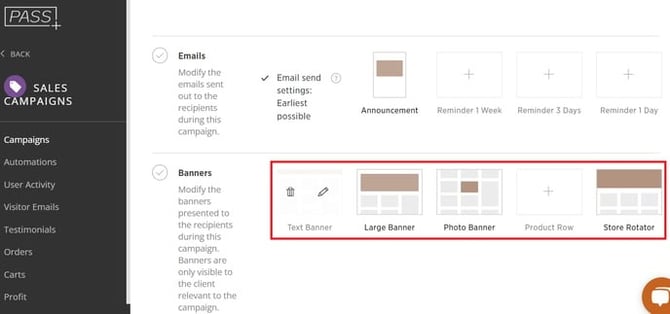
5. Customize Gallery Banners
Campaign banners will appear in the gallery and shop for eligible users.
If the campaign is assigned to a Main Client, only that client will:
- See the banners
- Receive campaign emails
- Access the discount while logged in
Each banner type includes customizable settings and album-focused promotional resources.
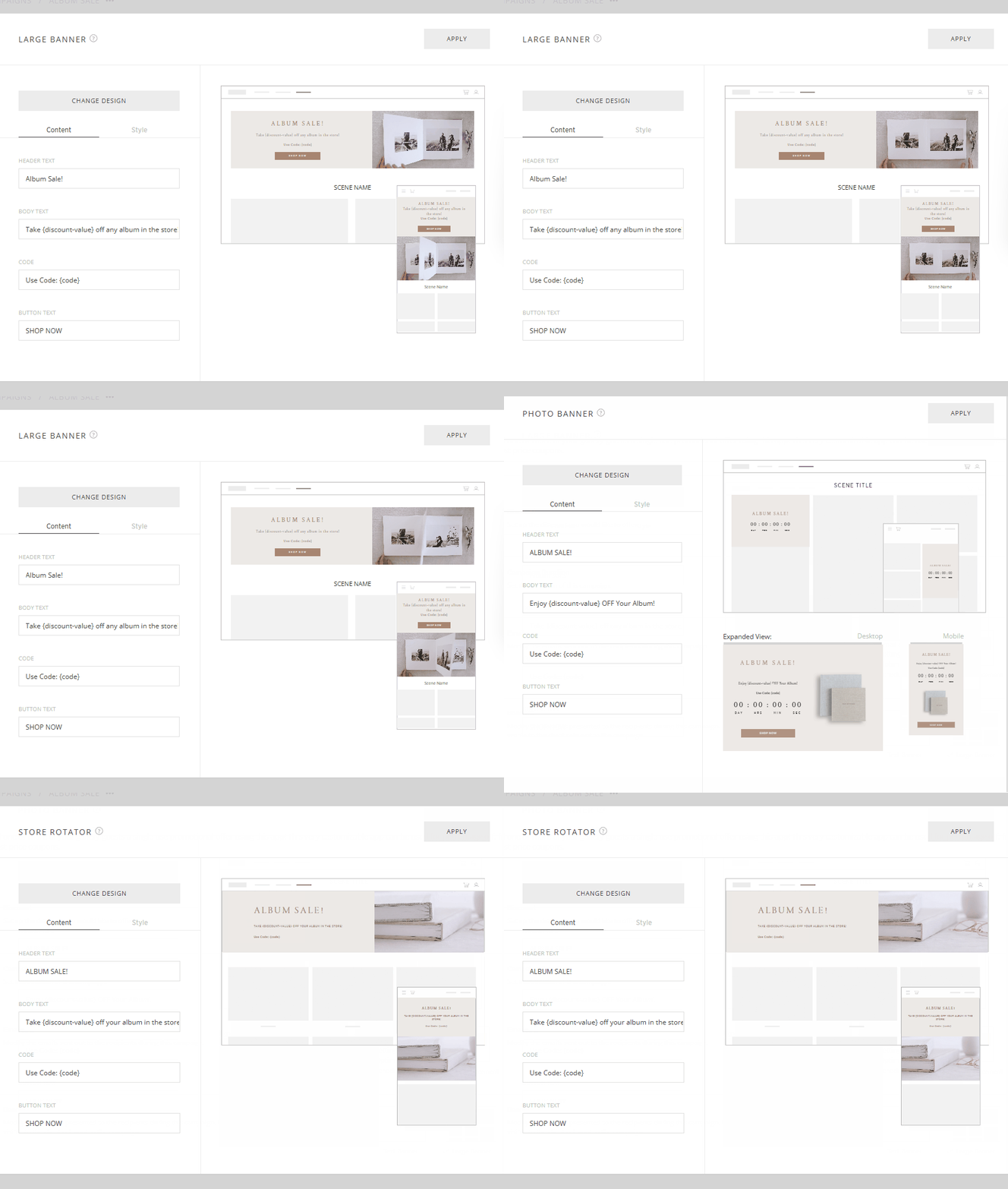
You can change:
Content:
- Header Text
- Body Text
- Code
- Button Text
Style:
- Background + Button text colors
- Body color
- Title + Button colors
After making changes, you can add an internal note and click Save.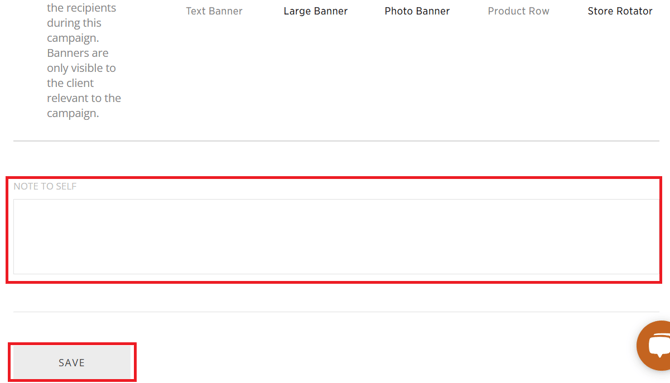
Assigning the Album Sale Campaign to Galleries
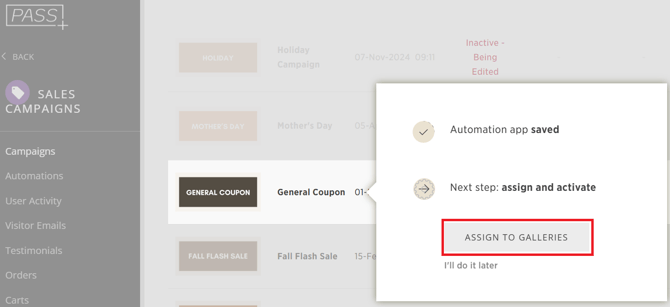
Once your campaign is created, you can assign it to galleries.
You can:
- Apply the campaign to entire galleries, or
Assign it to a specific client so only they receive the promotion.
Need Help?
If you have any questions or need additional assistance, please contact: help@passgallery.com