![Full Logo Black.png]](https://servicehub.passgallery.com/hs-fs/hubfs/Logos/Full%20Logo%20Black.png?height=40&name=Full%20Logo%20Black.png)
The Free Shipping Promotion allows you to encourage larger orders by offering free shipping once a client reaches a minimum purchase amount (e.g., $75).
This promotion works as an ongoing incentive that can be displayed in your store through banners, helping increase average order value without discounting your products directly.
Instead of reducing product pricing, this strategy shifts the value to shipping—making it ideal for maintaining your brand positioning while still motivating purchases.
When Should You Use This Promotion?
Use the Free Shipping Promotion when you want to:
- Encourage clients to spend more to unlock free shipping
- Increase average order value without discounting products
- Run a long-term, low-maintenance promotion
- Display a consistent offer in your store year-round
📌 Tip: Free shipping is especially effective when paired with strong product pricing, as it adds perceived value without reducing your margins directly.
How Free Shipping Works
When enabled:
- Clients receive free ground (economy) shipping once they meet the minimum order amount
- A coupon code (e.g., SHIPFREE) is applied at checkout
- The offer can be used once or multiple times, depending on your setup
📌 Important:
Free shipping only applies to economy/ground shipping.
If a client selects a faster shipping method, they will need to pay the full upgraded shipping cost.
📌 Important:
When offering free shipping, you (the photographer) will be charged for the shipping cost by the lab.
Understanding the 4 Campaigns
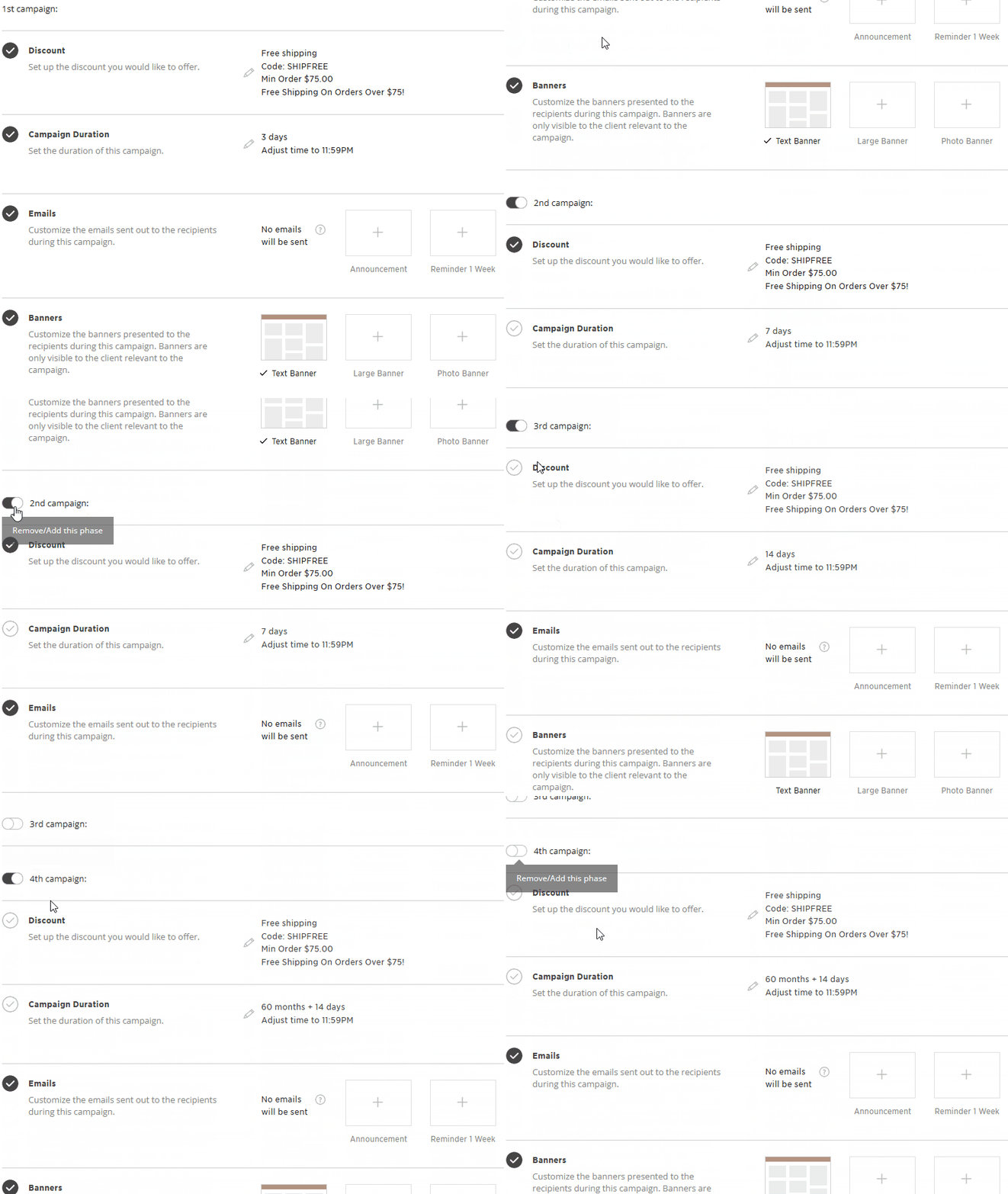
The Free Shipping Promotion includes up to 4 campaign stages, each with different durations.
This allows you to:
- Extend the visibility of your promotion over time
- Re-engage clients who didn’t complete their purchase right away
- Maintain a consistent offer without manual follow-up
Pre-set Structure:
- 1st Campaign: Short-term urgency (e.g., 3 days)
- 2nd Campaign: Extended window (e.g., 7 days)
- 3rd Campaign: Longer exposure (e.g., 14 days)
- 4th Campaign: Long-term or evergreen (e.g., 60 months + 15 days)
📌 Important:
Each campaign can be individually turned ON or OFF using the toggle on the left.
The first campaign is always active and cannot be turned off.
- Turn OFF campaigns you don’t need
- Use only 1 campaign for a simple setup
- Use multiple campaigns for a layered strategy
This flexibility allows you to control how active or minimal your promotion is.
Setting Up the Free Shipping Promotion
1. Install the automation
From the Main Dashboard, go to Sales Campaigns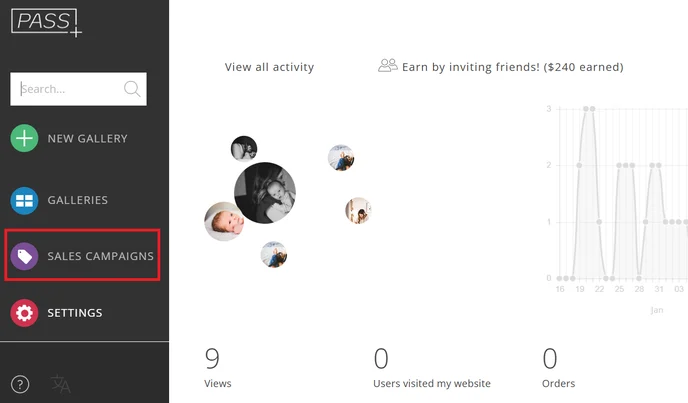
Click + More Automations.
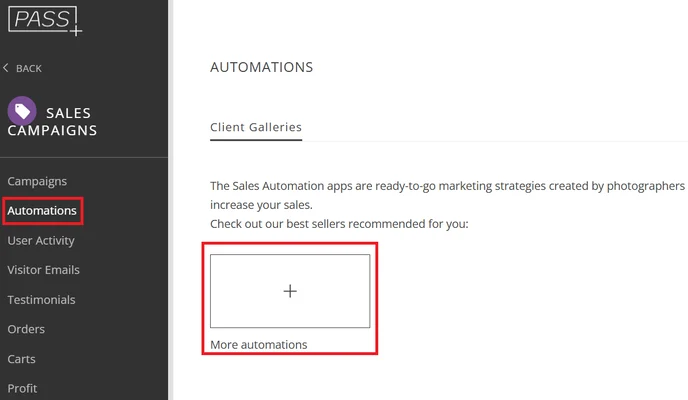
Select the Free Shipping Automation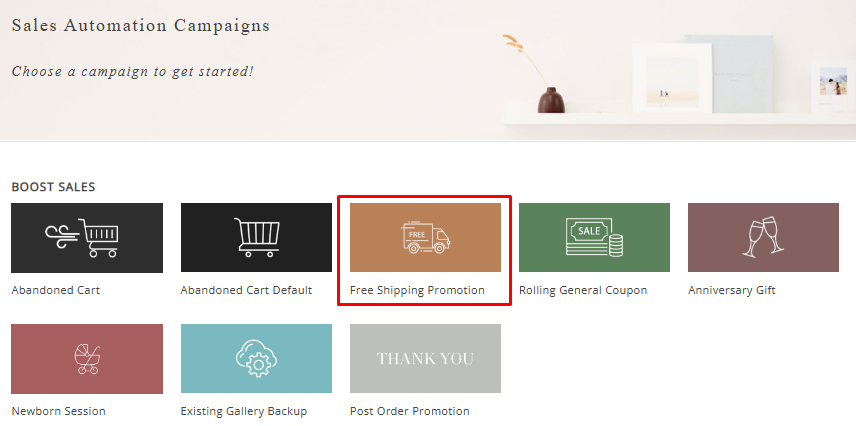
Click Install Campaign
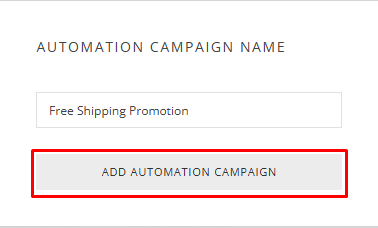
Customize the name and click Add Automation
2. Configuring the Automation
Customizing the Discount (Optional)
Click the pencil icon to edit the discount settings.

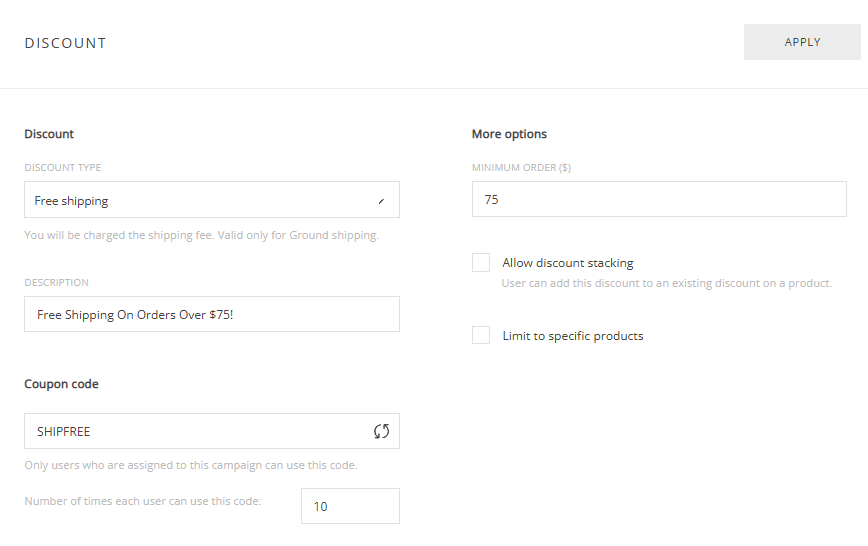
By default, the promotion is preconfigured as:
- Discount Type: Free Shipping
- Coupon Code: SHIPFREE
- Minimum Order: $75
- Description: Free Shipping On Orders Over $75
- Number of times users can use the code: 10
This preset is ready to use—you can leave it as is or customize it to fit your needs.
3. Campaign Duration
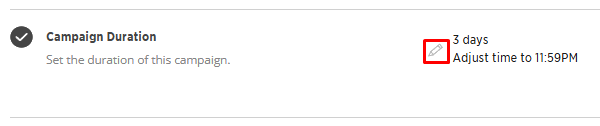
Define how long each campaign runs once triggered:
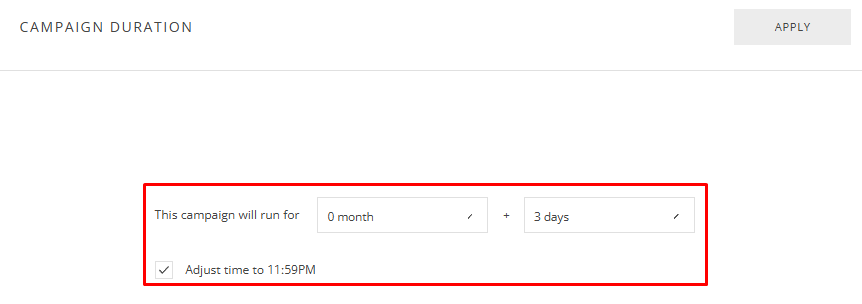
- Example: 3 days, 7 days, 14 days, etc
- Adjust end time if needed (e.g., 11:59 PM)
You can run it for a set number of months/days or until a specific time (e.g., 11:59 PM on a certain date).
4. Emails
By default:
- No emails are sent
 You can optionally add:
- Announcement emails
- Reminder emails (1 week, 3 days, 1 day)
📌 Tip:
If you prefer a passive promotion, you can leave emails disabled and rely only on banners.
5. Banners
Banners allow you to promote free shipping directly inside the gallery/store.
By default, the promotion includes a Text Banner.
You can keep this as is or add more banner types to enhance visibility.
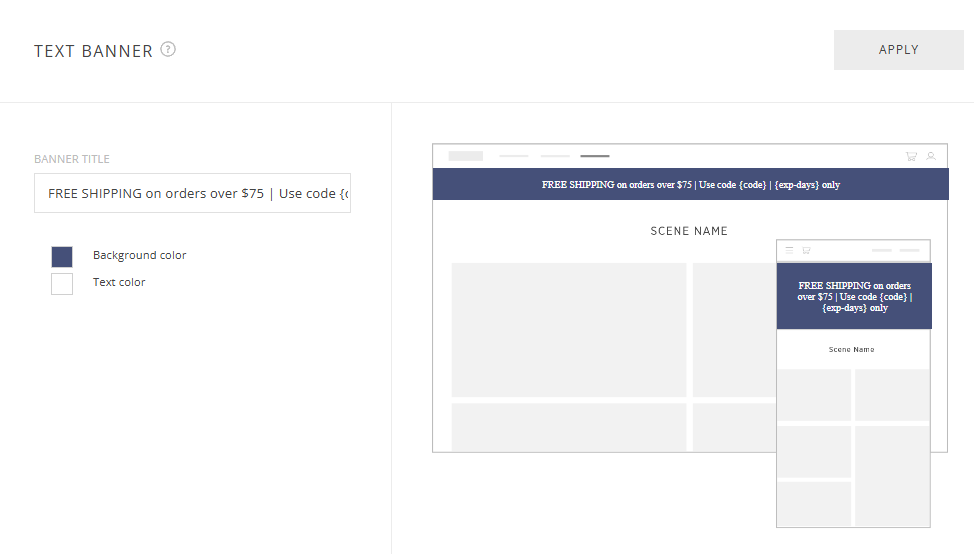
Additional available banner types:
- Large Banner
- Photo Banner
- Product Row
- Store Rotator
Click the + icon to add banners or the trash icon to remove them.
Assigning the Promotion
6. Activate the Campaign
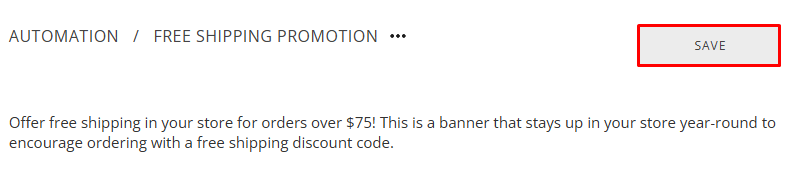
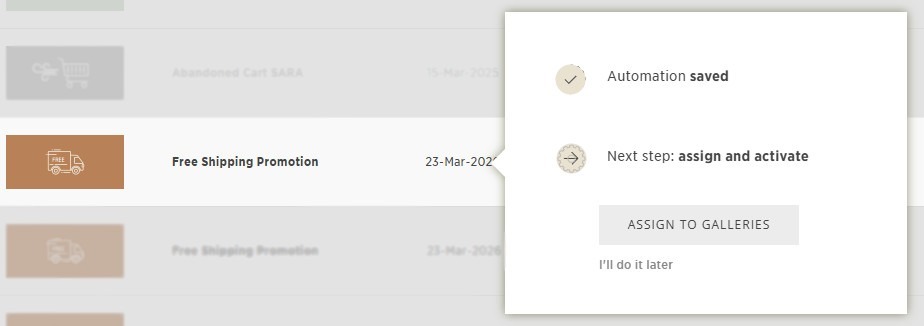
Click Save, then assign the promotion to:
- A single gallery, or
- Multiple galleries at once
Now, your Free Shipping Promotion is ready to encourage larger orders and boost revenue—without discounting your products. 🚚