![Full Logo Black.png]](https://servicehub.passgallery.com/hs-fs/hubfs/Logos/Full%20Logo%20Black.png?height=40&name=Full%20Logo%20Black.png)
The Gallery Visitor Boost Automation is designed to increase engagement and sales throughout the full lifecycle of a gallery—from pre-registration to expiration.
This automation helps you:
- Collect visitor emails before the gallery is live
- Encourage early purchases with time-limited discounts
- Re-engage visitors before the gallery expires
It is divided into three main phases: Pre-Registration, Early Bird, and Expiration.
When Should You Use This Automation?
Use the Gallery Visitor Boost Automation when you want to:
- Build anticipation before publishing a gallery
- Capture emails from potential buyers
- Offer exclusive discounts to early visitors
- Increase conversions during the first days of the gallery
- Drive last-minute sales before expiration
Setting Up the Gallery Visitor Boost Automation
Install the automation
From the Main Dashboard, go to Sales Campaigns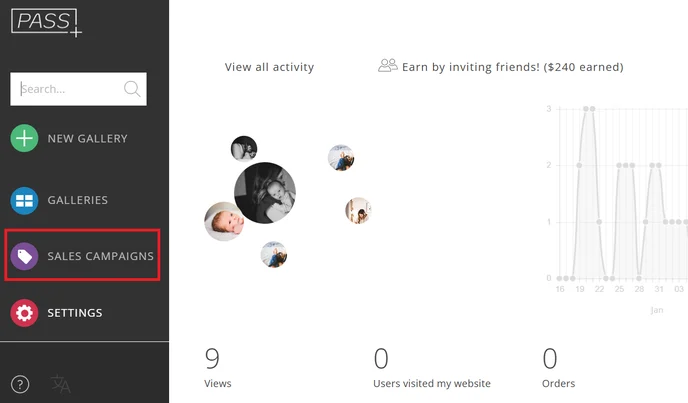
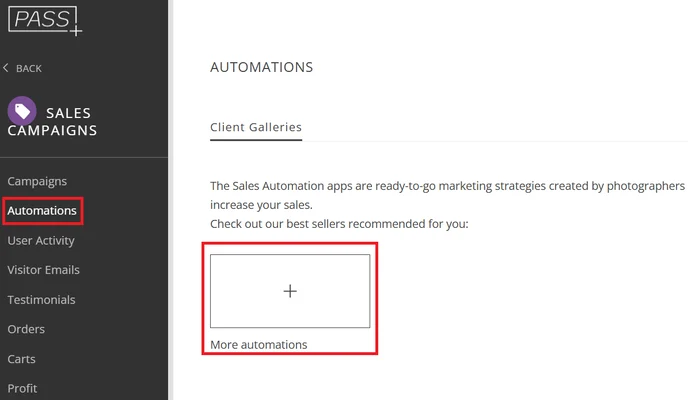
Click + More Automations.
Select the Gallery Visitor Boost Automation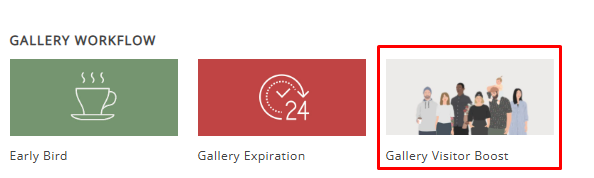
Click Install Campaign
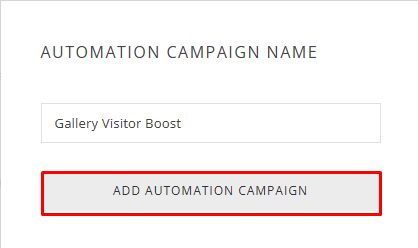
Customize the name and click Add Automation
Pre-Registration Phase
The Pre-Registration phase takes place before the gallery is published. It allows visitors to sign up and receive early access and exclusive offers.
1. Pre-Registration Invite Email
This email is sent to your main clients and includes the pre-registration link.
- Share the {preregisterlink} with clients
- Encourage them to invite friends and family
- Highlight the benefit of early access and exclusive discounts
- The announcement email is customizable. You can update: Email cover image (use the gallery cover photo or upload a new image), Email subject line, Title, Message content, Button text.
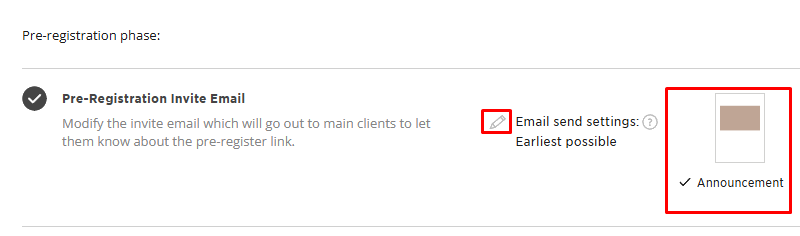 *Email Send Settings: Choose when campaign emails are sent:
- Earliest Possible → Announcement email is sent immediately
- Optimized Send Schedule → Sent at recommended times (typically 8 AM, 2 PM, or 8 PM) based on your timezone
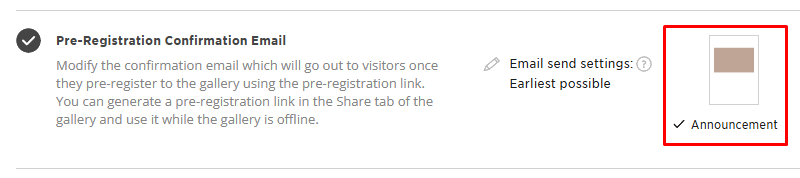
2. Pre-Registration Confirmation Email
This email is sent automatically after a visitor pre-registers.
- Confirms successful registration
- Reinforces that the gallery will be available soon
- Prepares users for early access and promotions
- The announcement email is customizable. You can update: Email cover image (use the gallery cover photo or upload a new image), Email subject line, Title, Message content, Button text.
Early Bird Phase
Set the duration of the early bird campaign. The campaign will begin once the gallery visitor has entered the gallery for the first time. This duration will apply for both Early bird pre-registered users and Early bird non pre-registered users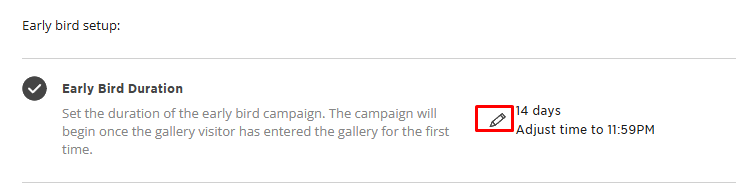
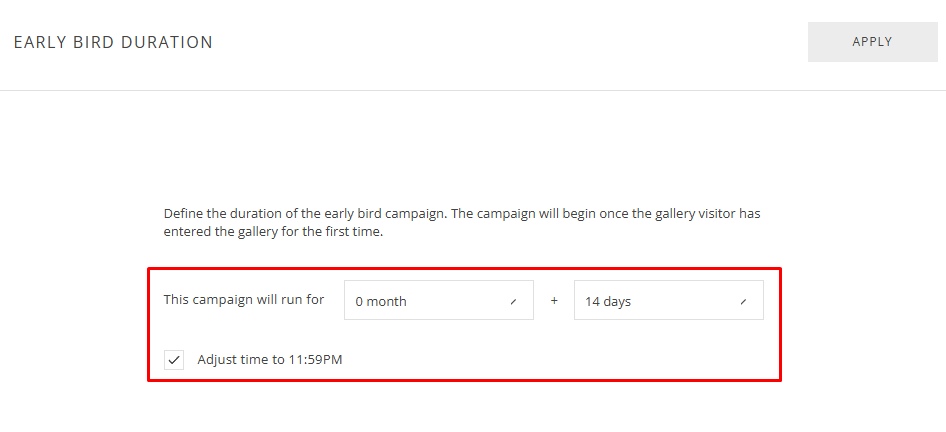
Click the pencil icon to:
- Set duration in days or months
- Adjust the end time (e.g., 11:59 PM) to maximize the final day
Click Apply to save.
3. Early bird pre-registered users
Configure the experience for visitors who pre-register before entering the gallery. These users receive exclusive discounts, emails, and in-gallery promotions.
Discount
Set the discount available during the early bird phase.
- Choose discount type and value (e.g., 20% OFF)
- Set the coupon code (e.g., EARLYWELCOME)
- Optional: minimum order, product restrictions, free shipping
📌 This discount is available to pre-registered users only.

Emails
Customize the emails sent to pre-registered users once the gallery is live.
The emails are customizable. You can update: Email cover image (use the gallery cover photo or upload a new image), Email subject line, Title, Message content, Button text.
Available emails:
- Announcement (sent when access is granted)
- Reminder – 1 week before expiration
- Reminder – 3 days before expiration
- Reminder – 1 day before expiration
Click the pencil icon to edit an email or click the trash icon to delete an email.

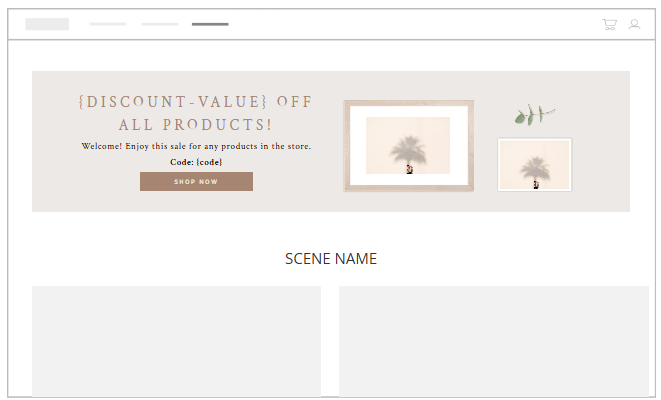
Banners
Display promotional banners inside the gallery during the campaign.
Available banner types: Text Banner, Large Banner, Photo Banner, Product Row, Store Rotator .
 Each banner allows you to customize:
Content: Header Text, Body Text, Code, Button Text
Style: Background + Button text colors, Body color, Title + Button colors
4. Early Bird non pre-registered users
Configure the experience for visitors who enter the gallery without pre-registering. These users can still receive discounts, emails, and in-gallery promotions during the early bird phase.
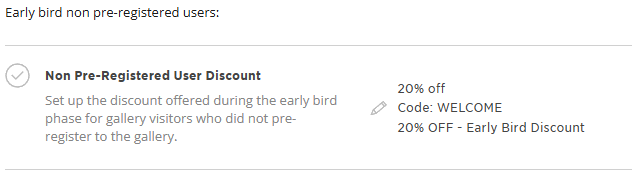
Discount
Set the discount available for non pre-registered users.
- Choose discount type and value (e.g., 20% OFF)
- Set the coupon code (e.g., WELCOME)
- Optional: minimum order, product restrictions, free shipping
Emails
Customize the emails sent to visitors who did not pre-register.
The emails are customizable. You can update: Email cover image (use the gallery cover photo or upload a new image), Email subject line, Title, Message content, Button text.
Available emails:
- Announcement (sent when the visitor enters the gallery)
- Reminder – 1 week before expiration
- Reminder – 3 days before expiration
- Reminder – 1 day before expiration
Click the pencil icon to edit an email or click the trash icon to delete an email.
Banners
Display promotional banners inside the gallery during the campaign.
Available banner types: Text Banner, Large Banner, Photo Banner, Product Row, Store Rotator.

Each banner allows you to customize:
Content: Header Text, Body Text, Code, Button Text
Style: Background + Button text colors, Body color, Title + Button colors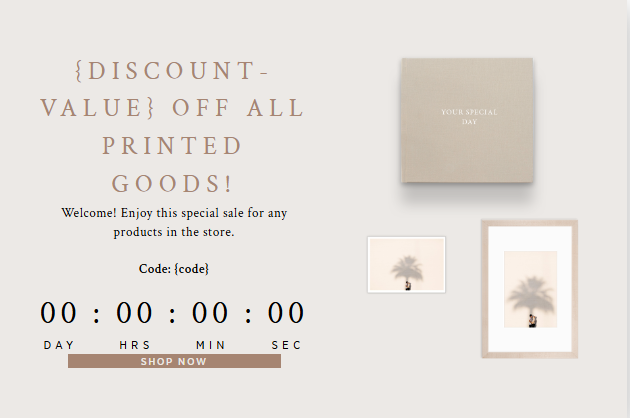
User access approval
Define how users are approved to access the gallery.
You can choose between:
- Automatic approval – Users are approved automatically when the gallery is published
- Manual approval – The Main Client approves pre-registered users before they can access the gallery


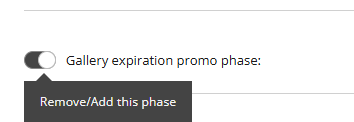
5. Gallery expiration promo phase
Configure the final promotion that runs before the gallery expires. This phase is designed to create urgency and encourage last-minute purchases.
📌 Note: This phase can be turned on or off at any time, allowing you to decide whether to run an expiration promotion for a specific gallery.
Gallery expiration
Set how long the gallery will remain available.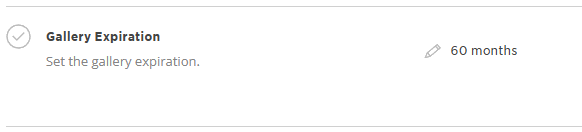
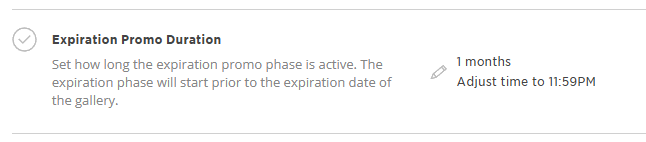
Expiration promo duration
Define how long the expiration promotion will be active before the gallery expires.
This determines:
- When the promotion starts before expiration
- How long the discount is available
Click the pencil icon to:
- Set duration in days or months
- Adjust the end time (e.g., 11:59 PM) to maximize the final day
Click Apply to save.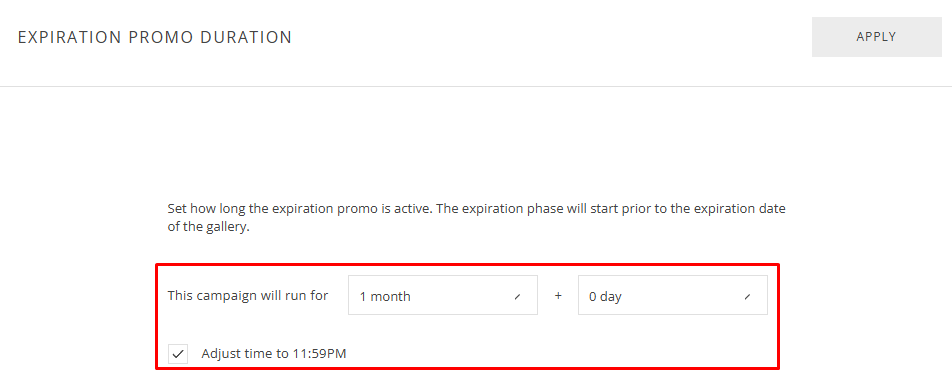
Discount
Set the discount offered to all gallery visitors during the expiration phase.
- Choose discount type and value (e.g., 30% OFF)
- Set the coupon code (e.g., LASTCHANCE)
- Optional: minimum order, product restrictions, free shipping

Emails
Customize the emails sent to all gallery visitors during the expiration phase.
The emails are customizable. You can update: Email cover image (use the gallery cover photo or upload a new image), Email subject line, Title, Message content, Button text.
Available emails:
- Announcement (sent at the start of the expiration phase)
- Reminder – 1 week before expiration
- Reminder – 3 days before expiration
- Reminder – 1 day before expiration
Click the pencil icon to edit an email or click the trash icon to delete an email.
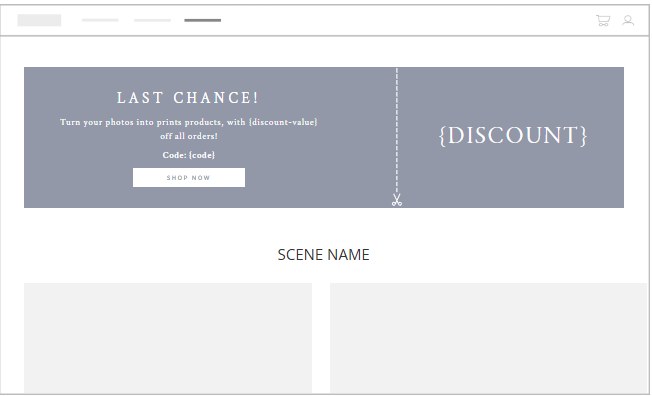
Banners
Display promotional banners inside the gallery while the expiration campaign is active.
Available banner types: Text Banner, Large Banner, Photo Banner, Product Row, Store Rotator.

Each banner allows you to customize:
Content: Header Text, Body Text, Code, Button Text
Style: Background + Button text colors, Body color, Title + Button colors
Assigning the Automation
Activate the Campaign
Click Save, then assign the promotion to:
- A single gallery, or
- Multiple galleries at once

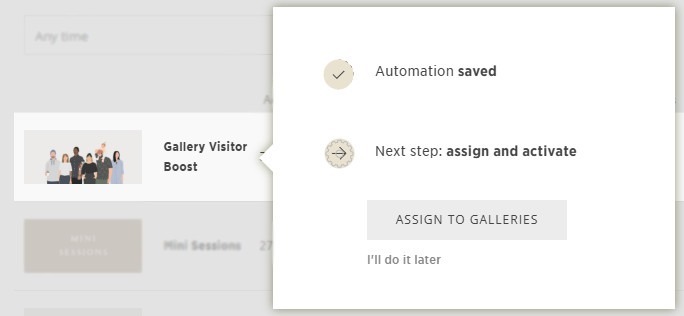
Now, your Gallery Visitor Boost Automation is ready to engage visitors at every stage—from pre-registration to expiration—and help you maximize conversions and sales opportunities. 👥
Need Help?
If you have any questions or need additional assistance, please contact: help@passgallery.com