![Full Logo Black.png]](https://servicehub.passgallery.com/hs-fs/hubfs/Logos/Full%20Logo%20Black.png?height=40&name=Full%20Logo%20Black.png)
The Mini Session Automation helps you promote limited-time mini sessions directly from your gallery using built-in emails and banners. This allows you to reach a wide audience and drive bookings efficiently.
You can choose how clients purchase their sessions:
- Through the gallery store using a custom product
- Through an external landing page using a redirect link
When Should You Use This Automation?
Use the Mini Session Automation when you want to:
- Promote seasonal or limited-time mini sessions
- Reach gallery visitors with announcements and reminders
- Offer a simple booking experience directly from your gallery
- Drive traffic to an external booking page
Setting up the Mini Session Automation
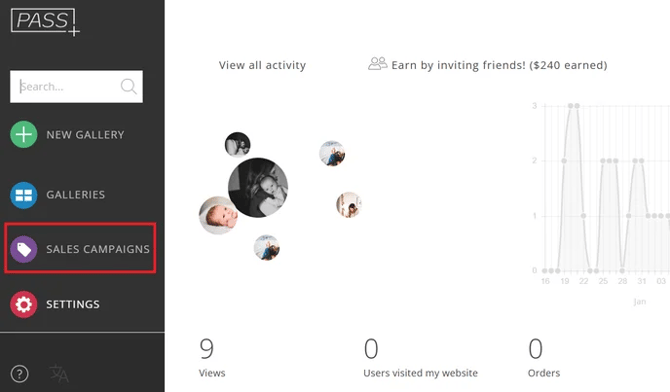
Step 1: From your Main Dashboard, go to Sales & Automations
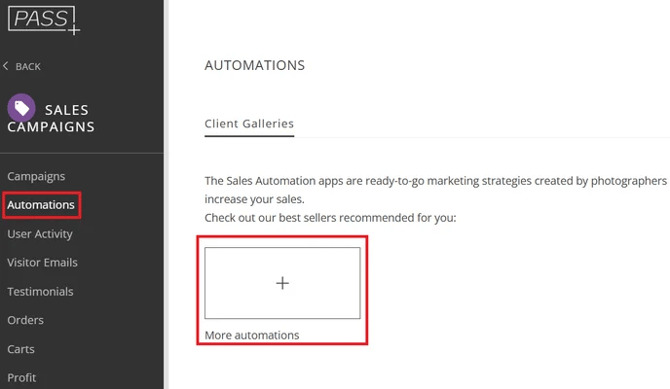
Step 2: Under the Automations tab, click + More Automations
Step 3: Select the Mini Session Automation
.png?width=438&height=176&name=unnamed%20(1).png)
Step 4: Click Install Campaign

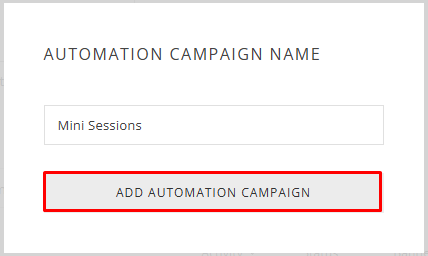
Step 5: Customize the name and click Add Automation
Configuring the Automation
-
Mini Session Custom Product
Toggle to add a Mini Session Custom Product, and click to edit your product
.png?width=512&height=227&name=unnamed%20(2).png)
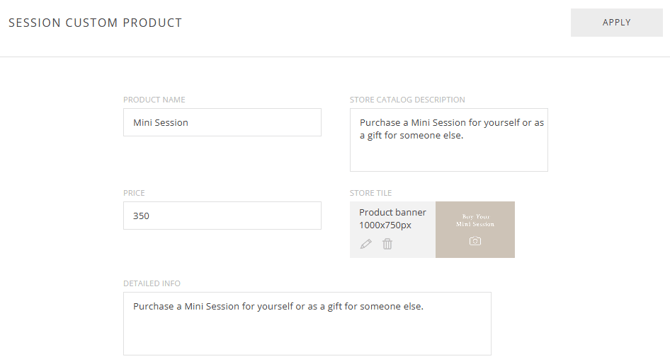
Add the product name, description, a tile to display in the storefront, and price. This information will be displayed in the gallery store.
📌Important: This item is considered "digital delivery" for tax purposes. This may have implications if you are selling to or in a region where tax is not collected on digitally delivered items. If you require tax to be collected on this item you will need to create a "Custom Tax" template. Always consult your tax consultant for tax inquiries.
2. Purchase Confirmation Email
Customize the email sent after a client purchases the session.
- Adjust the trigger timing if needed:
- Earliest Possible → Announcement email is sent immediately
- Optimized Send Schedule → Sent at recommended times (typically 8 AM, 2 PM, or 8 PM) based on your timezone
- Include a booking or scheduling link if required
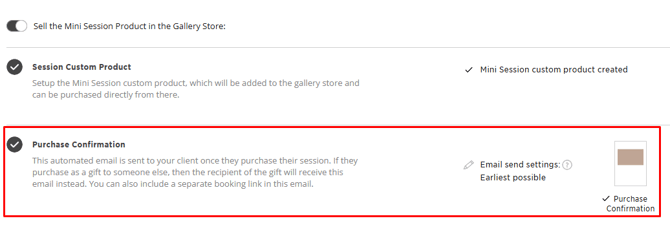
3. Discount
Offer a discount for your Mini Session product.
.png?width=512&height=149&name=unnamed%20(3).png)
- Choose the discount type (percentage or fixed amount)
- Set the description displayed when the customer adds it to their cart
- Define a minimum order requirement
- Set the coupon code and usage limits
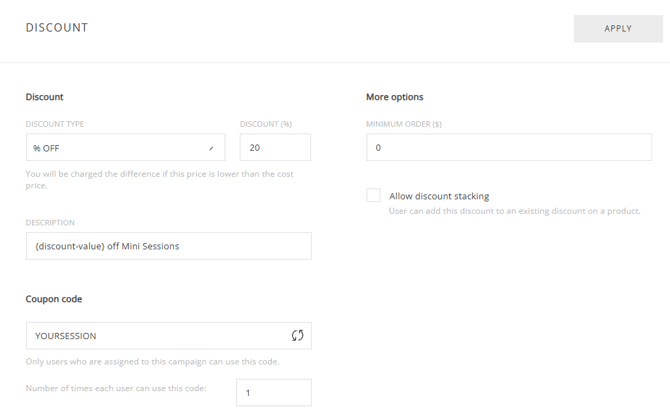
4. Campaign Duration
Next, specify the duration of the campaign. During this time, the custom product for Mini Sessions, along with its associated emails and banners, will be visible. Upon expiration, the custom product will be automatically removed from the gallery.
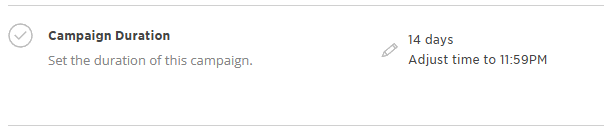
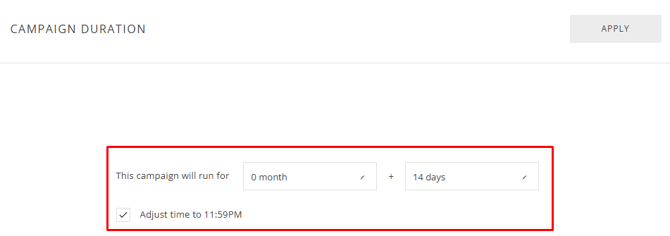
5. Redirect to a Landing Page
If you do not want your clients to purchase the Mini Session through the gallery, and instead redirect them to a landing page to purchase and book their session, you can turn off the Custom product.
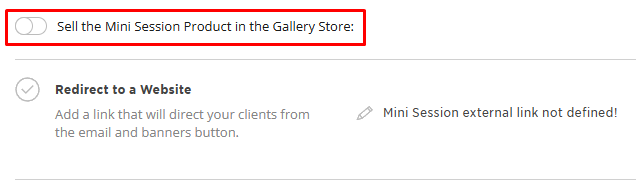
Then add an external link to redirect your client to a different landing page. This landing page will be linked from the Email & Banners button.
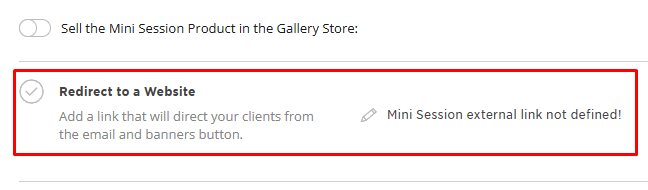
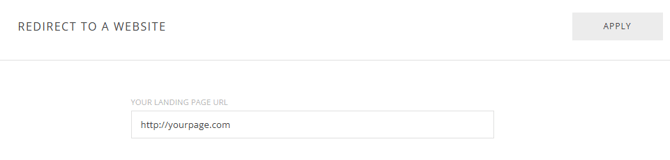
6. Emails
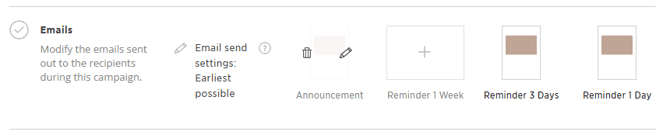
You can now modify the email portion of your campaign. Adjust the email send time if you would like to delay the announcement email and/or reminder emails. This will not delay the start of your campaign, only delay the email send time.
- Earliest Possible → Announcement email is sent immediately
- Optimized Send Schedule → Sent at recommended times (typically 8 AM, 2 PM, or 8 PM) based on your timezone

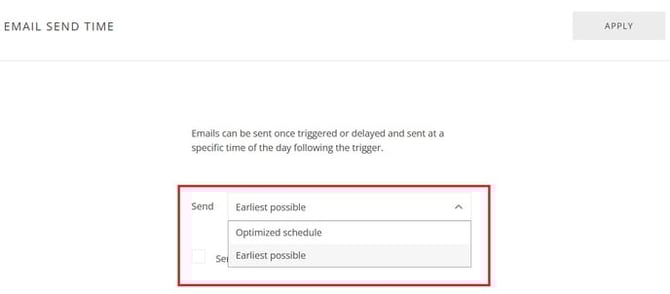
Now you can edit or delete any of the emails.
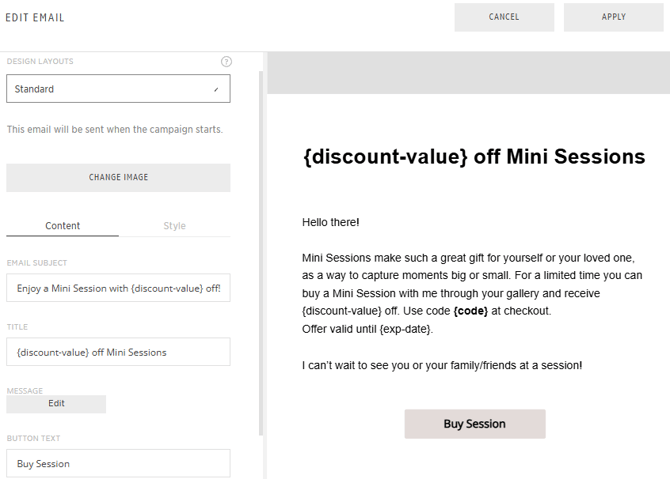
You can update:
- Email cover image (use the gallery cover photo or upload a new image)
- Email subject line
- Title
- Message content
- Button text
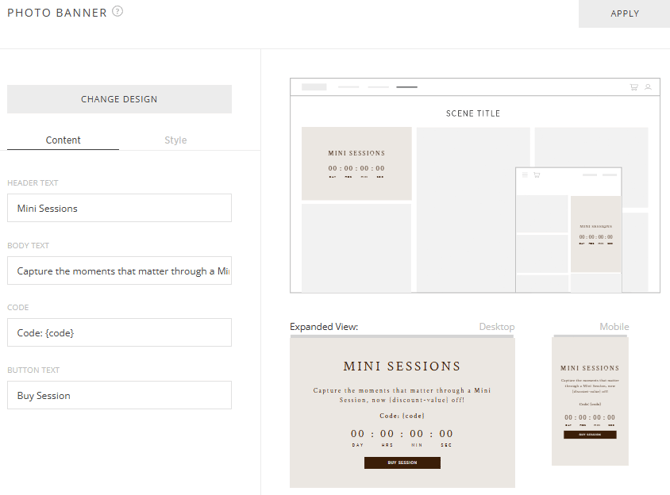
7. Banners
Display promotional banners inside the gallery.
Available banner types:
- Text Banner
- Large Banner
- Photo Banner
- Product Row
- Store Rotator
Click the + icon to add banners or the trash icon to remove them.
.png?width=512&height=92&name=unnamed%20(4).png)
Each banner allows you to customize:
Content: Header Text, Body Text, Code, Button Text
Style: Background + Button text colors, Body color, Title + Button colors
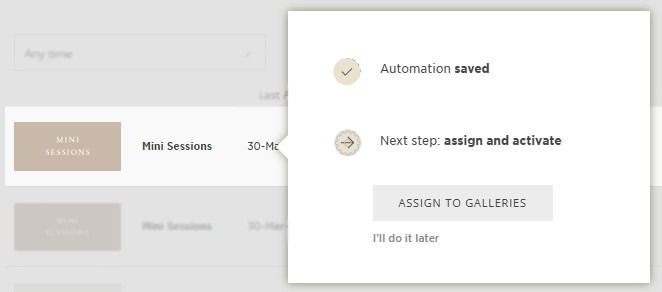
Assigning the Automation to Galleries
Click Save, then assign the promotion to:
- A single gallery, or
- Multiple galleries at once

Now, your Mini Session Automation is ready to promote your sessions, engage clients, and drive bookings 🚀
Need Help?
If you have any questions or need additional assistance, please contact: help@passgallery.com