![Full Logo Black.png]](https://servicehub.passgallery.com/hs-fs/hubfs/Logos/Full%20Logo%20Black.png?height=40&name=Full%20Logo%20Black.png)
The Newborn Session Automation is designed to reconnect clients with one of their most meaningful milestones: their baby’s first years. By sending birthday-themed promotions tied to the original newborn session, it encourages families to revisit their gallery, relive those memories, and celebrate each milestone with a special offer.
To simplify setup, the automation includes pre-set email and banner templates with birthday-focused messaging. These can be used as-is or easily customized to match your brand.
Adding the Newborn Session Automation
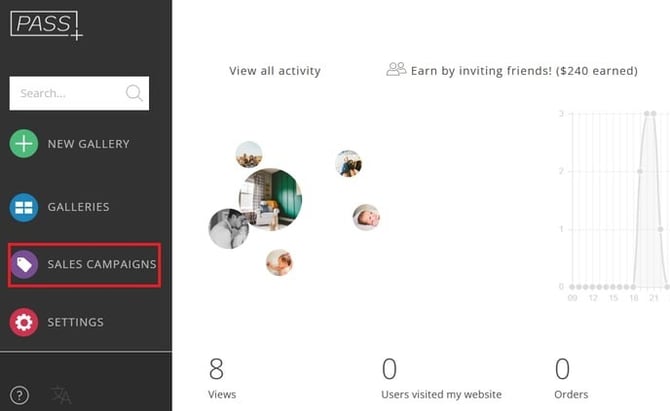
Step 1: From your Main Dashboard, go to Sales Campaigns.
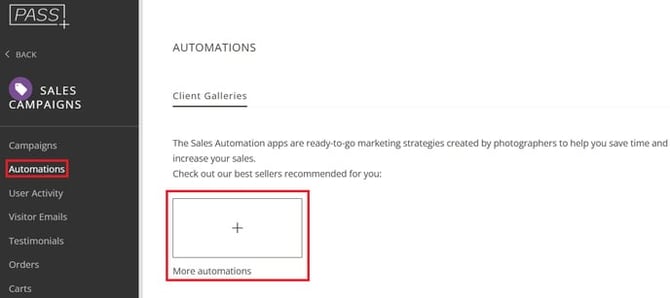
Step 2: Select Automations and click + More Automations.
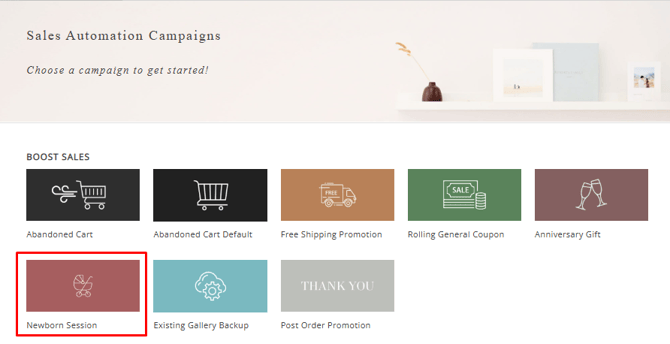
Step 3: Select Newborn Session Automation
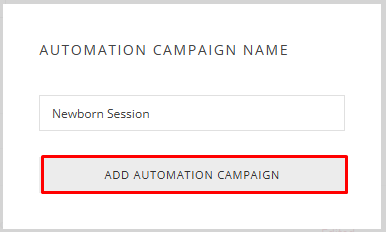
Step 4: Click Install Campaign, name your automation, and click Add Automation App.

Customizing Your Campaign
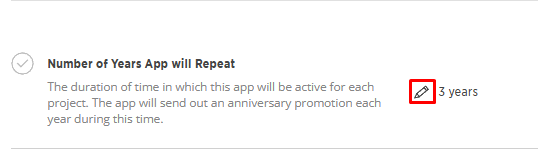
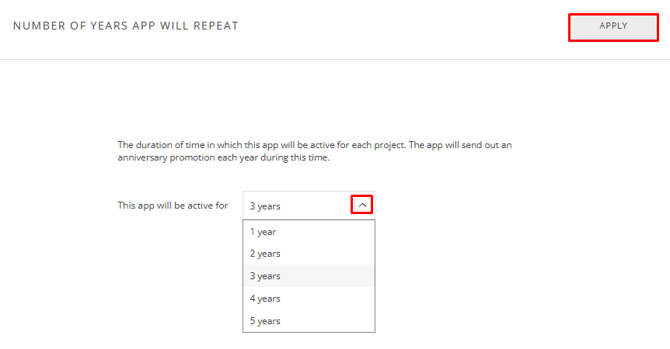
Repeat Duration
Click the pencil icon to set how long the automation will run.
- Choose between 1 to 5 years
- The campaign will repeat once per year during this period
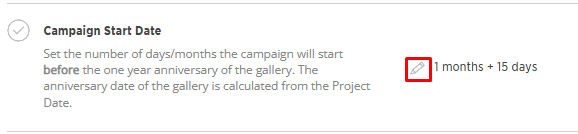
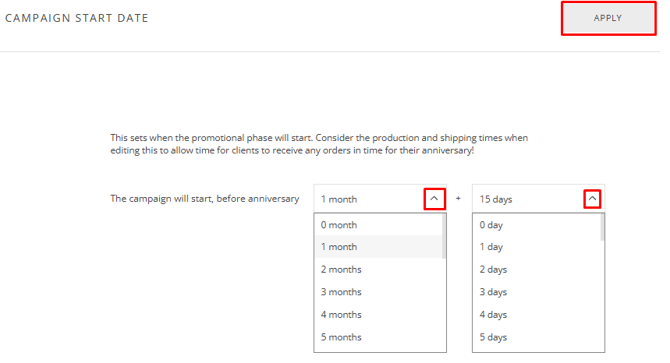
Campaign Start Date
Set when the campaign begins, before the gallery’s anniversary.
- Allows clients time to revisit their gallery and order ahead of the milestone (e.g., baby’s birthday)
- The anniversary is calculated based on the Project Date
Click Apply to save changes.
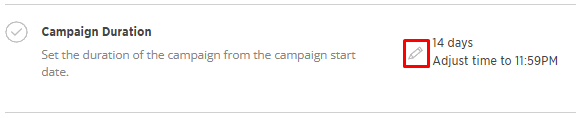
Campaign Duration
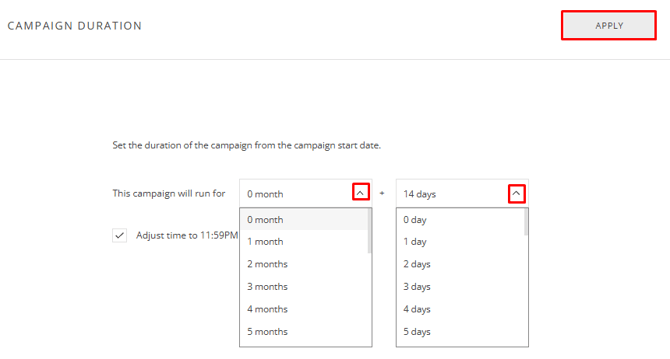
Click the pencil icon to define how long the promotion remains active.
- Set duration in days or months
- Adjust the end time (e.g., 11:59 PM) to maximize the final day
Click Apply to save changes.
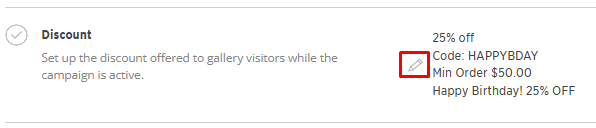
Discount Settings
Click the pencil icon to edit: discount, code, usage limits, shipping, minimum order, stacking, and product restrictions. Click Apply to save.
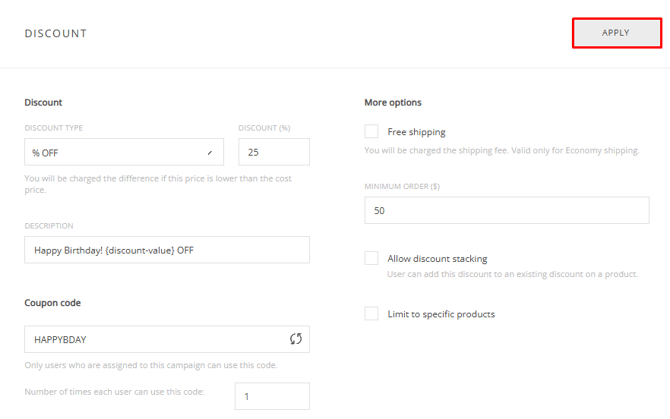
Important: Do not modify the dynamic text —it autofills campaign details.
Customizing Your Gallery & Emails
Banners
Campaign banners appear in the gallery and store for eligible users.
If the campaign is assigned only to the Main Client, only that client will:
- See the banners
- Receive campaign emails
- Access the discount while logged in
Click the pencil icon to edit or the trash icon to remove any banner.

This automation includes pre-set Photo Banner and Store Rotator templates, ready to use or customize.
You can also add additional banner types:
- Text Banner
- Large Banner
- Product Row
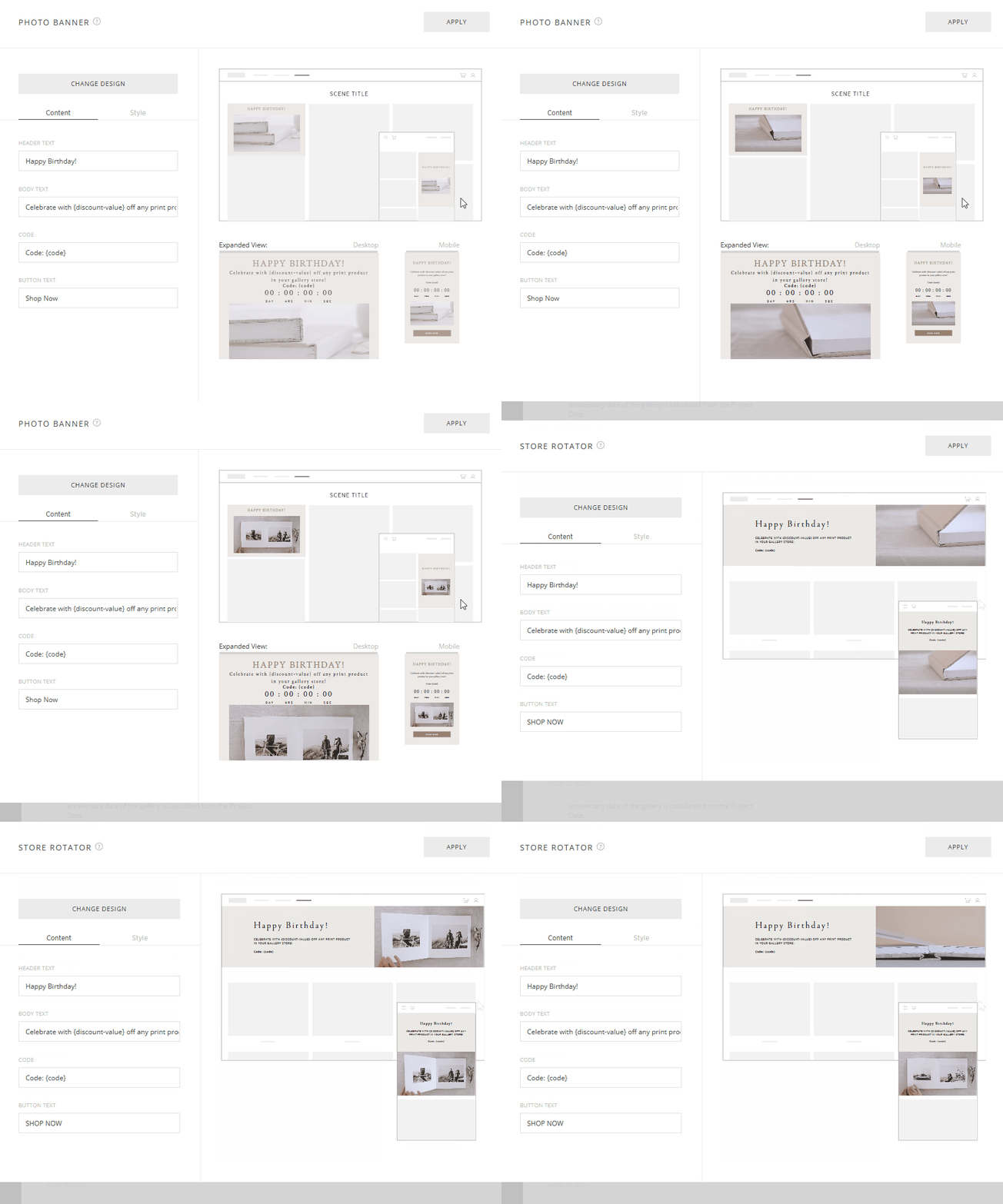
You can customize:
Content:
- Header Text
- Body Text
- Code
- Button Text
Style:
- Background + Button text colors
- Body color
- Title + Button colors
Emails
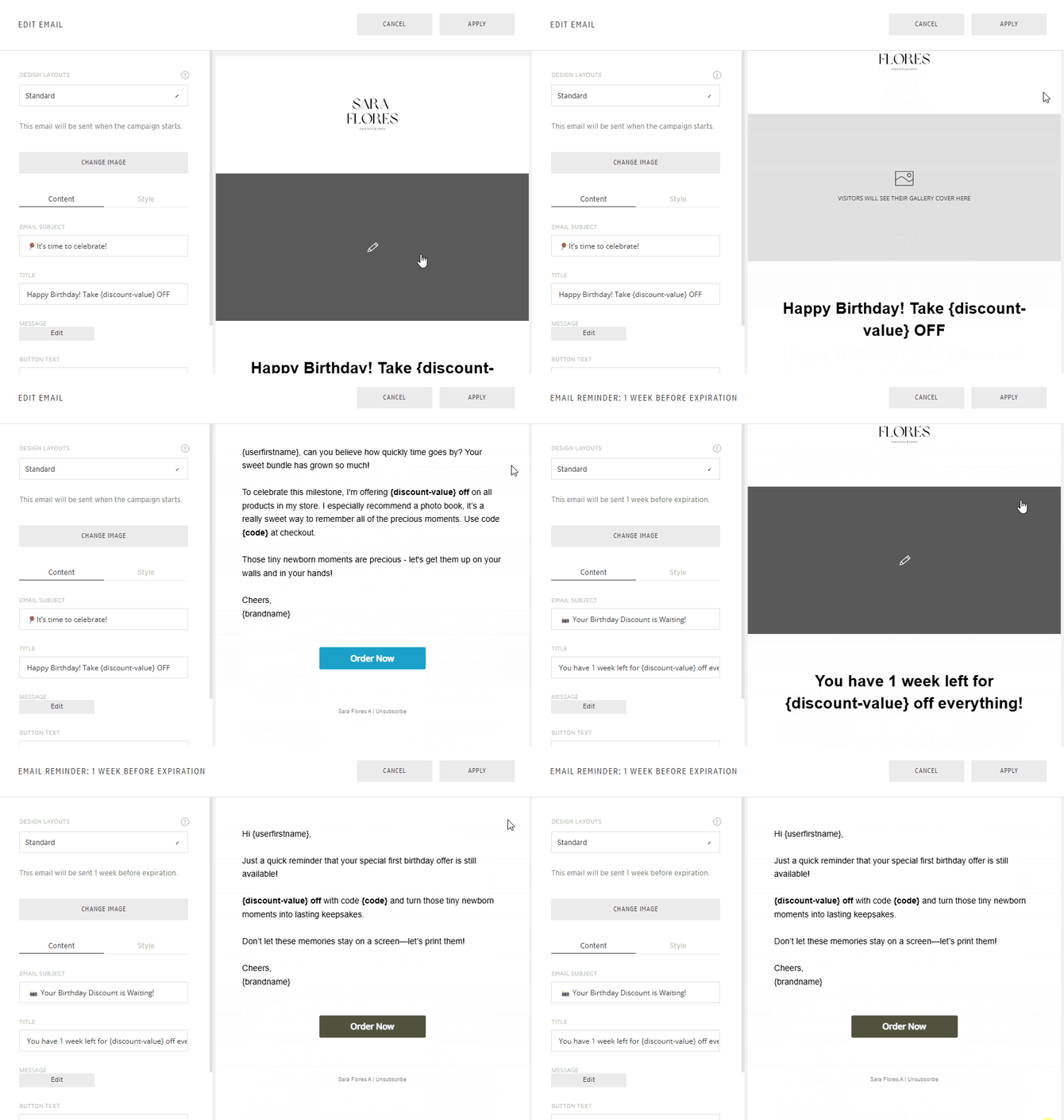
You can customize or remove the emails sent to your clients.
- Click the pencil icon to edit an email
- Click the trash icon to delete an email
Pro Tip: Don’t want to send emails? Delete all of them using the trash icon.

Pre-designed templates are provided, but you can modify them as needed.
You can update:
- Email cover image (use the gallery cover photo or upload a new image)
- Email subject line
- Title
- Message content
- Button text
Email Send Timing
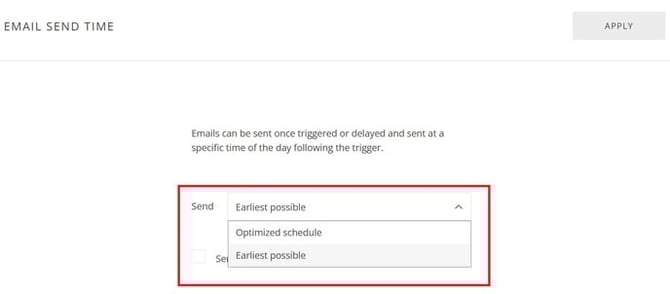
Choose when campaign emails are sent:
- Earliest Possible → Announcement email is sent immediately
- Optimized Send Schedule → Sent at recommended times (typically 8 AM, 2 PM, or 8 PM) based on your timezone

Sending the Newborn Automation to Gallery Guests
To extend the campaign beyond the main client:
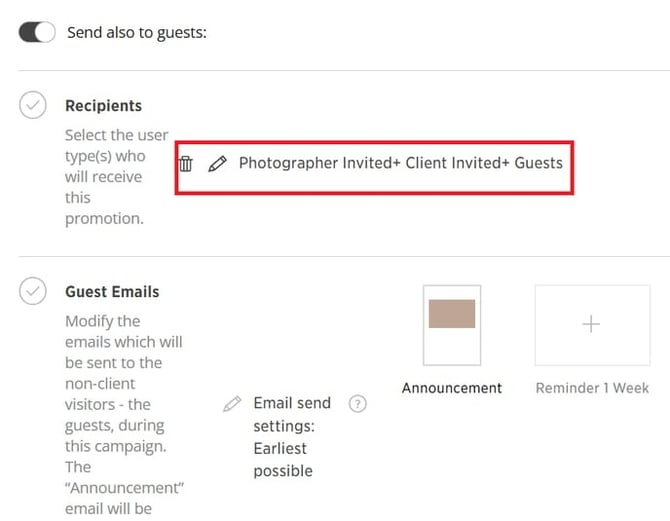
Step 1: Toggle the Send to Guests option on or off.
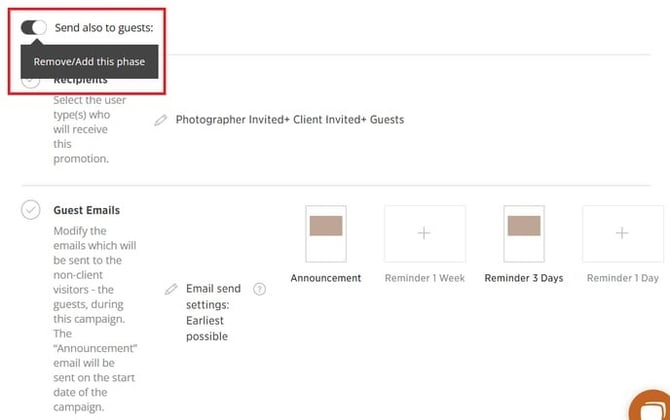
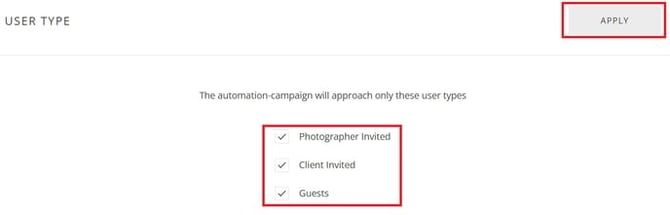
Step 2: Click the pencil icon to select the user types who should receive the campaign.
Step 3: Click Apply to save your selection.
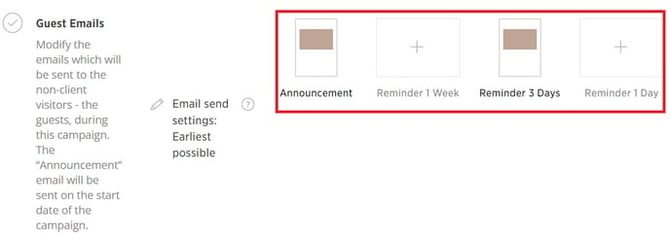
Step 4: Customize the emails and reminders for these additional users.
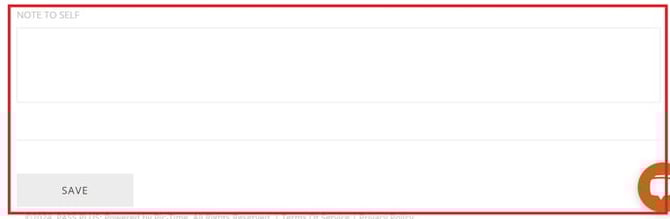
Step 5: Add any internal notes (optional) for future reference and click Save.
Assigning the Automation to Galleries
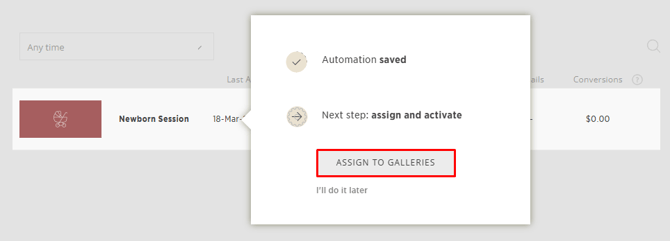
Step 1: Once your setup is complete, click Save.

Step 2: Assign the automation to a specific gallery or to multiple galleries at once.
Now, your Newborn Session Automation is ready to re-engage clients, celebrate milestones, and boost sales! 🎈
Need Help?
If you have any questions or need additional assistance, please contact: help@passgallery.com