![Full Logo Black.png]](https://servicehub.passgallery.com/hs-fs/hubfs/Logos/Full%20Logo%20Black.png?height=40&name=Full%20Logo%20Black.png)
The Rolling General Coupon allows you to send up to 4 promotional offers in sequence, creating a timed sales flow that automatically transitions from one discount to the next.
Each phase of the campaign can feature a different discount, duration, email schedule, and banners, making it a powerful tool for running structured promotions without manual follow-up.
Instead of relying on a single offer, this campaign helps you guide clients through multiple incentives over time—maximizing engagement and conversions.
When Should You Use This Automation?
Use the Rolling General Coupon when you want to:
- Run a multi-stage promotion with different offers
- Re-engage clients over time with evolving incentives
- Promote different product types (e.g., prints, canvas, albums)
- Create urgency through a structured sales timeline
- Automate follow-ups without manually launching new campaigns
📌 Tip: This campaign works especially well for seasonal sales, gallery launches, or limited-time promotions where you want to maintain momentum.
How the Rolling Automation Works
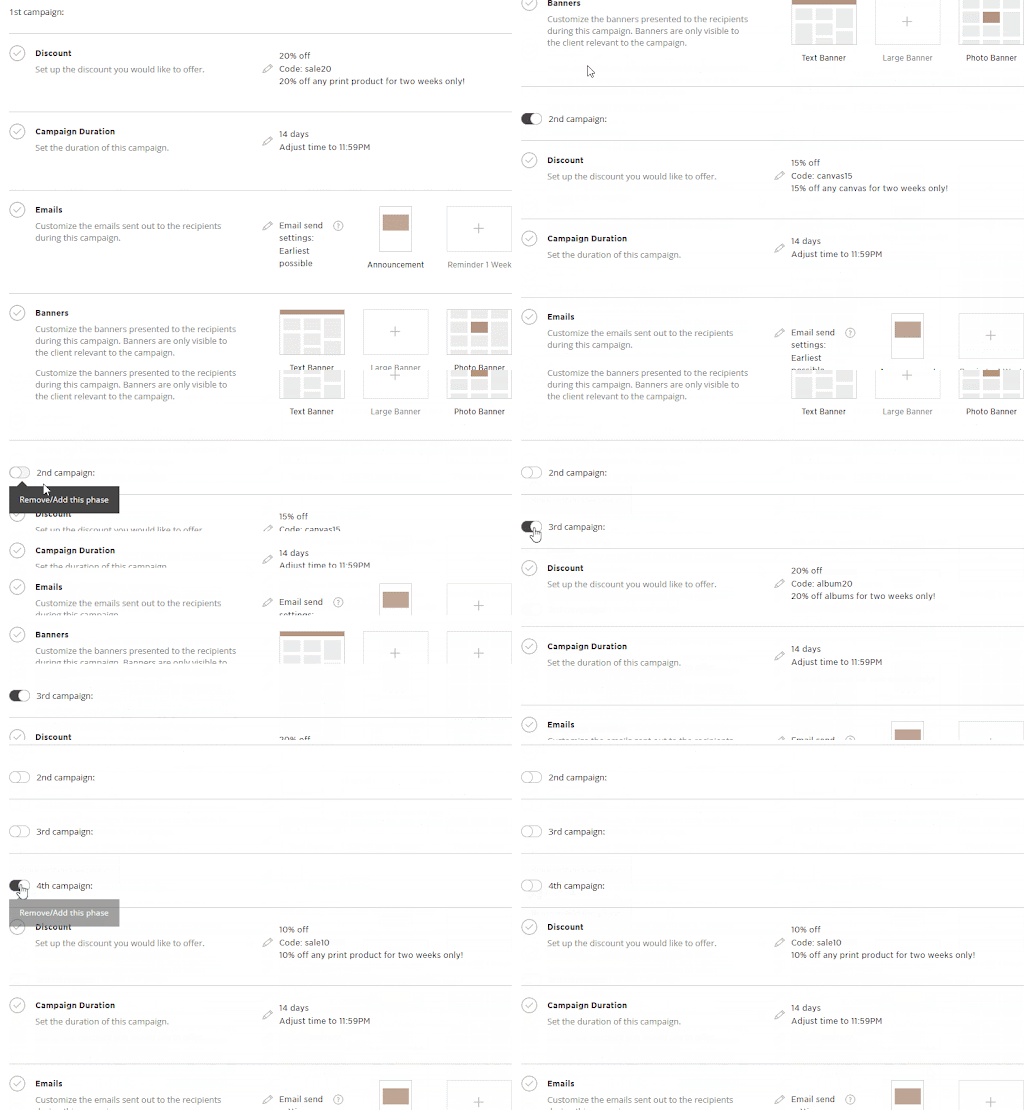
The Rolling General Coupon runs as a sequence of up to 4 campaigns, executed one after another.
Pre-set Structure:
- 1st Campaign: 20% off prints (14 days)
- 2nd Campaign: 15% off canvas (14 days)
- 3rd Campaign: 20% off albums (14 days)
- 4th Campaign: 10% off all products (14 days)
📌 Important:
Each campaign can be individually turned ON or OFF using the toggle on the left.
The first campaign is always active and cannot be turned off.
Setting Up the Rolling Automation
1. Install the automation
From the Main Dashboard, go to Sales Campaigns
Click + More Automations.

Select the Free Shipping Automation
Click Install Campaign
Customize the name and click Add Automation

2. Configuring the Automation
Customizing the Discount (Optional)
Click the pencil icon to edit the discount settings.

You can customize:
- Discount type (percentage, dollar amount, etc.)
- Coupon code (e.g., SALE20, CANVAS15)
- Description (displayed in the client’s cart)
- Usage limits (how many times a client can use the code)
- Advanced Options
- Allow discount stacking with other promotions
- Limit the coupon to specific products

3. Campaign Duration
Define how long each campaign runs once triggered:
- Example: 3 days, 7 days, 14 days, etc
- Adjust end time if needed (e.g., 11:59 PM)

You can run it for a set number of months/days or until a specific time (e.g., 11:59 PM on a certain date).

4. Emails
Customize the emails sent during each campaign. By default, this automation only includes Announcement emails but you can add reminders if you wish.
- Click the pencil icon to edit an email
- Click the trash icon to delete an email

Pre-designed templates are provided, but you can modify them as needed.
You can update:
- Email cover image (use the gallery cover photo or upload a new image)
- Email subject line
- Title
- Message content
- Button text
Email Send Timing
Choose when campaign emails are sent:
- Earliest Possible → Announcement email is sent immediately
- Optimized Send Schedule → Sent at recommended times (typically 8 AM, 2 PM, or 8 PM) based on your timezone


5. Banners
Banners promote your offer directly inside the gallery/store.

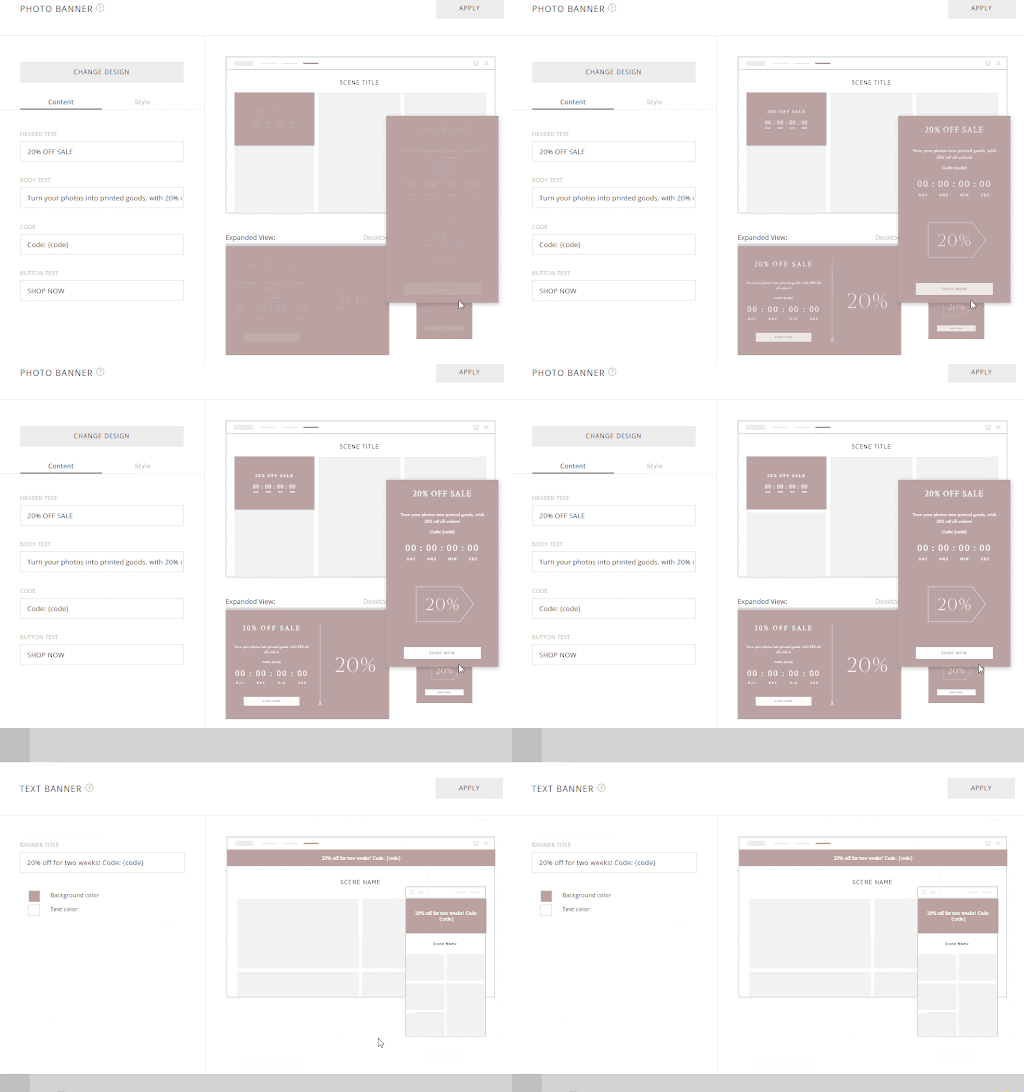
Available banner types:
- Text Banner
- Large Banner
- Photo Banner
- Product Row
- Store Rotator
Click the + icon to add banners or the trash icon to remove them.
Assigning the Promotion
6. Activate the Campaign
Click Save, then assign the promotion to:
- A single gallery, or
- Multiple galleries at once


Now, your Rolling Automation is ready to guide clients through a structured, multi-stage promotion and maximize your sales opportunities. 🚀
Need Help?
If you have any questions or need additional assistance, please contact: help@passgallery.com