![Full Logo Black.png]](https://servicehub.passgallery.com/hs-fs/hubfs/Logos/Full%20Logo%20Black.png?height=40&name=Full%20Logo%20Black.png)
The Send Product Automation allows you to share personalized product designs with your clients, combined with optional promotions and design fees. This is ideal for encouraging purchases by showcasing ready-made products directly in the client’s gallery experience.
If you prefer to send a product without a campaign, you can use the basic Send Product to Visitor feature instead.
Setting up the Send Product Automation
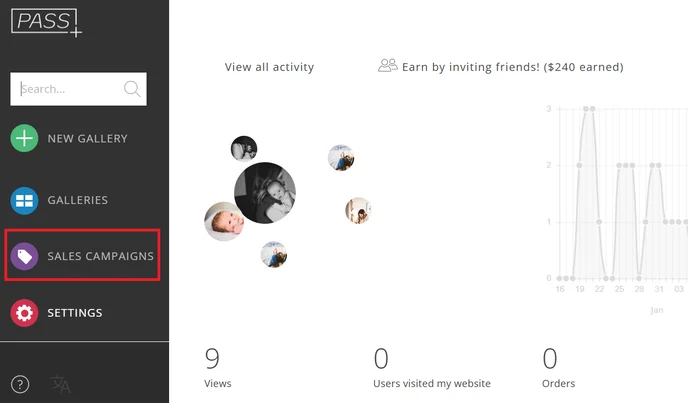
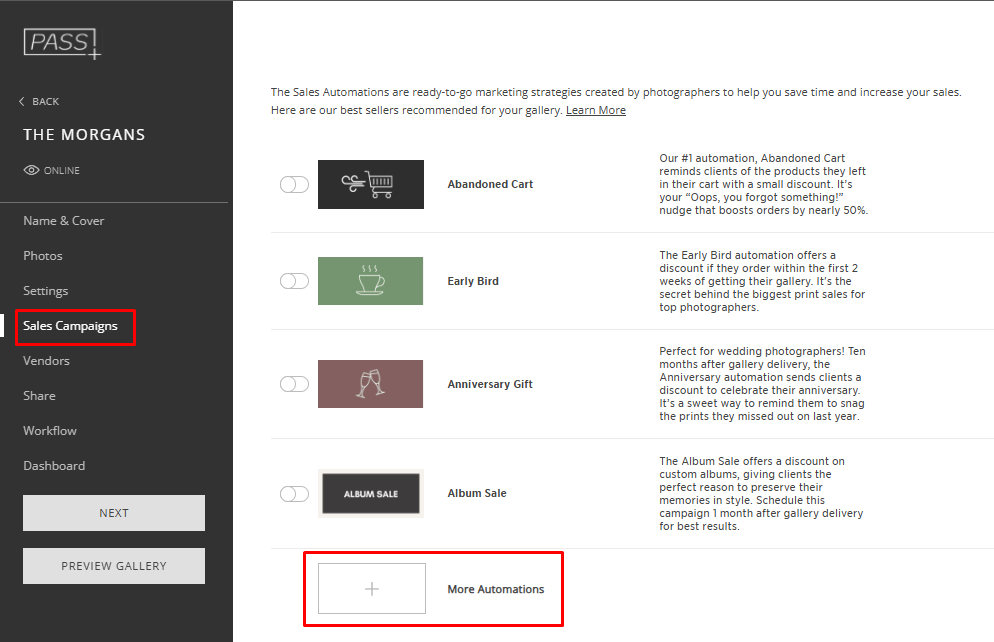
Step 1: From your Main Dashboard, go to Sales Campaigns
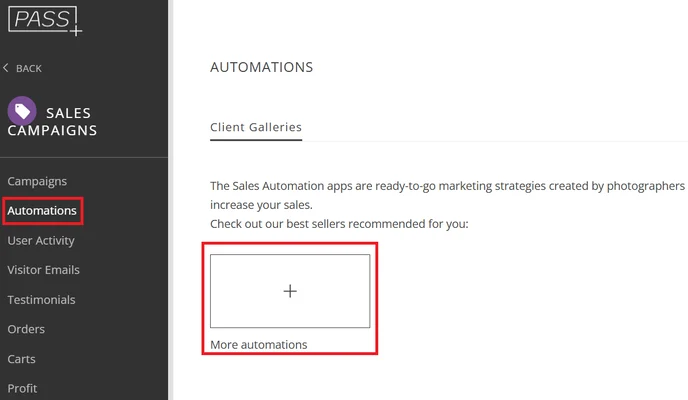
Step 2: Under the Automations tab, click + More Automations
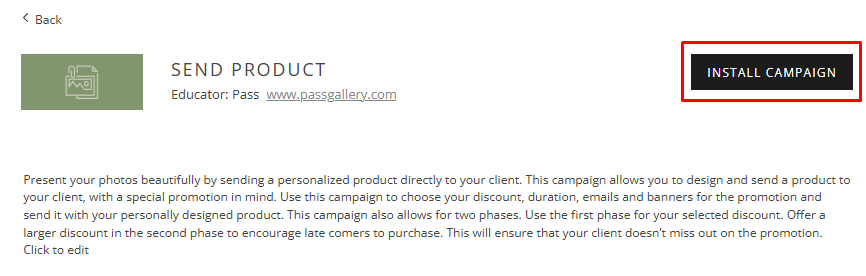
Step 3: Select the Send Product Automation
-1.png?width=374&height=180&name=unnamed%20(1)-1.png)
Step 4: Click Install Campaign
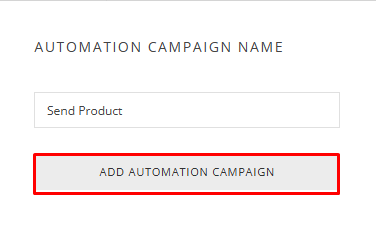
Step 5: Customize the name and click Add Automation
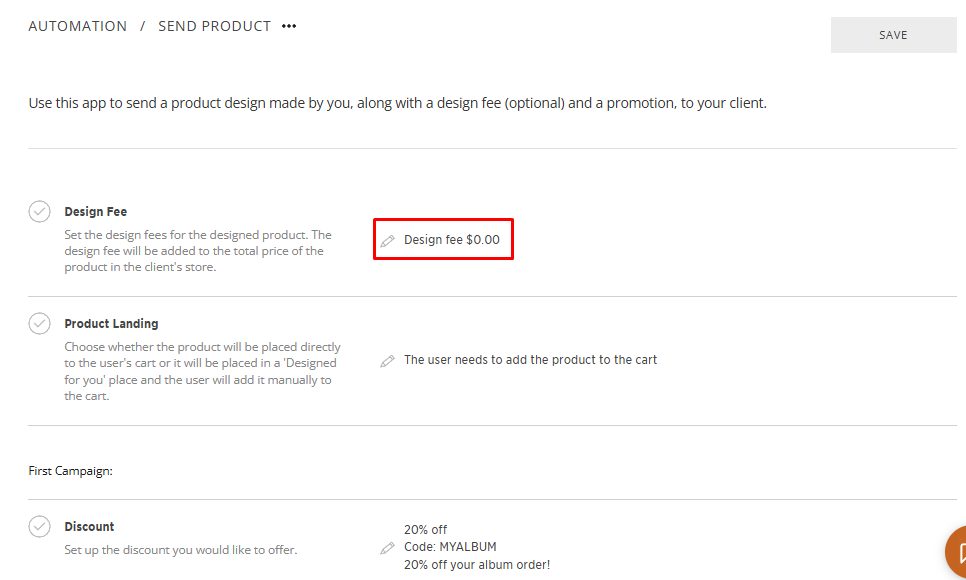
Design Fee
You can optionally include a design fee, which will be added to the final product price in the client’s store.
- Set the fee amount as needed
- Leave it as $0.00 if you do not want to charge a design fee
Product Landing
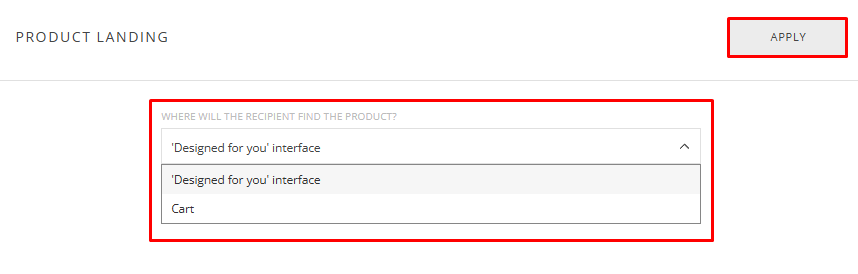
Choose where in the client's account you would like to save the product.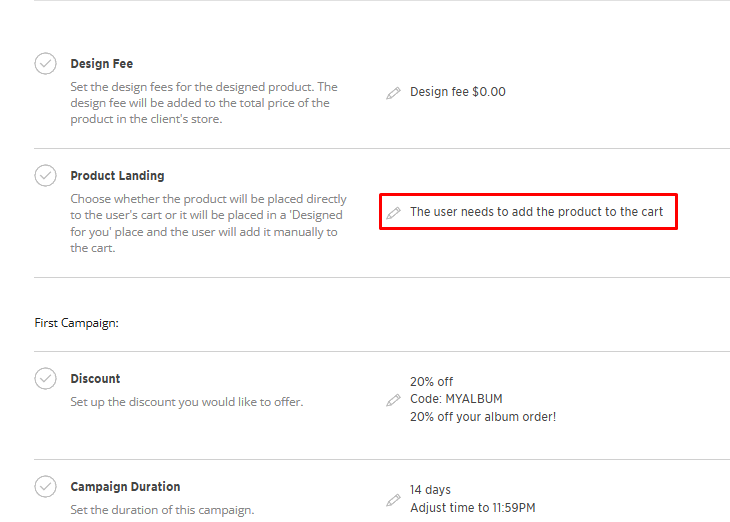
You can put the product in a special "Made for You" section in their shop, or place the product directly in their shopping cart. The client will be able to view the product, make edits, and place the order themselves. Then click Apply.
First Campaign
Discount
Now you can work on the campaign(s) for this app. You can choose to do two subsequent campaigns. Begin by customizing your discount type and amount.
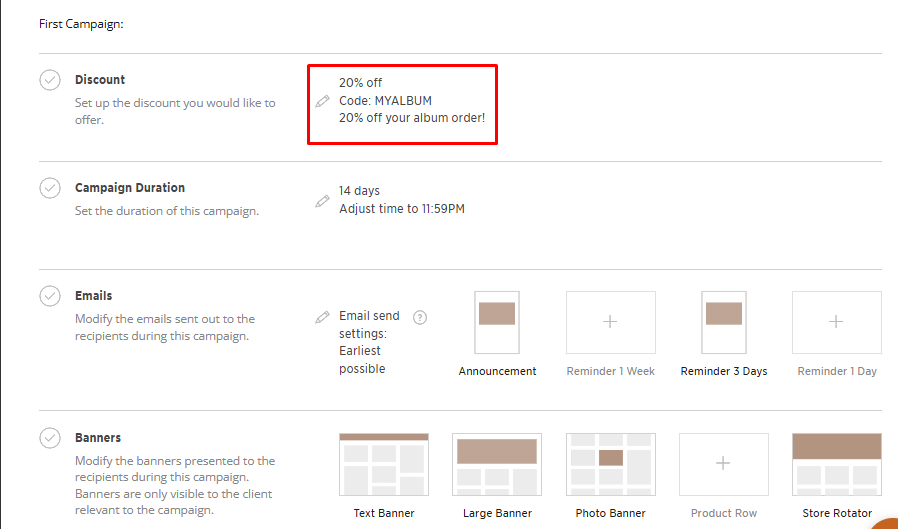
Here you can modify the discount, description, code, whether you want to apply for free shipping, whether you want to have a minimum order amount for this coupon, if you want to allow discount stacking or if you want to limit the coupon to specific products. For more information on what discounts you can offer, click here.
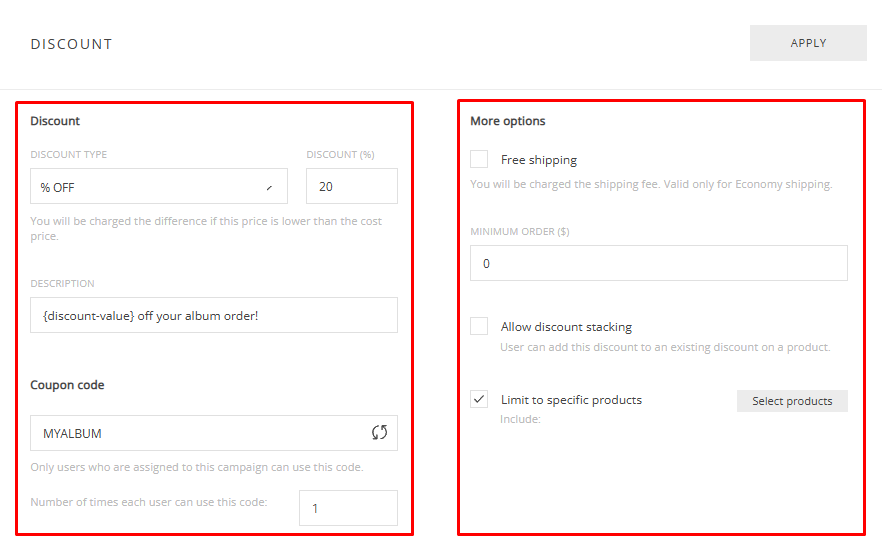
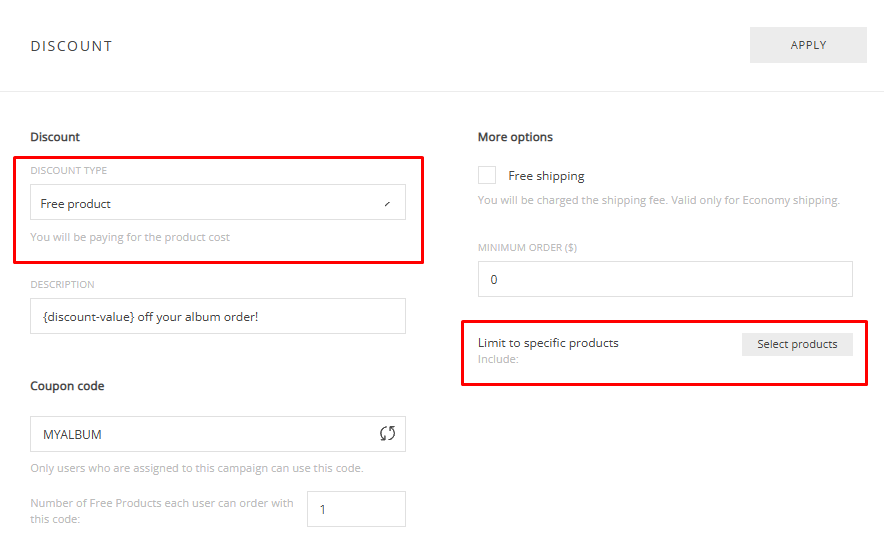
For example, if you offer complimentary products, you can switch the discount to a Free Product discount, and limit to specific products.
When selecting products, you can choose different options that can be valid for the discount. For example, if you want to give your client the option to choose their album cover finish. Just keep in mind that in a Free Product discount, the photographer is responsible for the production costs and some similar products may have a large price difference (i.e., Printed Albums versus Leather Albums). Then click Apply.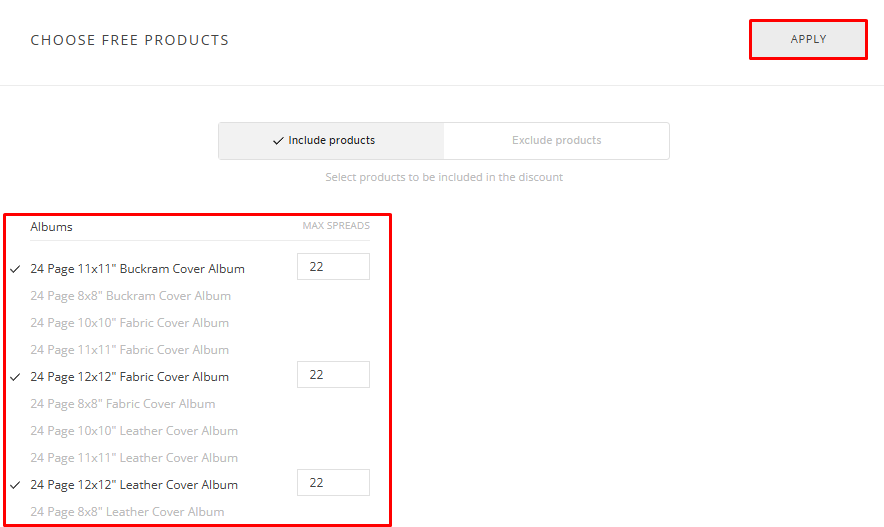
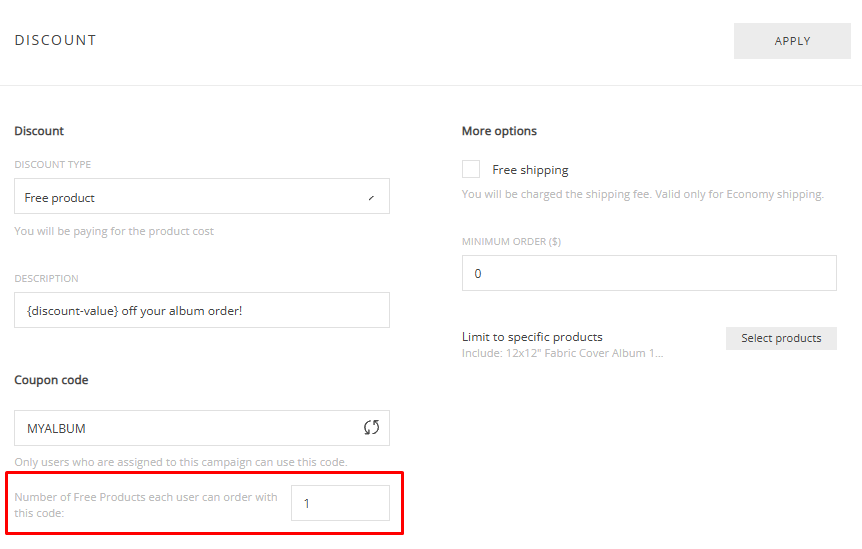
You can also set the number of free products the client will receive. For example, from a limited product selection of four Fine Art Albums, the client can order 1 Album from the selection with the coupon code.
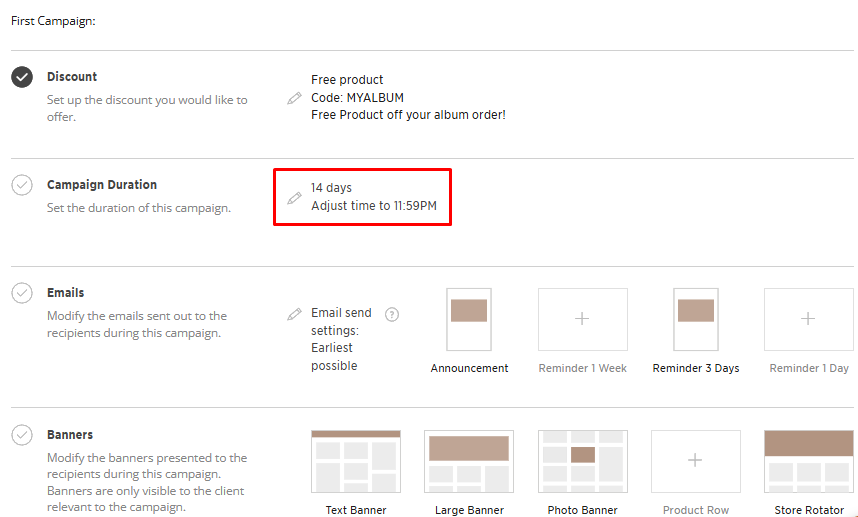
Campaign Duration
Then adjust the Campaign Duration. This will be how long the discount is valid for the client. You may want to adjust this depending on the product you're sending.
For example, you may want to give your wedding clients 6 months to use their discount for a complimentary wedding album, Or if you are doing an end-of-the-year sale for calendars or greeting cards, you can keep the Campaign Duration short to create a sense of urgency.
Emails
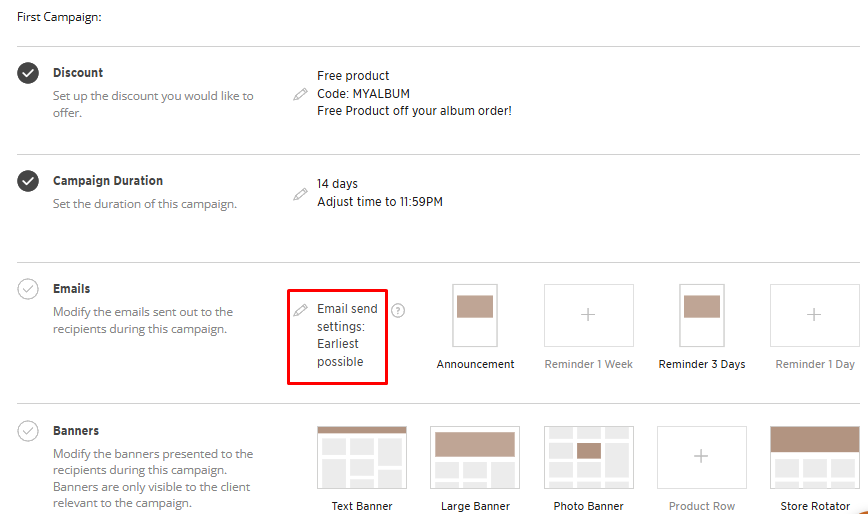
You can now modify the emails as part of your campaign. First adjust the time the emails themselves are sent, if you would like to delay the announcement email and reminder emails. This will not delay the start of your campaign but only delay the email send time.
- Earliest Possible → Announcement email is sent as soon as you apply the campaign to your galleries (last step)
- Optimized Send Schedule → Sent at recommended times (typically 8 AM, 2 PM, or 8 PM) based on your timezone
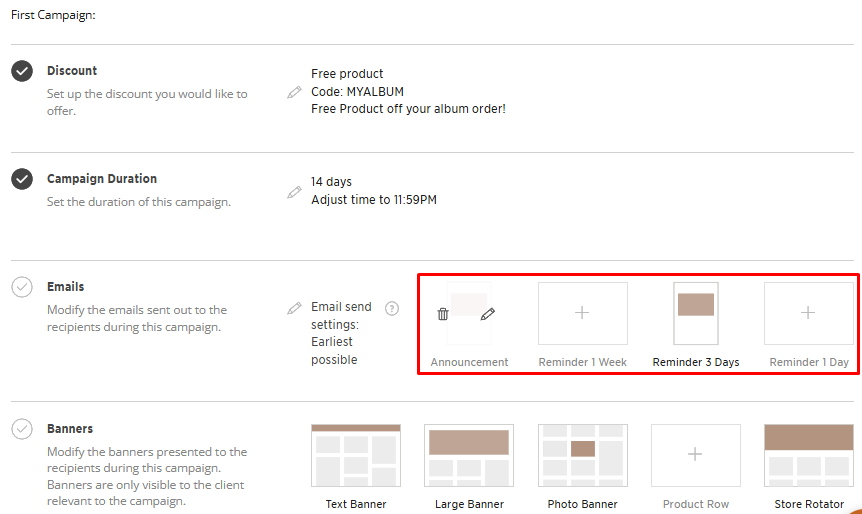
Now you can edit or delete any of the emails.
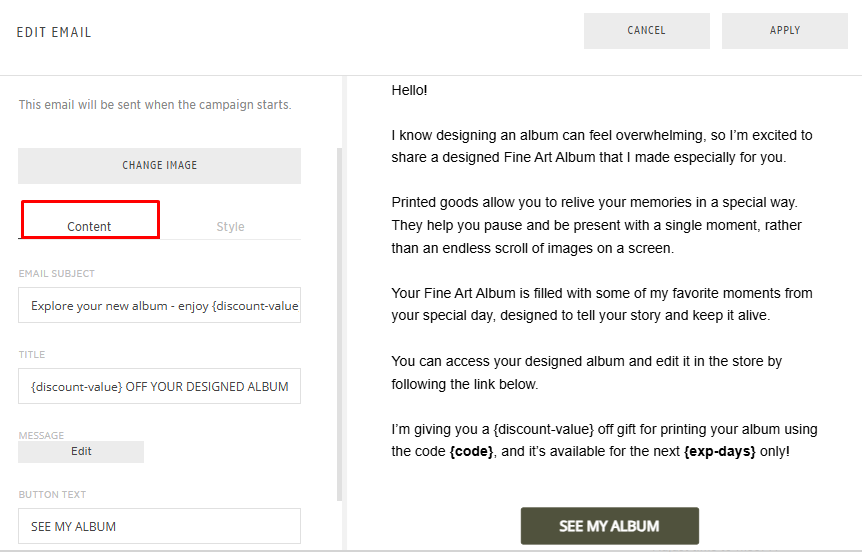
Content
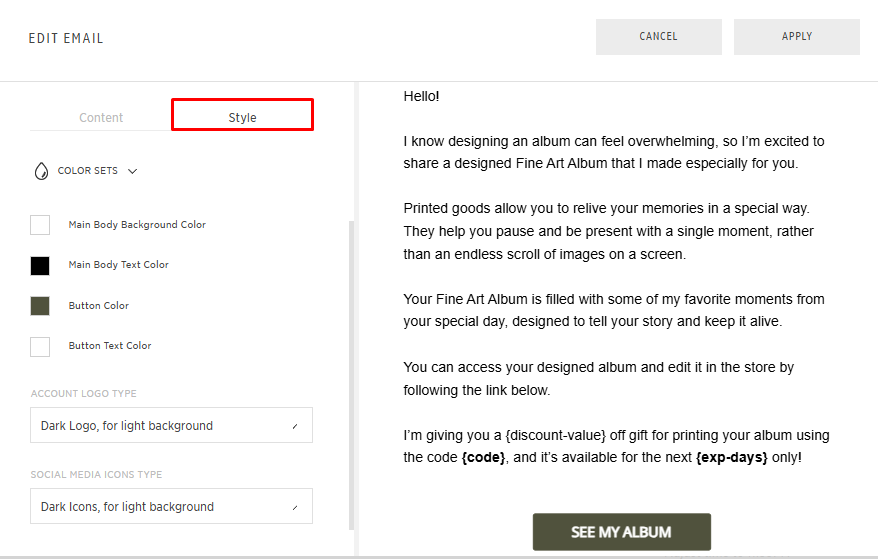
Edit the email content, including the subject line, title, message, and call-to-action button. You can customize the text to match your brand voice while keeping dynamic fields (e.g., {discount-value}, {code}) unchanged so they populate automatically.
Style
Customize the visual appearance of your email, including colors, logo style, and button design. This allows you to align the email with your brand identity while keeping the structure intact.
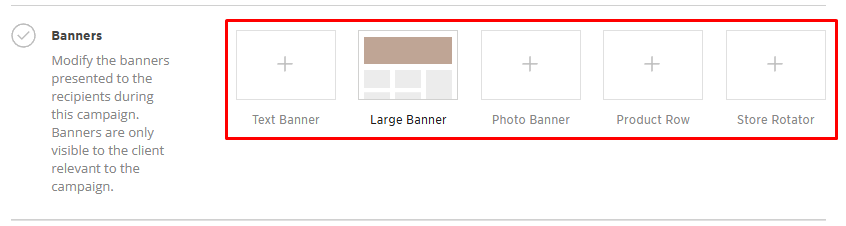
Banners
Display promotional banners within galleries during the campaign. You can edit the pre-designed banners or add and remove banners as needed.
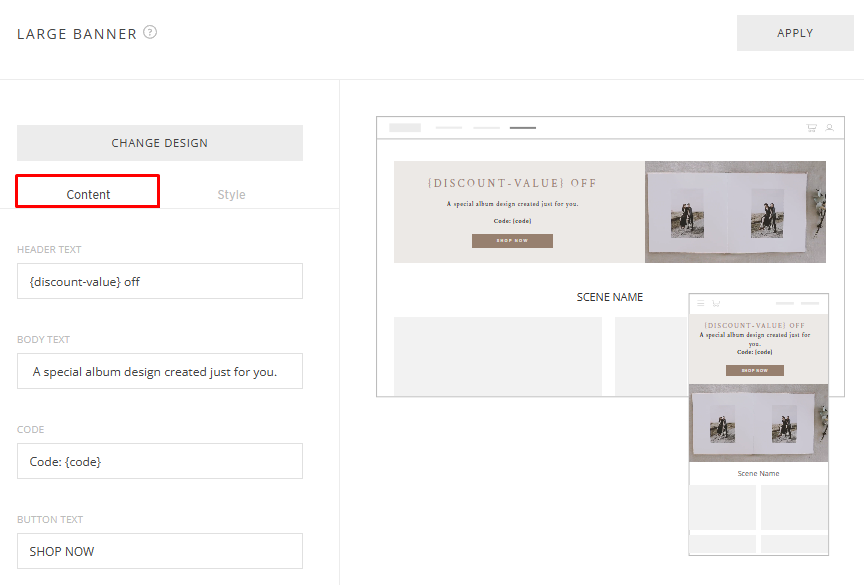
Content
Edit the banner text, including the header, body message, coupon code, and button text. You can customize the messaging to match your campaign while keeping dynamic fields (e.g., {discount-value}) unchanged.
Style
Customize the banner design by uploading desktop and mobile images, selecting fonts, and adjusting colors. 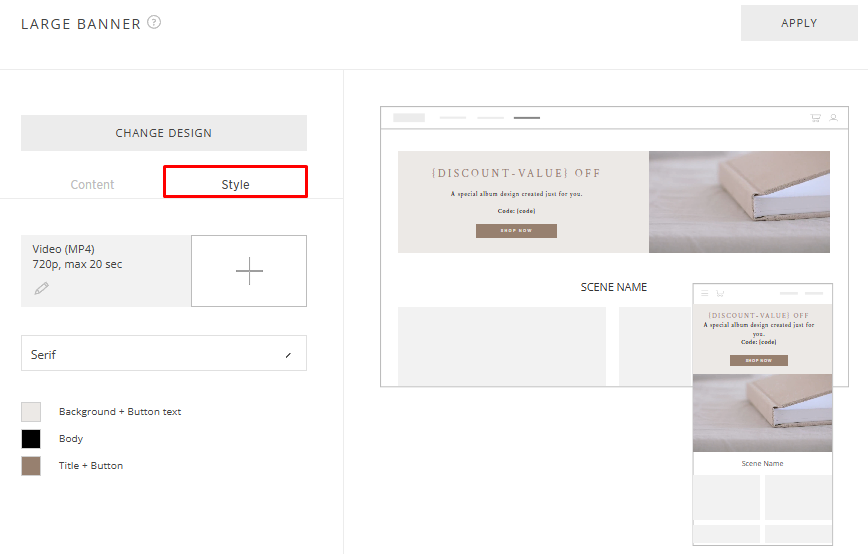
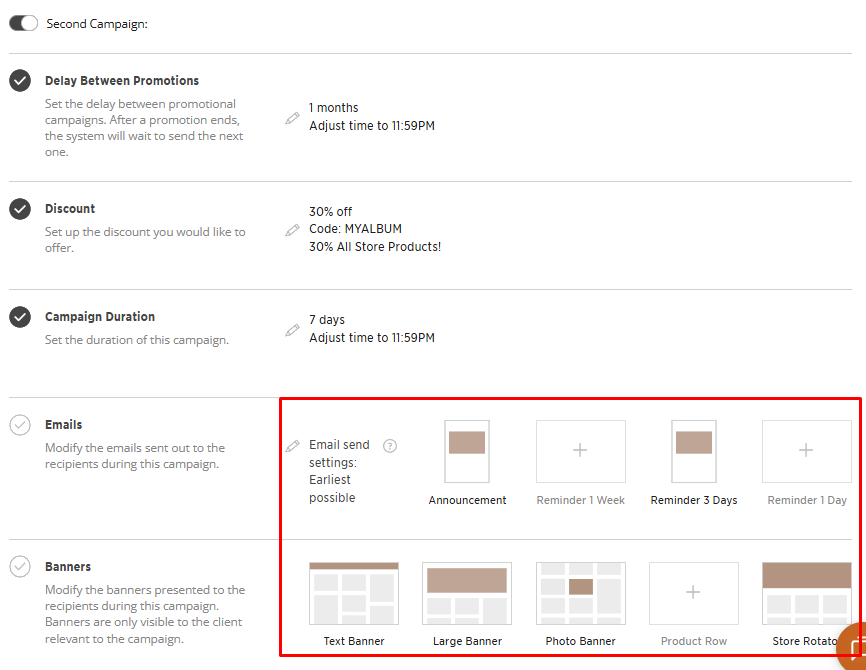
Second Campaign
You can add a second campaign to the app. We suggest toggling OFF this campaign if you are sending a Free Product. Otherwise you may consider doing a sale with an increased discount in the second campaign, to encourage anyone who hasn't purchased their designed product.
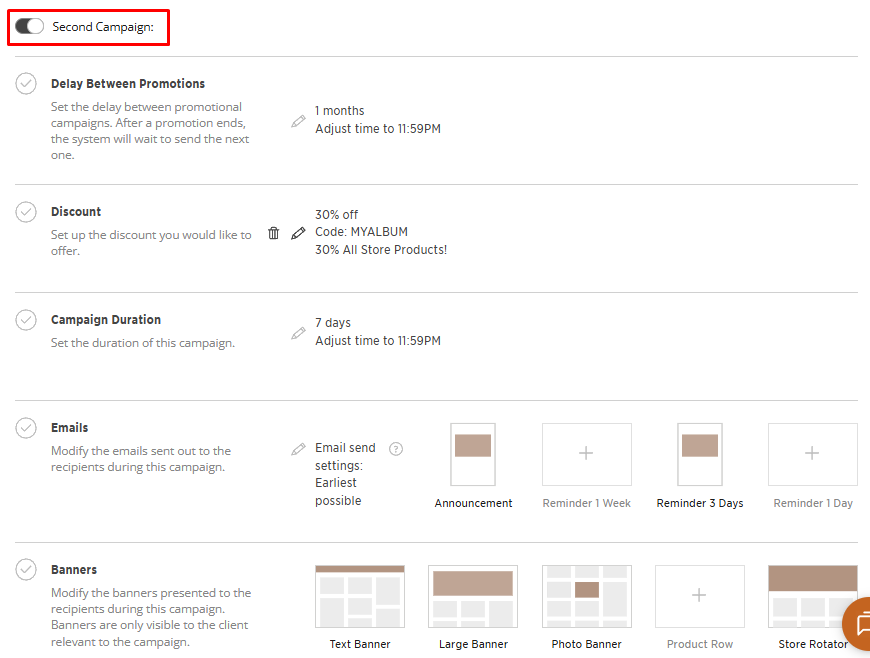
Delay Between Campaigns
Set if you want to start the second campaign immediately when the first one ends, or if you want to delay a few days between the two promotions.
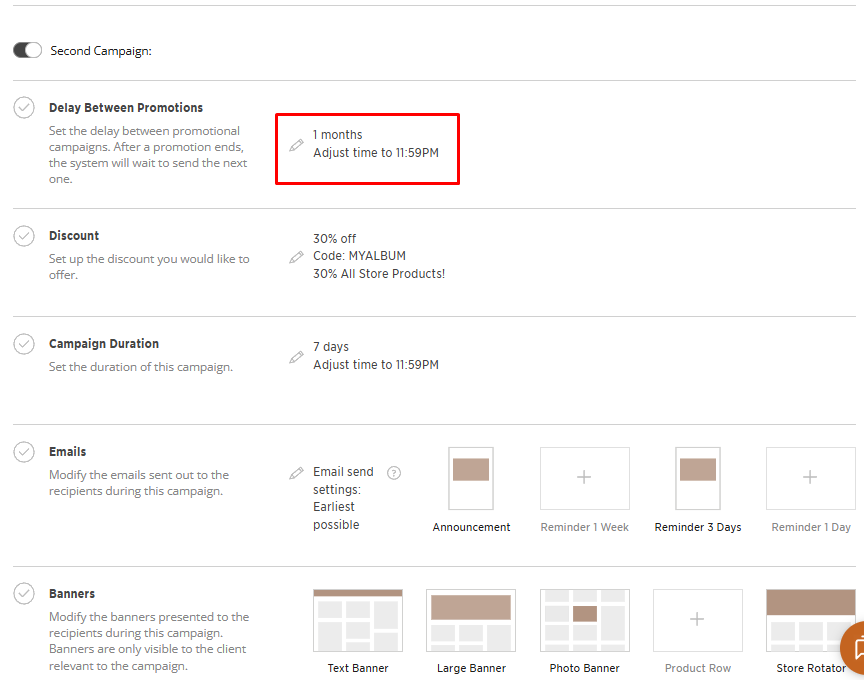
Discount
Then adjust the Discount, limiting any products if necessary.
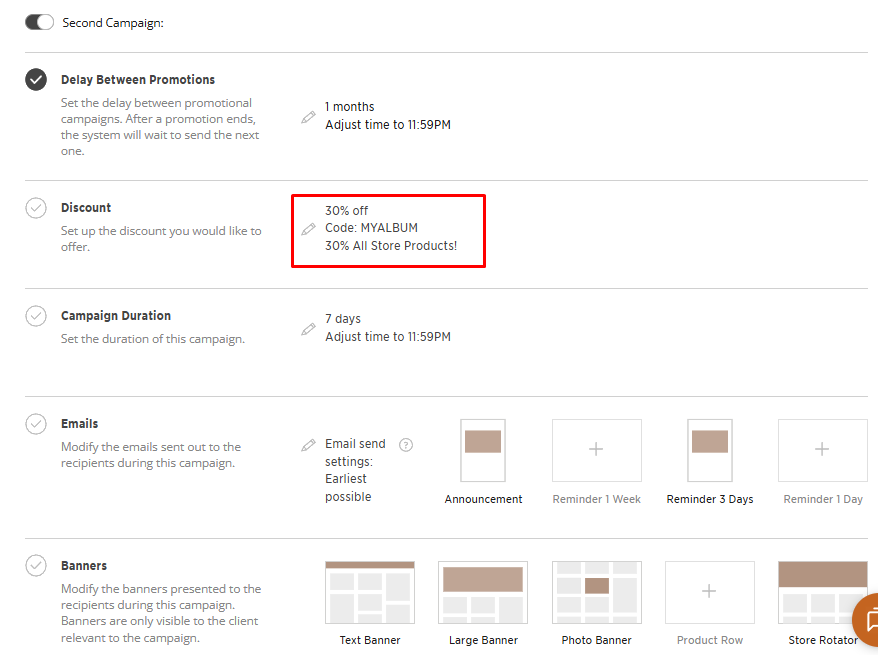
Campaign Duration
Then adjust the Campaign Duration.
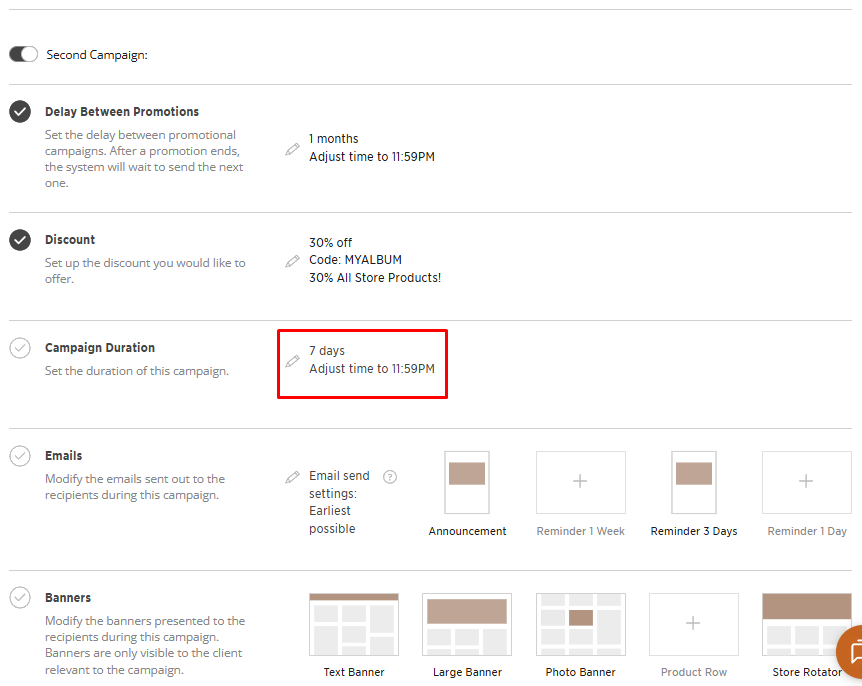
Emails and Banners
Finally, edit this campaign's Emails and Banners.
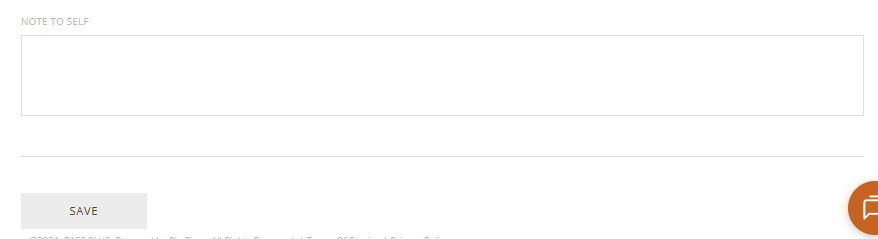
Then add an internal note to yourself, and click Save to save the app.
Assigning App to the Gallery
To apply to an individual gallery, go into the gallery's Automations & Discounts tab and click + More Automations.
Select the Send Product automation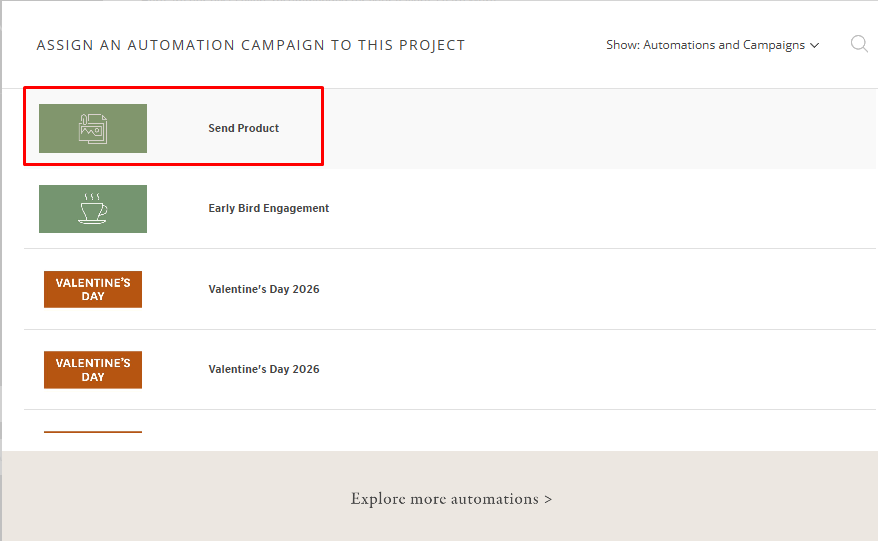
Design Fee
In the Assignment Setup page, add a Design fee if you like.
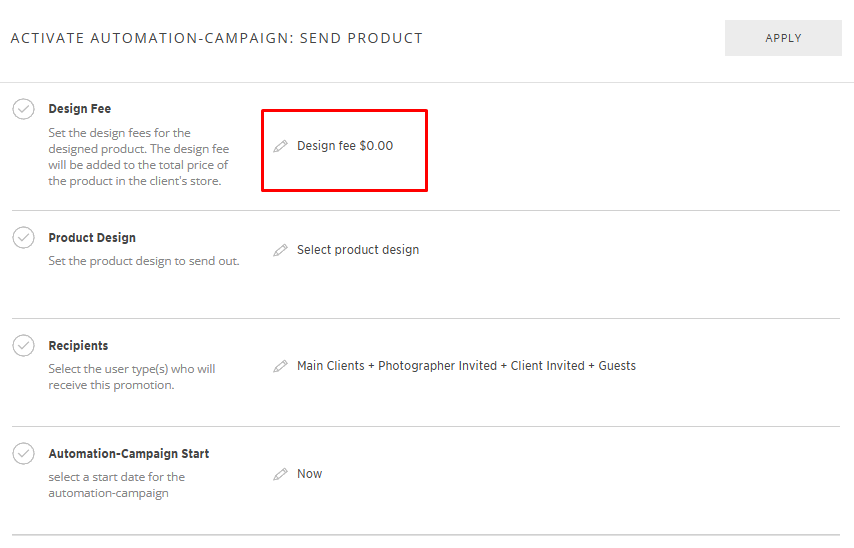
Product Design
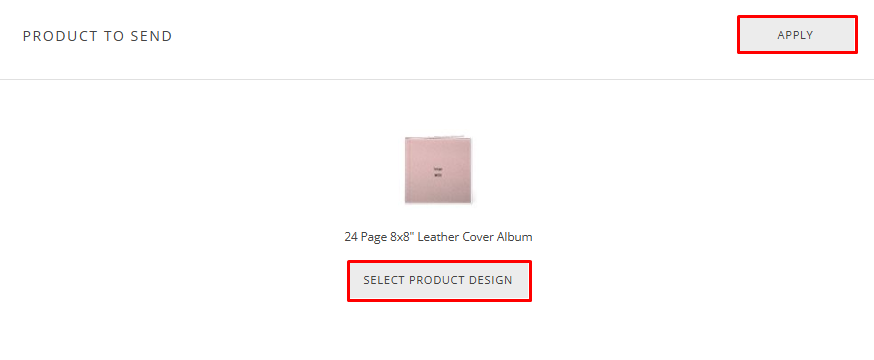
Then click to start designing your product.
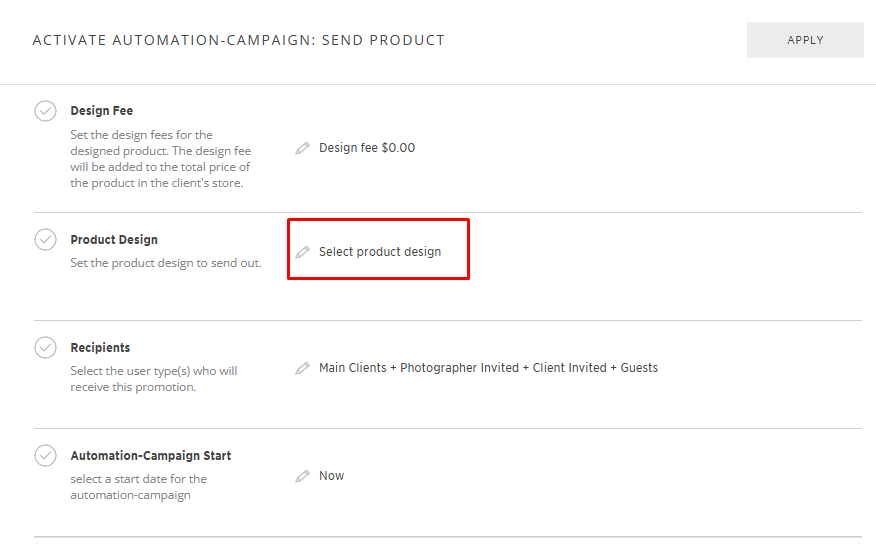
Click Select Product Design.
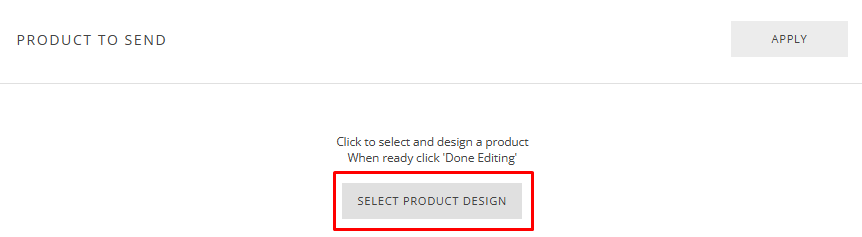
You will be redirected to the client’s store where you can select the product you wish to create for your client.
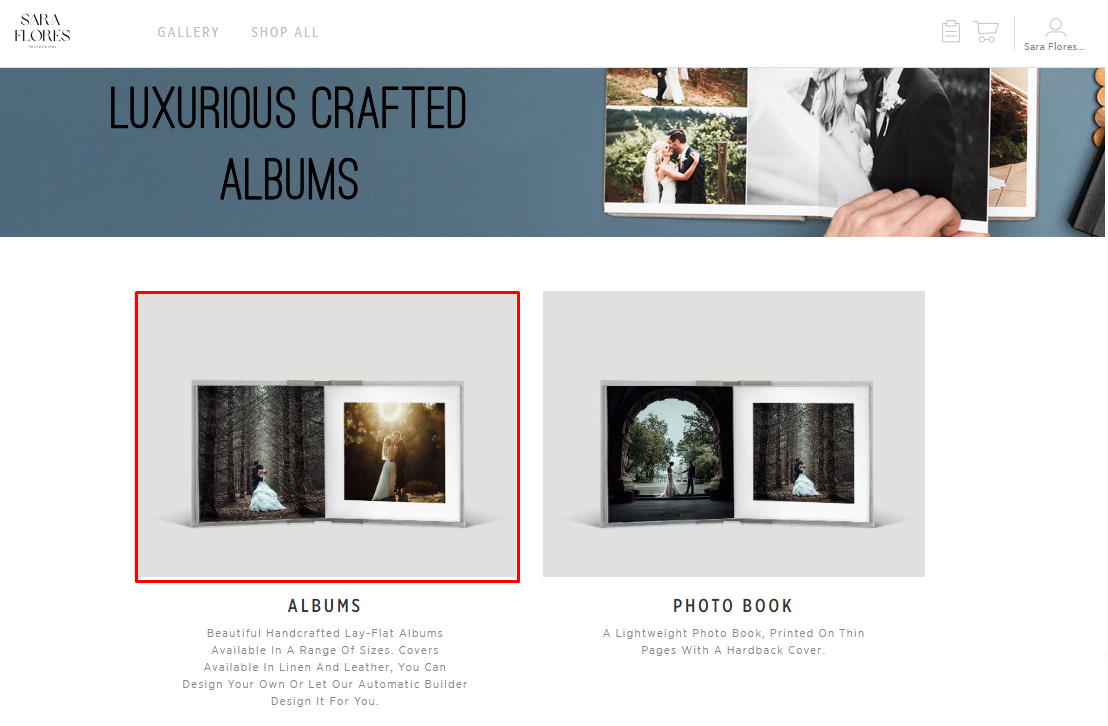
Start designing their product and click Done Editing when finished.
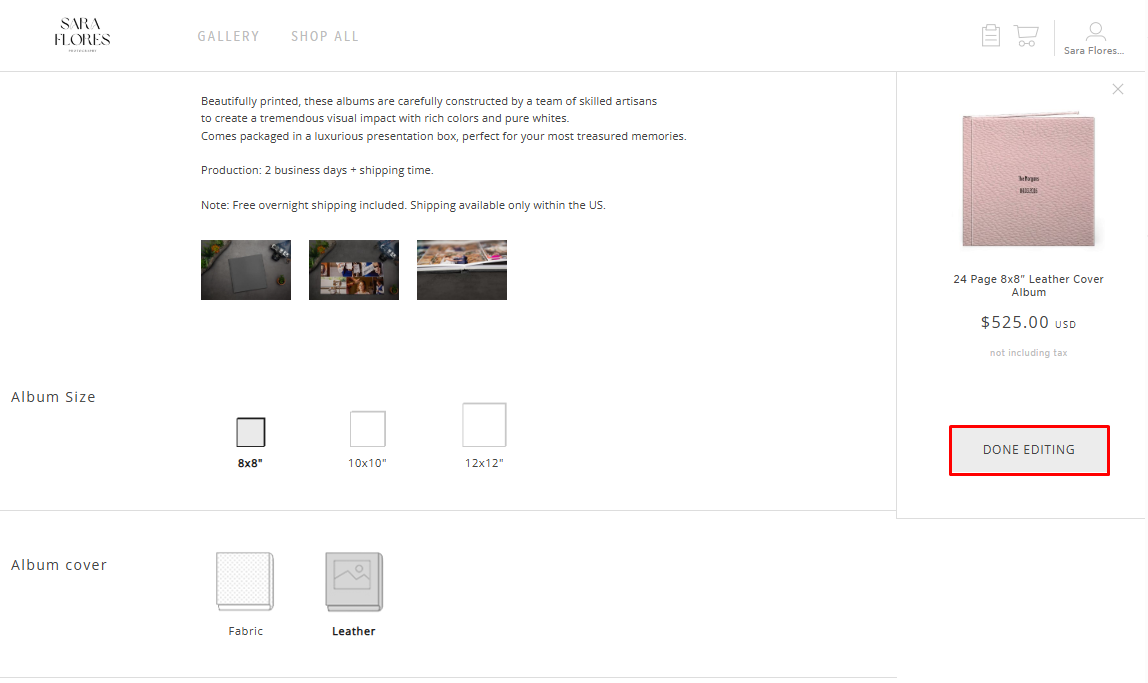
You can add additional products, and click Apply.
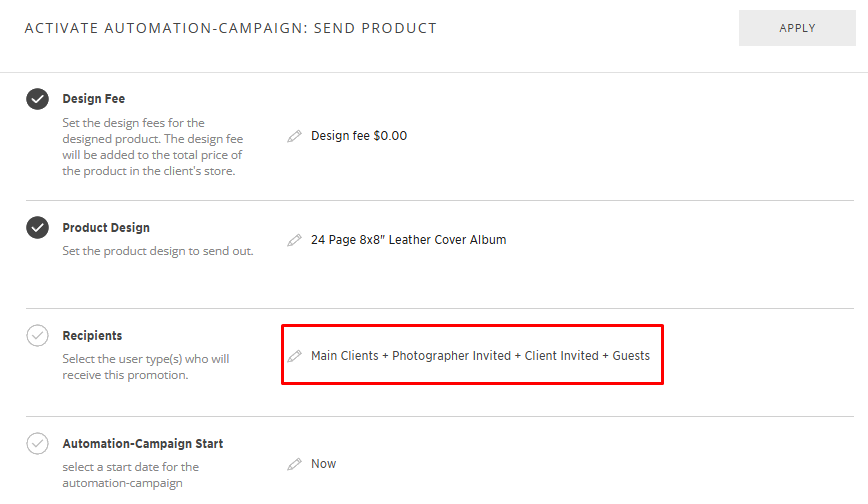
Recipients
Choose your recipients.
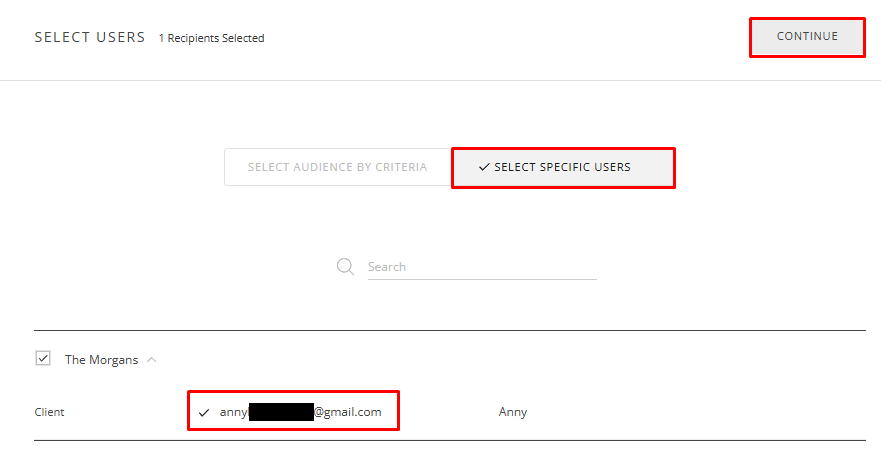
You can select specific users if you want to send the product to one person (for example, if you are sending a Free Product). Then click Continue.
Automation-App Start
Then set your Automation-App Start, select Now to start the app immediately or edit to schedule the start date and time.
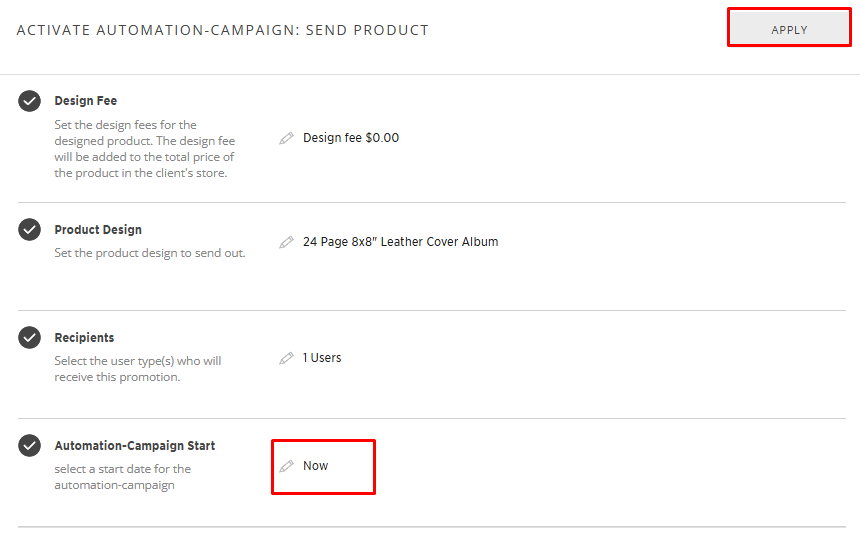
And that's it! The client’s personal design is now sent!