![Full Logo Black.png]](https://servicehub.passgallery.com/hs-fs/hubfs/Logos/Full%20Logo%20Black.png?height=40&name=Full%20Logo%20Black.png)
Your client list and your gallery activity are both exportable from Pass. One export covers the clients and visitors who had access to your galleries; the other covers those who viewed or downloaded from a given gallery. You'll find them in two different places.
Export your visitor and client emails
This is a single export covering all galleries, so it's the fastest one to do.
- From your Pass dashboard, select Sales Campaigns
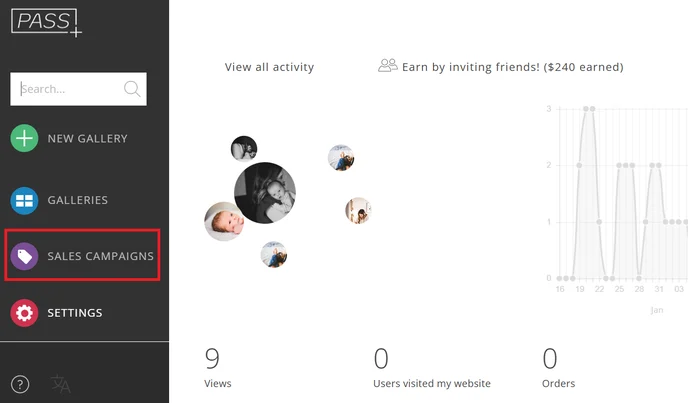
- Go to Visitor Emails.
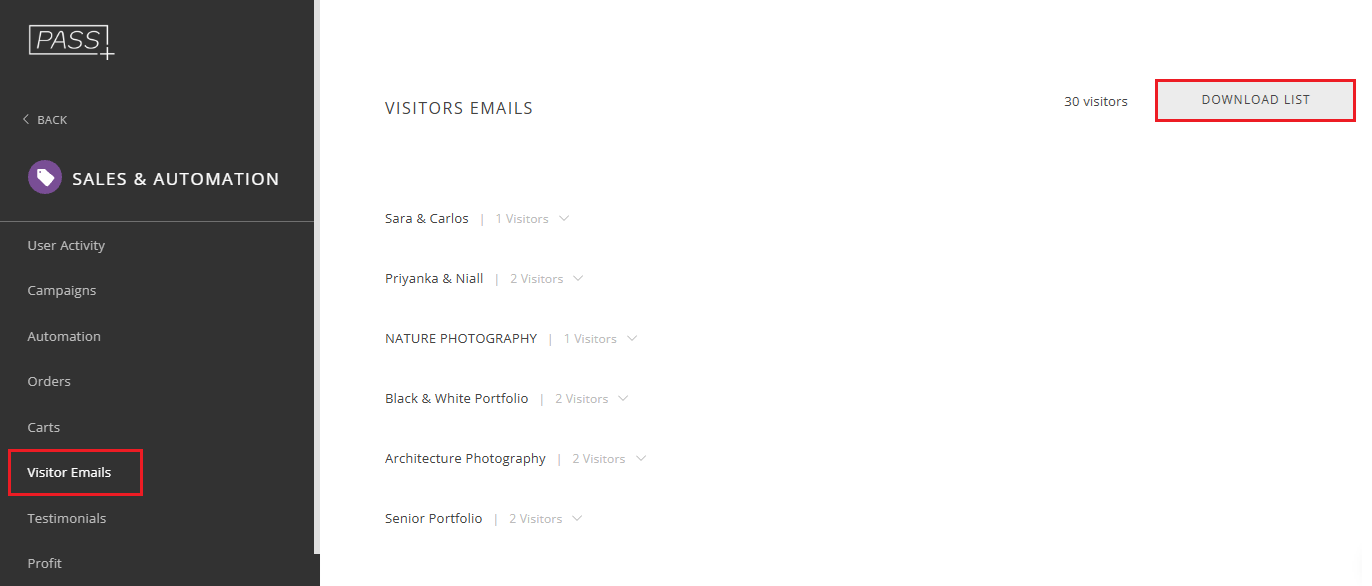
- Click the Download list button. The CSV document will automatically download.
The export includes:
- Client name
- Client email
- Client type
- Which gallery they had access to
Because the gallery name is included on each row, you can sort or filter the file later to see who was attached to which gallery.
Export user activity for a gallery
This export shows what people actually did in a gallery — views and downloads, and when.
- From your Pass dashboard, select Sales Campaigns
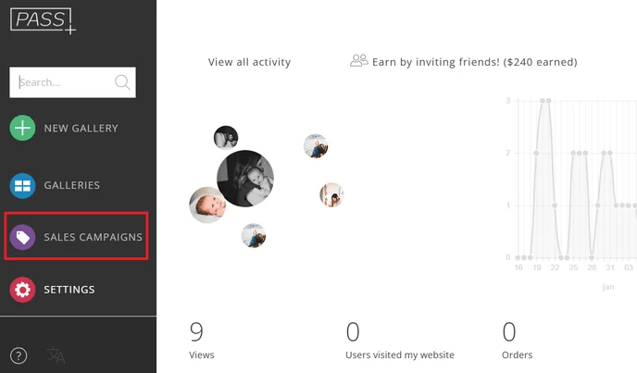
- Go to User Activity and select the gallery whose user activity you want to download.

- Click the download icon
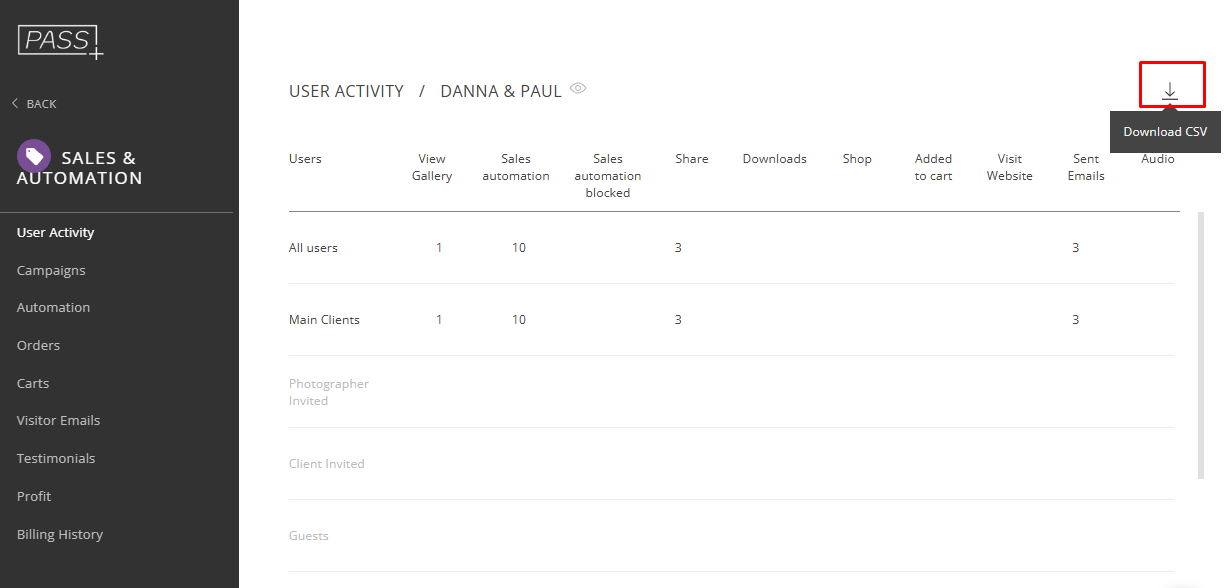
- Repeat for each gallery you want data from.
The export includes:
- Client Name
- Client Type
- Activity
- Activity time
Note: Activity data is exported per gallery — there is no bulk export covering all galleries at once. Each file is named for the gallery it came from (for example, Activity Project Danna and Paul), so downloads from multiple galleries stay easy to tell apart.
Need Help?
If you have any questions or need additional assistance, please contact: help@passgallery.com