![Full Logo Black.png]](https://servicehub.passgallery.com/hs-fs/hubfs/Logos/Full%20Logo%20Black.png?height=40&name=Full%20Logo%20Black.png)
The Digital Gift Card App can be used to curate the gift card experience for your gallery visitors. Through the app, you can create a gift card custom product for your store, define the emails and banners that the recipient of the gift card would get, and promote the new product to your gallery visitors (optional).
The app adds a Gift Card custom product to the gallery. As long as the app is assigned to the gallery, the product will stay in the gallery. If you unassign the app from the gallery, the Gift Card store product will be disabled.
Setting up the Digital Gift Card Automation
Go to Sales Campaigns from the main dashboard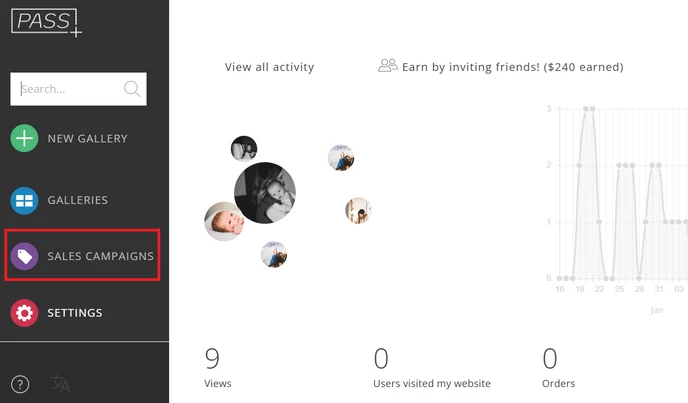
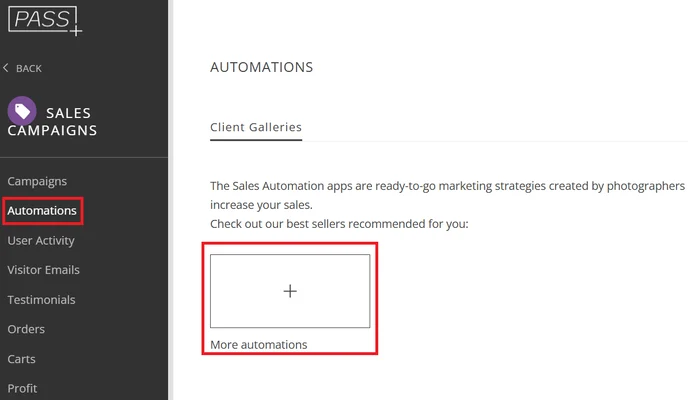
Under the Automations tab, click + More Automations
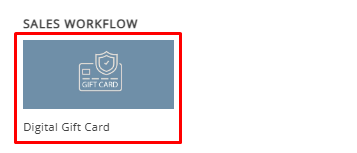
Select Digital Gift Card
Click Install Campaign
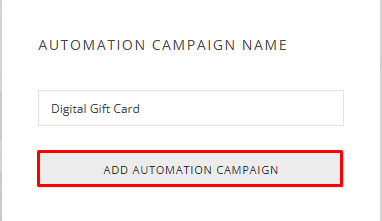
Customize the name and click Add Automation
Create the Gift Card Product
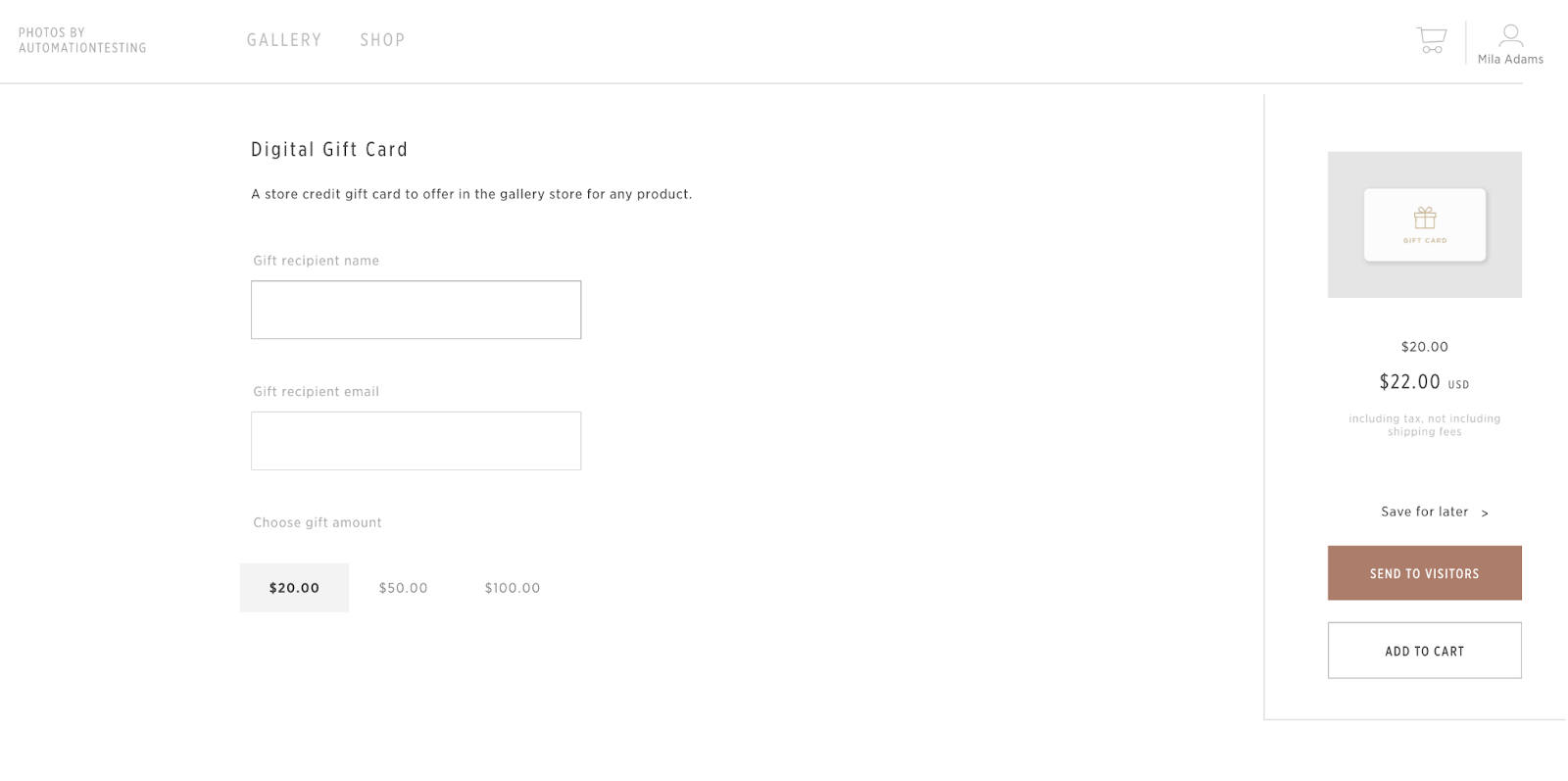
First, you will want to create a gift card option in the store as a custom product.
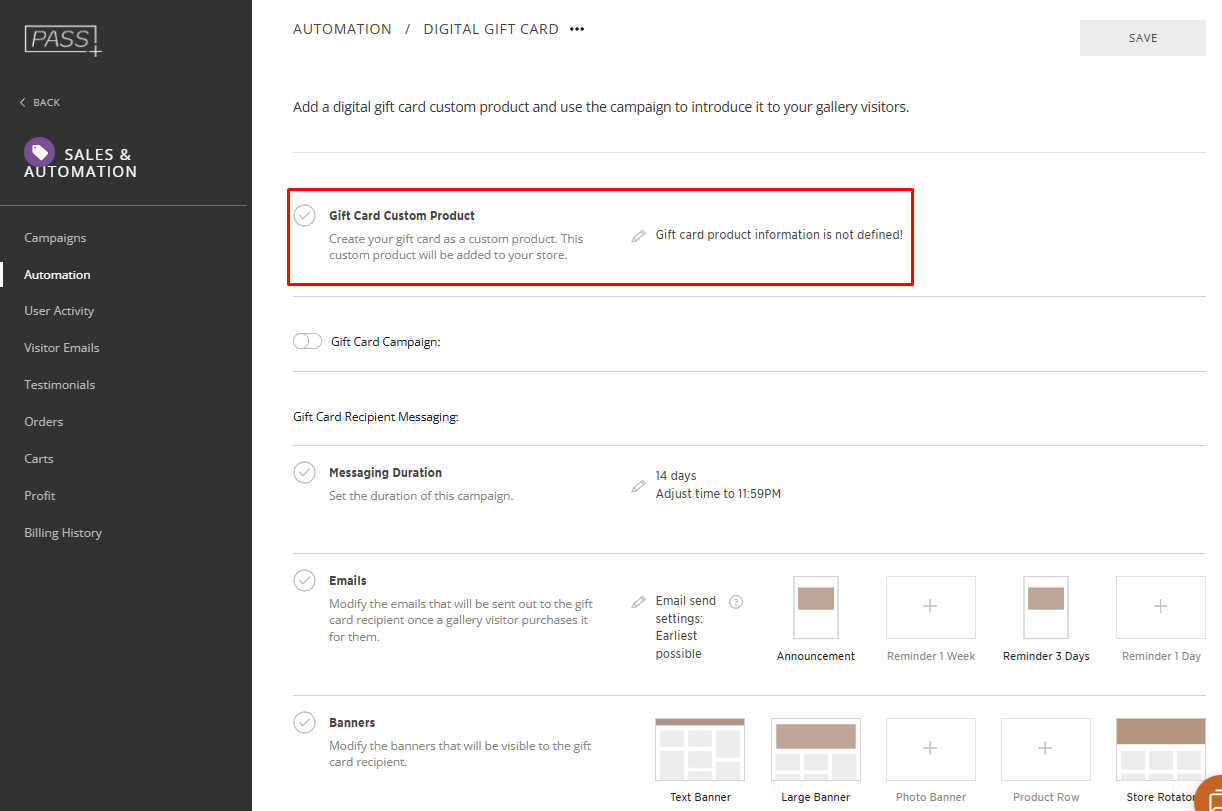
Define the name, description of the gift card, and upload the store tile. Then you can input the amounts you would like to offer for the gift card. Once you click Apply, this item will be added to your store as a custom product, and your gallery visitors will see the item only once the app is assigned to their gallery.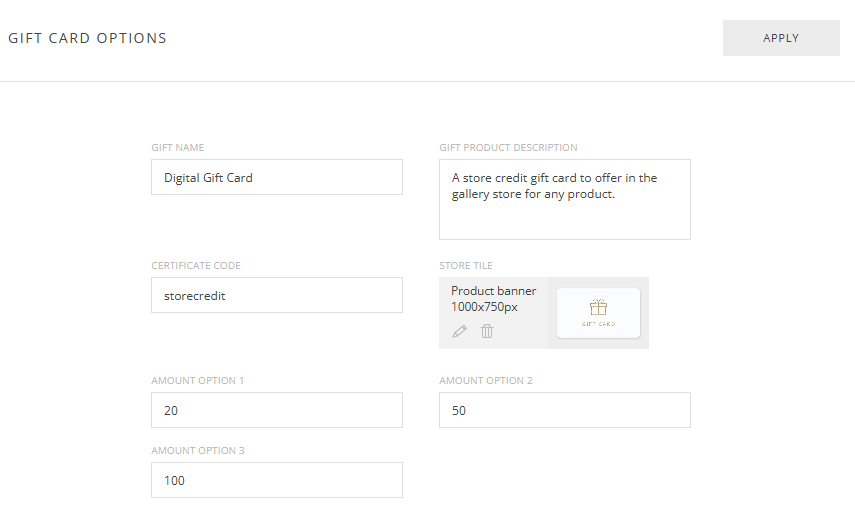
📌Please Note: If you unassign the app from the gallery, then the custom product will be disabled in the gallery.
Gift Card Campaign
Now you can add a campaign that can be used to promote the new gift card option to your gallery visitors. We recommend installing this app to your Gallery Template, and toggle off this campaign if you have any other campaigns running, making your digital gift card a default store product with every gallery. If you would like to add this campaign, simply toggle it on.
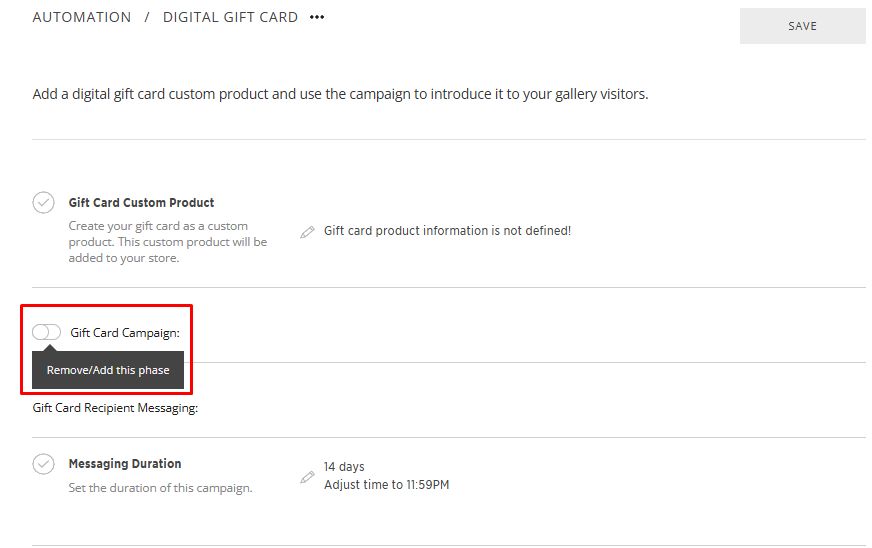
Campaign Start
First, adjust the campaign start date from the time the app is assigned to the gallery. The campaign will start in the number of chosen days or months after you assign the app to the gallery.
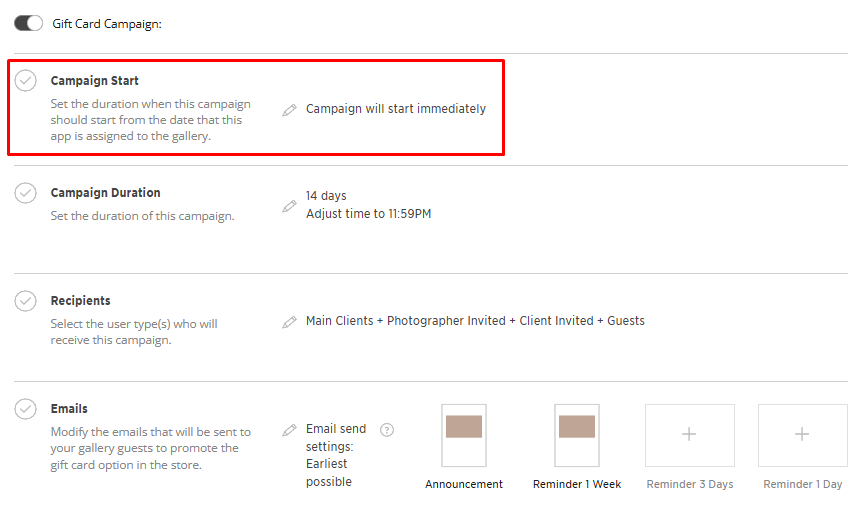
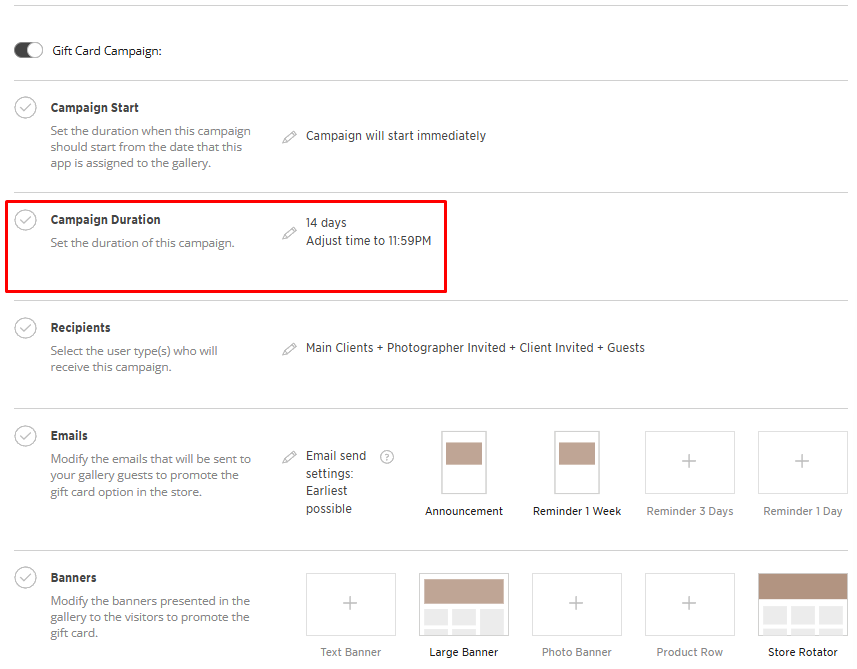
Campaign Duration
Now set the duration by choosing the number of days or months for the campaign.
Recipients
Mark which type of users will receive this campaign. 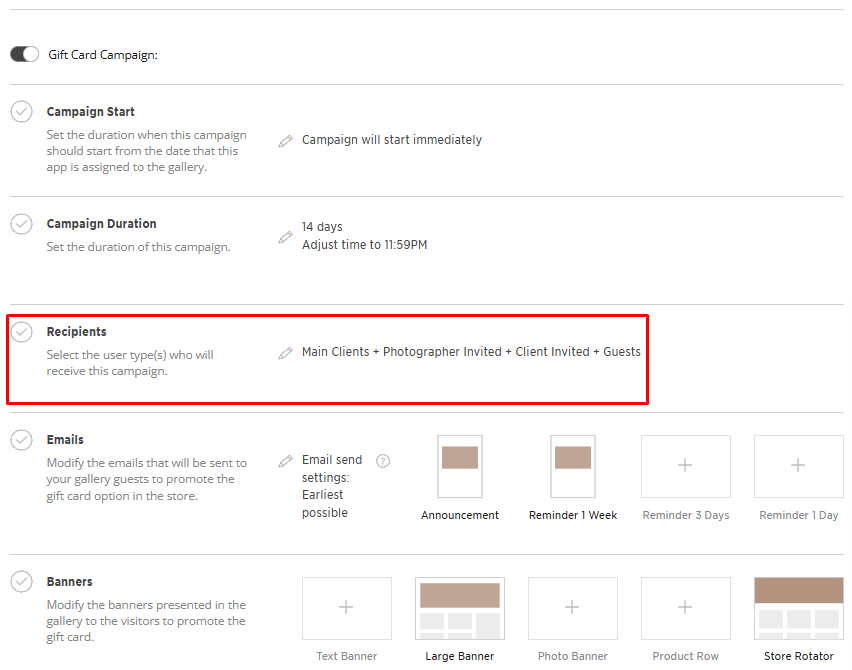
Emails
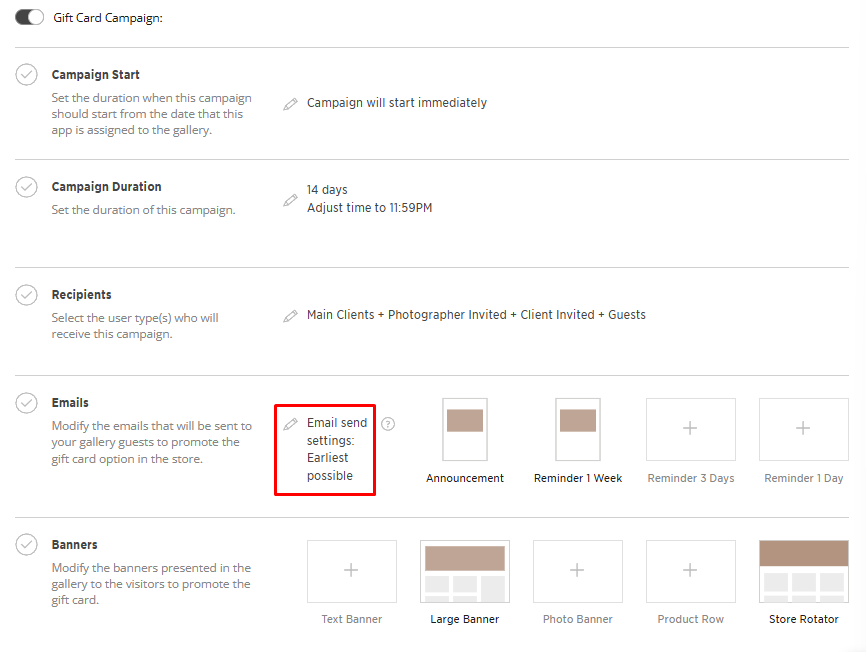
You can modify the emails that are part of your campaign. First adjust the trigger, if you would like to delay the announcement email and reminder emails. This will not delay the start of your campaign but only delay the email send time.
Edit or delete any of the emails.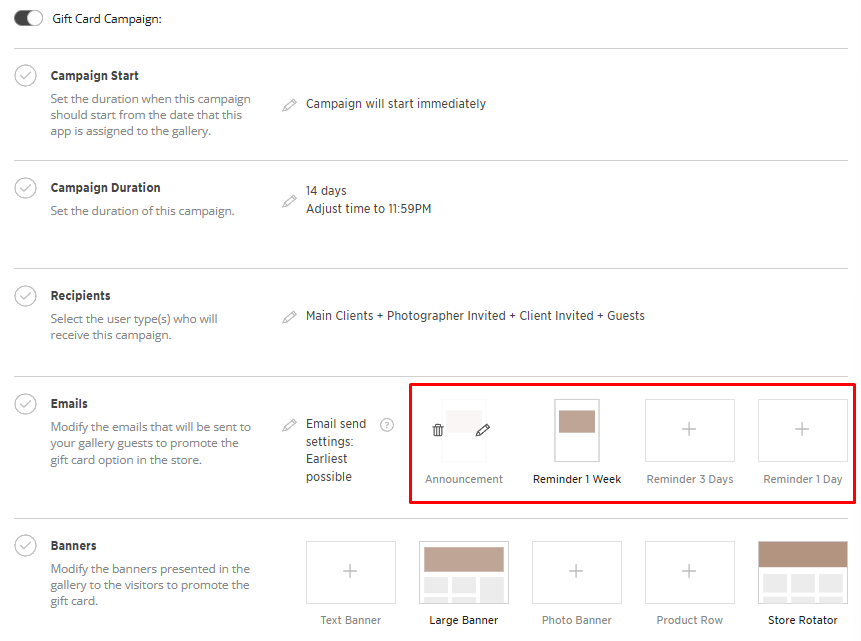
Content
Edit the email content, including the subject line, title, message, and call-to-action button. You can customize the text to match your brand voice while keeping dynamic fields (e.g., {discount-value}, {code}) unchanged so they populate automatically.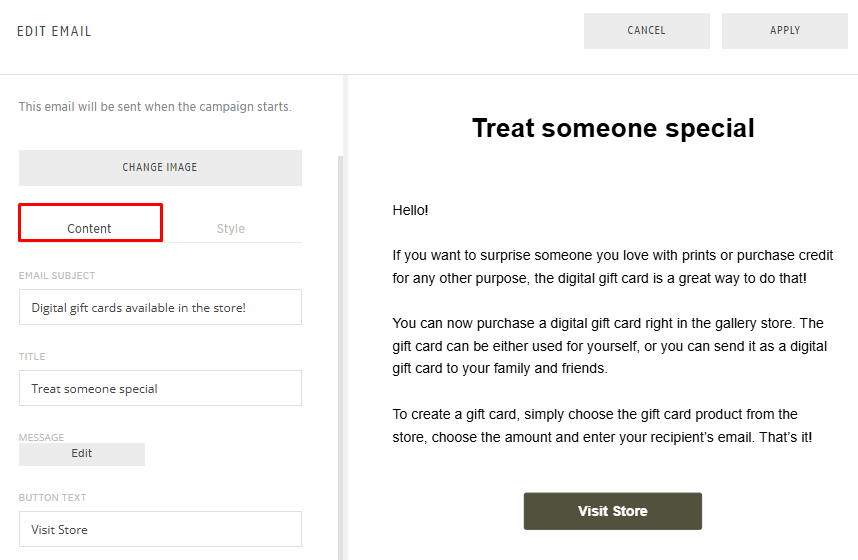
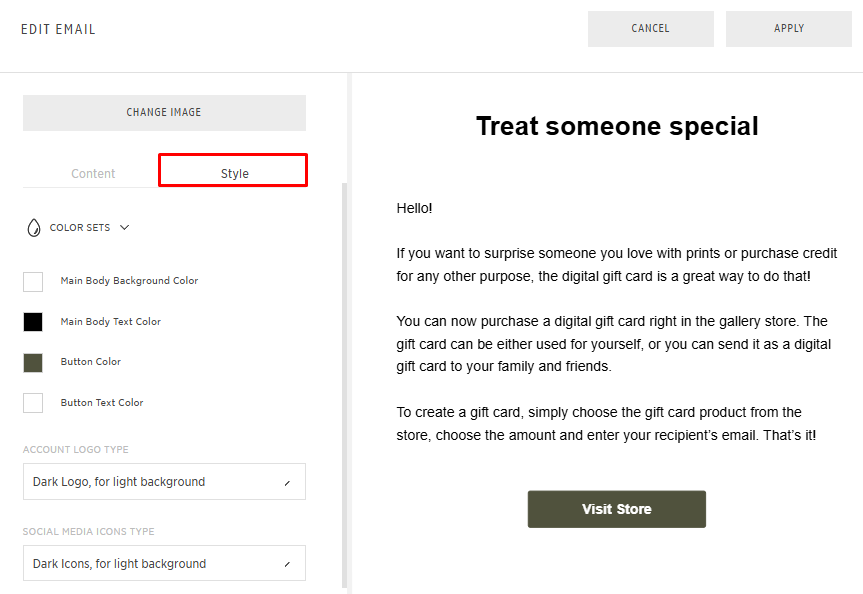
Style
Customize the visual appearance of your email, including colors, logo style, and button design. This allows you to align the email with your brand identity while keeping the structure intact.
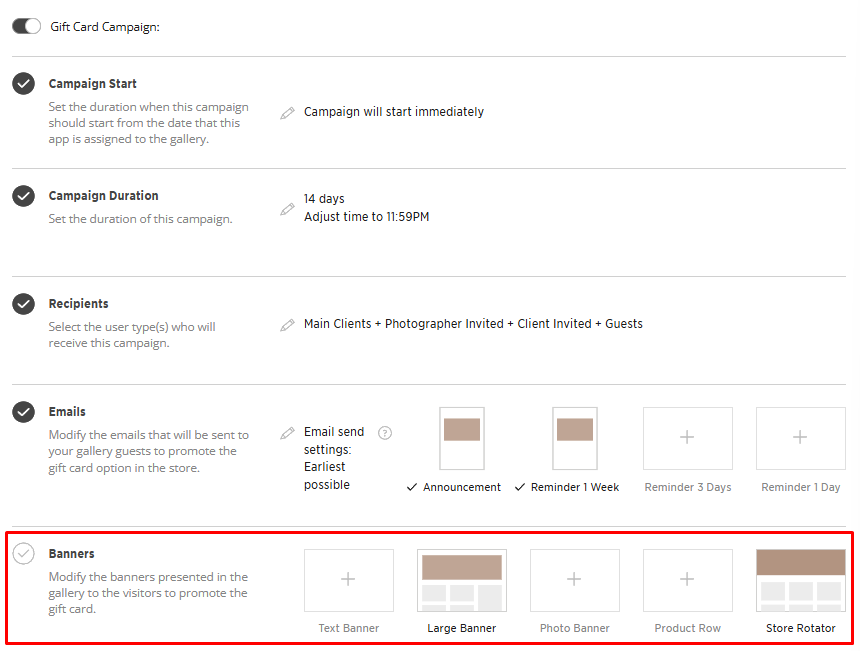
Banners
We can now begin customizing your banners. There are 5 types of banners: text banner, large banner, photo banner, product row, and store rotator. Each banner has various editable parameters. You can modify the design, text, and style of the banners.
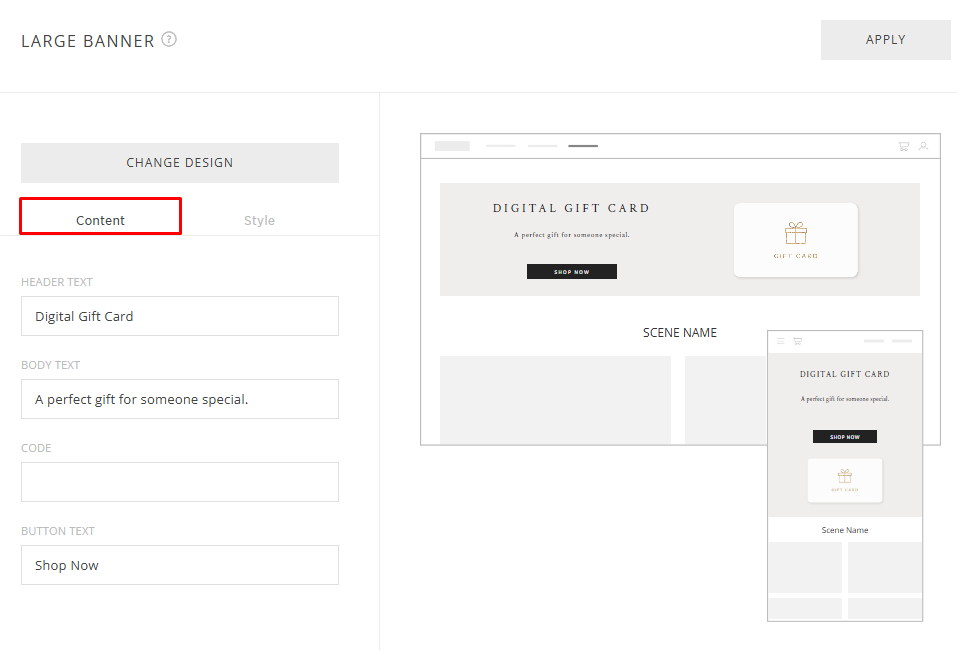
Content
Edit the banner text, including the header, body message, coupon code, and button text. You can customize the messaging to match your campaign while keeping dynamic fields (e.g., {discount-value}) unchanged.
Style
Customize the banner design by uploading desktop and mobile images, selecting fonts, and adjusting colors. 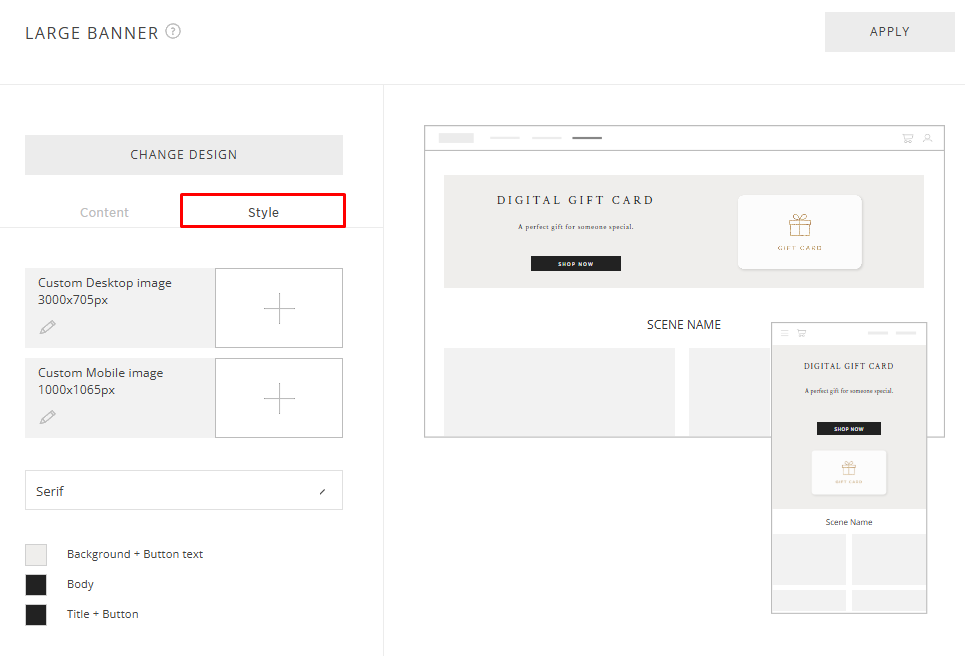
Gift Card Recipient Campaign
You are now done with building the campaign that would be used to promote the gift card to all gallery visitors! Your gallery visitors can purchase the item in their gallery store and enter the recipient’s email during the purchase process. The recipients will automatically receive emails and banners to announce their new gift card and a code they can use in the cart to redeem their store credit.
📌Please Note: Gift card codes are tied to the recipient’s email/account, so they cannot be used by anyone else.
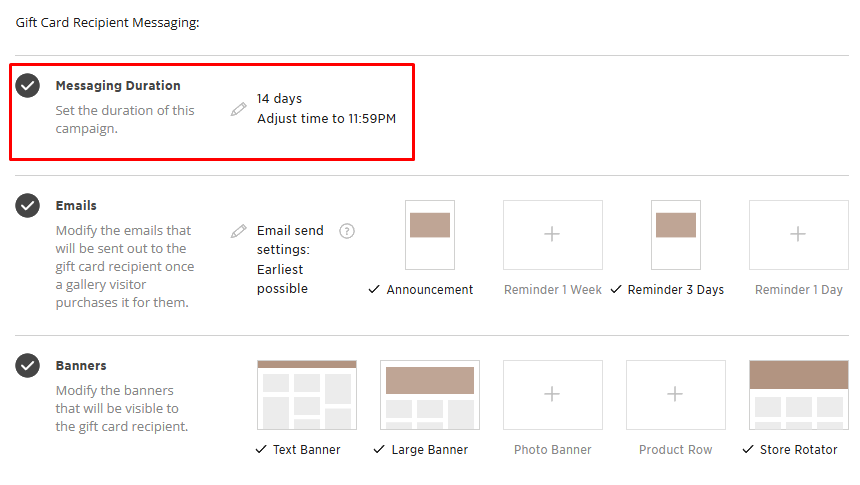
Messaging Duration
You can modify the emails and banners for the recipient of the gift card in the Gift Card Recipient Messaging portion of the app. First, let’s begin by defining the Messaging Duration by choosing the number of days or months. This duration applies to how long the banners will show in the recipient’s gallery and when they will receive their emails about their gift card. Their code does not expire until it has been used.
📌Please Note: Gift cards cannot be scheduled to deliver in advance on a specific date. You can remove emails to delay when the recipient is notified, but you are not able to schedule for a specific date.
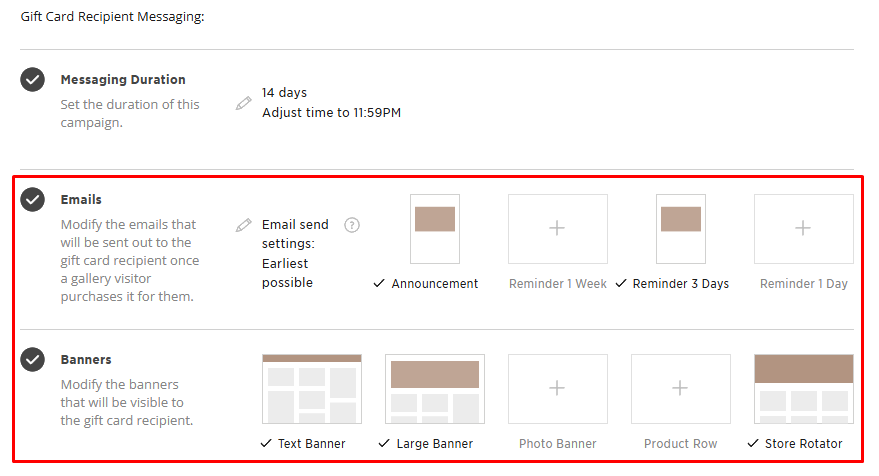
Emails and Banners (Recipient)
The email announcement will be sent at the beginning of the Messaging Duration, and reminders will go out before the Messaging Duration expires. The banners will display for the whole duration of the campaign and will be seen by the recipient of the gift card only. You can modify the emails and banners the same way you have done previously in the app.
Once you are done building the campaign for the recipients, you can make any internal notes to yourself and click Save.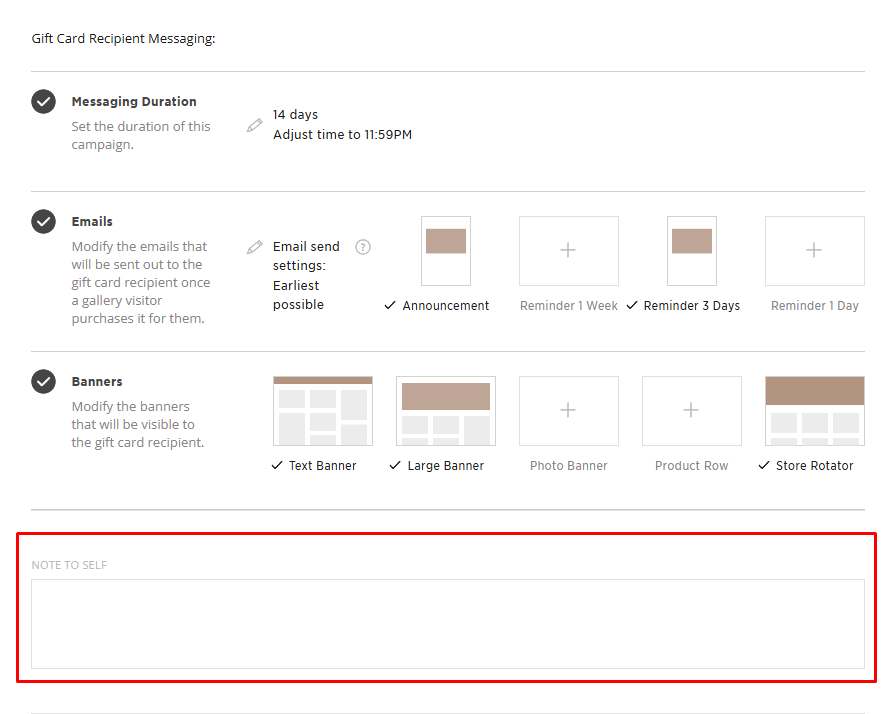
Assigning the Automation to Galleries
Click Save, then assign the promotion to:
- A single gallery, or
- Multiple galleries at once

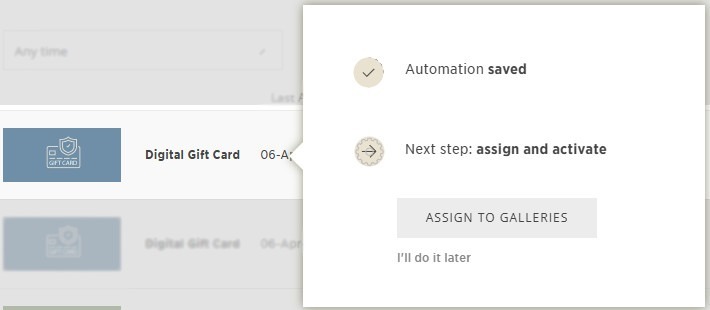
Now, your Digital Gift Card Automation is ready to promote gift cards, engage your gallery visitors, and drive sales🎁🚀