![Full Logo Black.png]](https://servicehub.passgallery.com/hs-fs/hubfs/Logos/Full%20Logo%20Black.png?height=40&name=Full%20Logo%20Black.png)
Pass gives you full control over how print and digital products are priced, fulfilled, and displayed in your galleries' shops, allowing you to:
- Create and edit multiple Price Lists
- Select your products
- Set pricing and profit margins
- Choose a fulfillment lab or self-fulfill print products
- Create Custom Products and Packages
- Set up Volume or Tiered Pricing
- Add unique Download Terms to different digital products
Creating a Price List
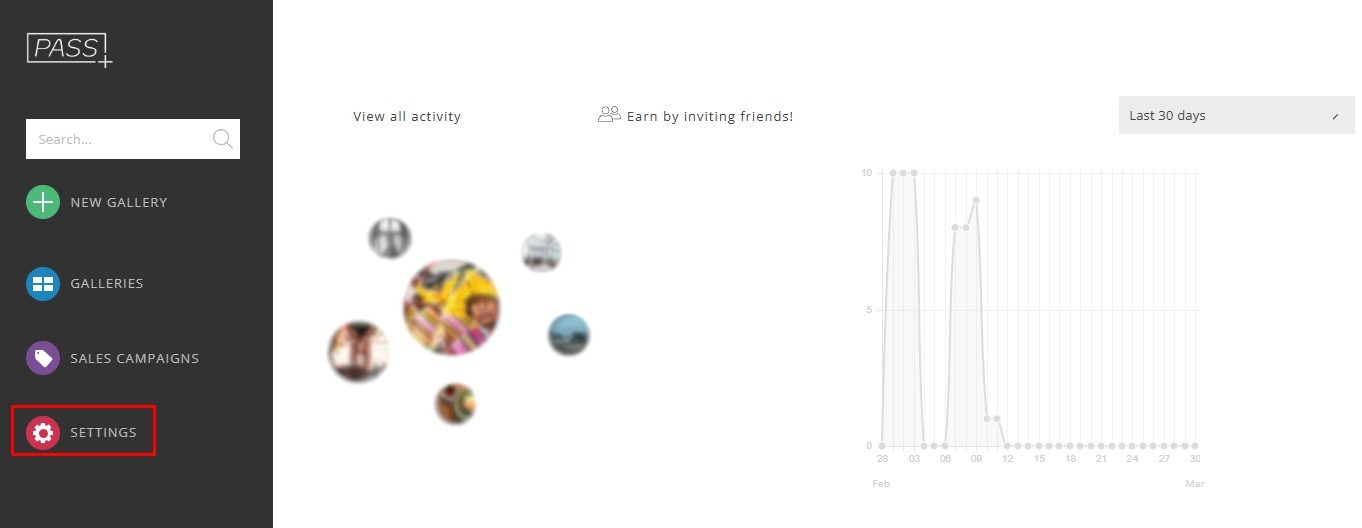
- To get started, go to Settings from the Main Dashboard.
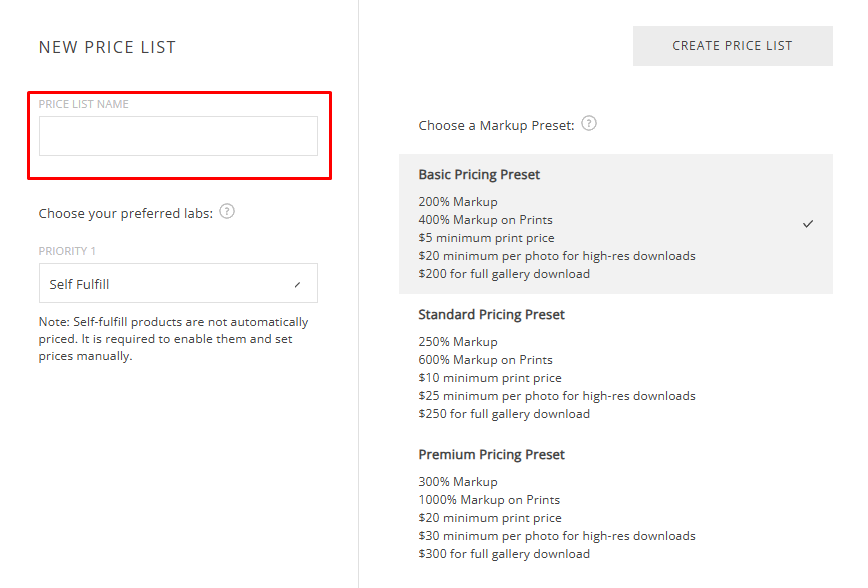
3. Select Fulfillment type and Markup Preferences
Set up your product fulfillment and pricing markup preferences. You can choose whether to:
- Use one of our lab partners for automatic fulfillment
- Self-fulfill your products
📌Pro Tip: You can have both lab-fulfilled and self-fulfilled products in a single Price List by editing an existing Price List.
Option 1: Print Lab Fulfillment
Under Priority 1, select your main lab from the dropdown menu. A default lab will already be selected based on your business address, but you can change it.
Under Priority 2 and Priority 3, choose your backup labs. If your main (Priority 1) lab is unavailable for a product, the system will automatically move to the next priority.
Next, select what you would like to be done if none of your preferred labs are available for a product. You can choose for Pass to Auto select lab (in which case, we would select one that is available for the product) or to Disable product.
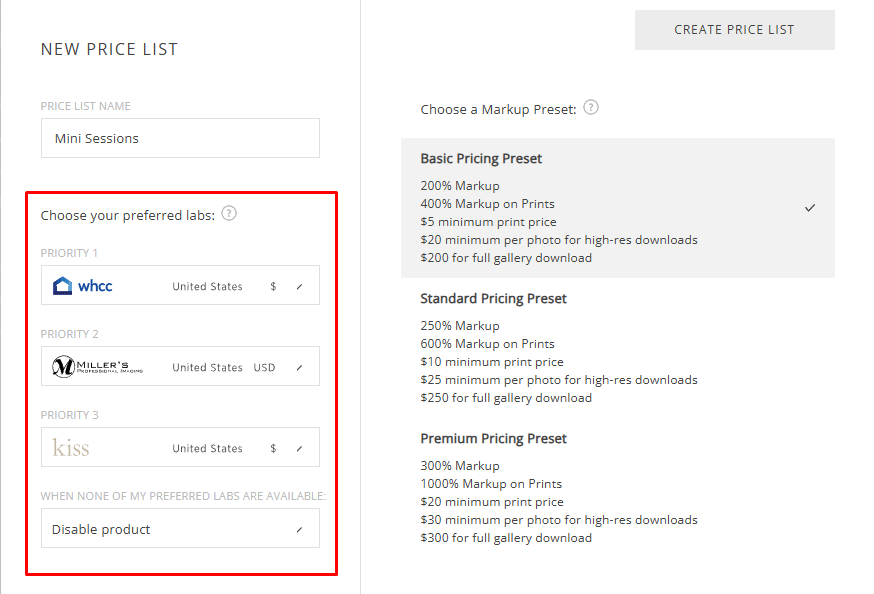
Then, choose either Basic, Standard or Premium Pricing Preset and click Create Price List.
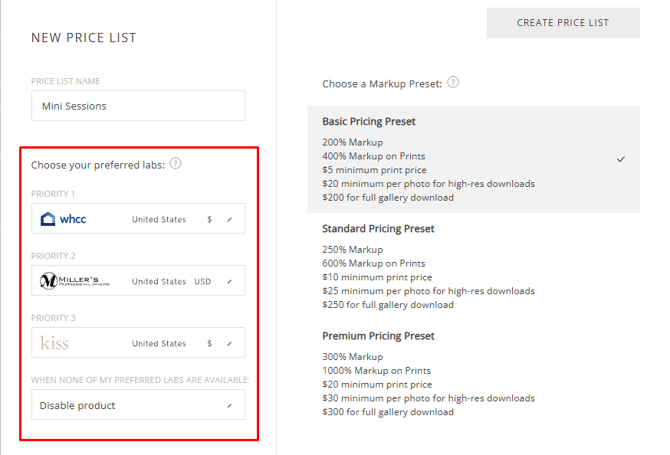
You will then be able to further edit your Price List.
📌 Please note: When selecting a lab as a fulfiller, the lab is responsible for both manufacturing and shipping the product.
Once a client places an order, they will receive a purchase confirmation email that includes their order number, shipping method, and estimated delivery date.
If a client has questions about their order status, they can contact help@passgallery.com with their order number, and our team will follow up with the lab on their behalf.
Option 2: Self-Fulfilment
Under Priority 1, select Self Fulfill from the dropdown menu. Click Create Price List.
📌Please Note: If you choose to fulfill orders yourself, you will need to manually enable and price your products.
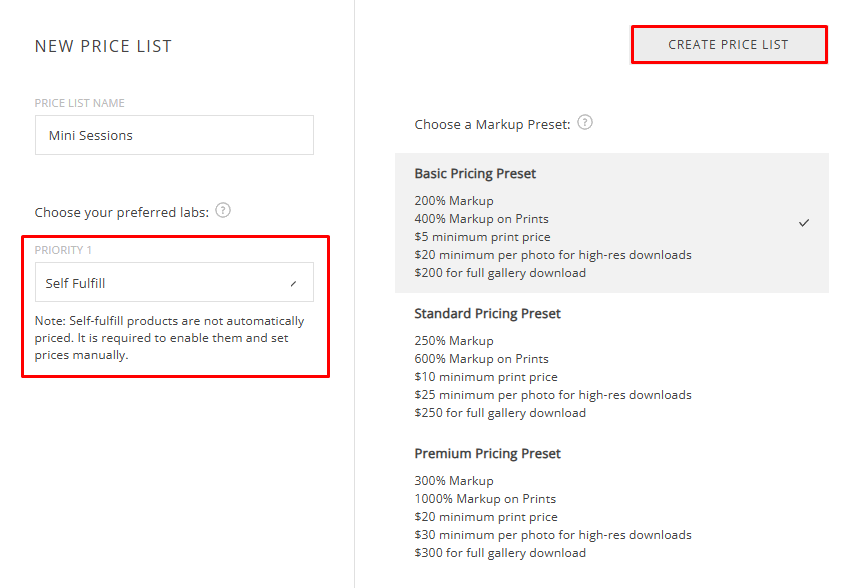
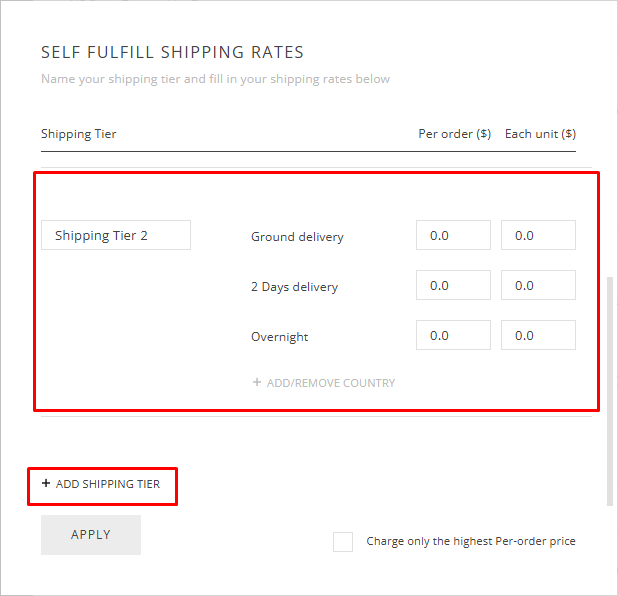
When choosing to self-fulfill, you can set up your own shipping options. Add your shipping options and costs, then select whether you want to charge for just the highest per-order price and click Apply to save your settings.
To set up your self fulfill shipping, go to Store Settings, and click Set Up under Self Fulfill Shipping.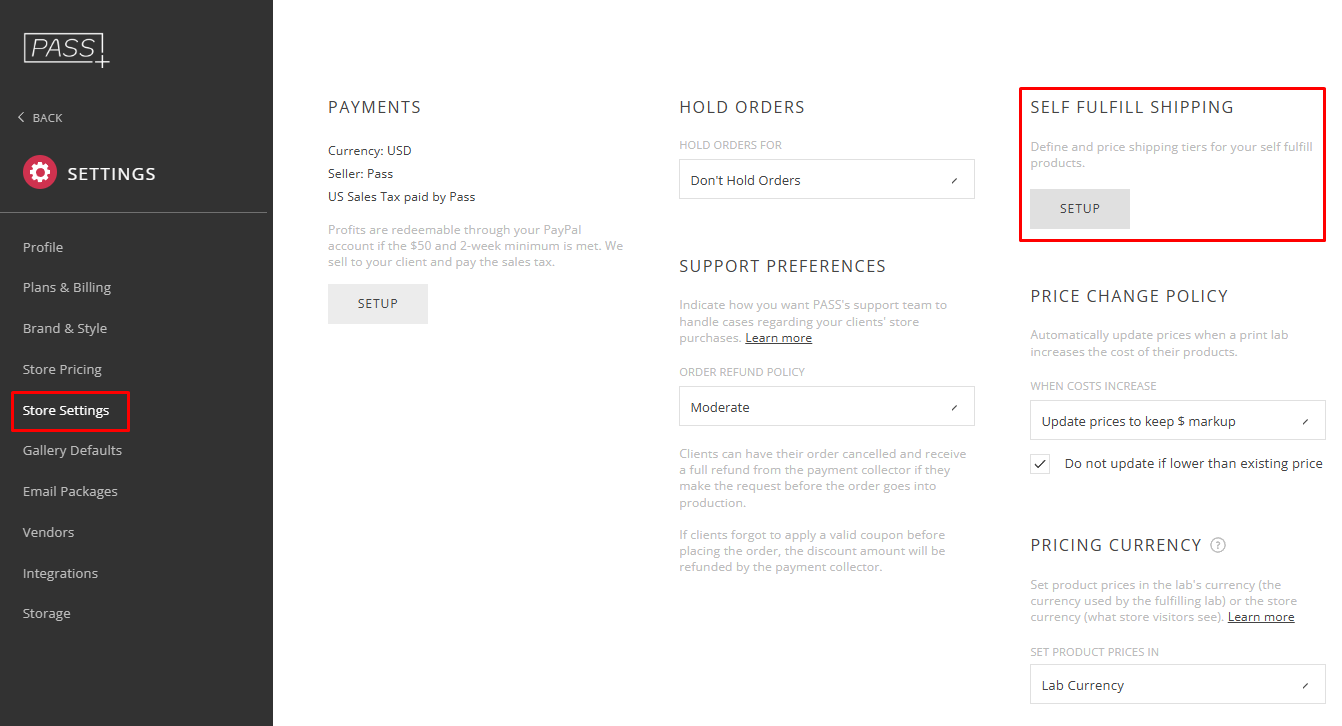
Click in Add/Remove Country to set up International or Local Shipping
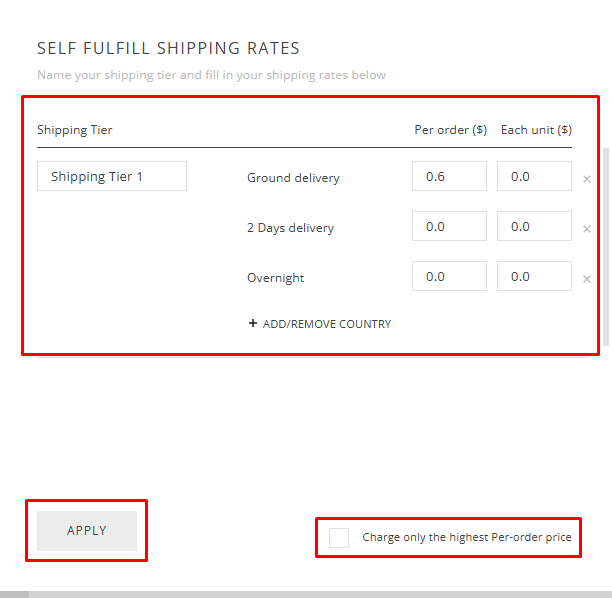
Scroll down to the bottom to add other Shipping Tiers
Creating Multiple Price Lists
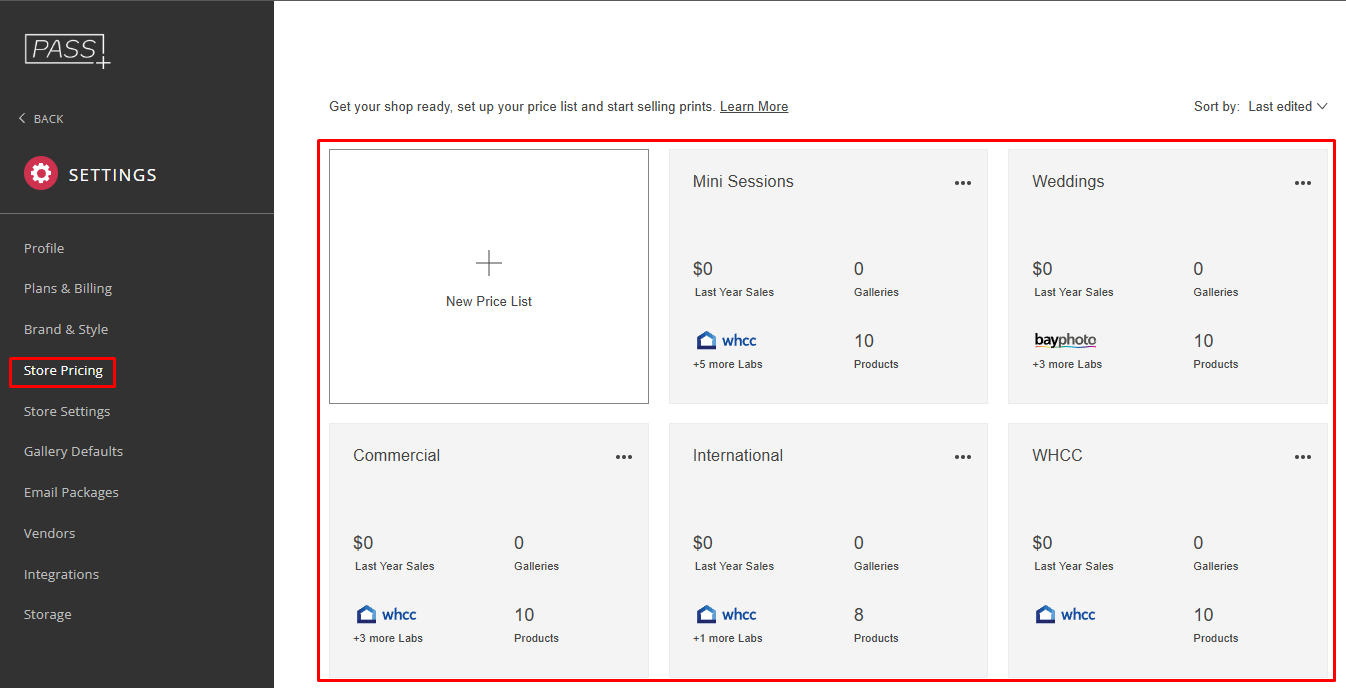
Creating multiple Price Lists allows you to customize products, labs, pricing, and store settings for different types of galleries. Each gallery can be assigned a specific Price List, giving you full control over how you sell to different clients.
This flexibility helps you tailor your offerings based on your business model, client location, and session type.
For example, you can:
- Optimize fulfillment by location
Select from Pass’s lab partners (e.g., USA, Canada, UK) to choose the most appropriate option based on where your clients are located - Customize product offerings by gallery type
Create different Price Lists for Weddings, Mini Sessions, Senior Sessions, etc., each with its own product selection and pricing strategy. - Control which products are available
Offer only your most popular sizes or materials, or tailor selections based on the session type or audience. - Create different pricing strategies
Build Price Lists that include digitals, exclude digitals, or bundle products depending on your sales approach. - Set store requirements
Apply minimum order values or other purchase conditions as needed. - Mix fulfillment methods
Include products fulfilled by partner labs alongside items you fulfill yourself.
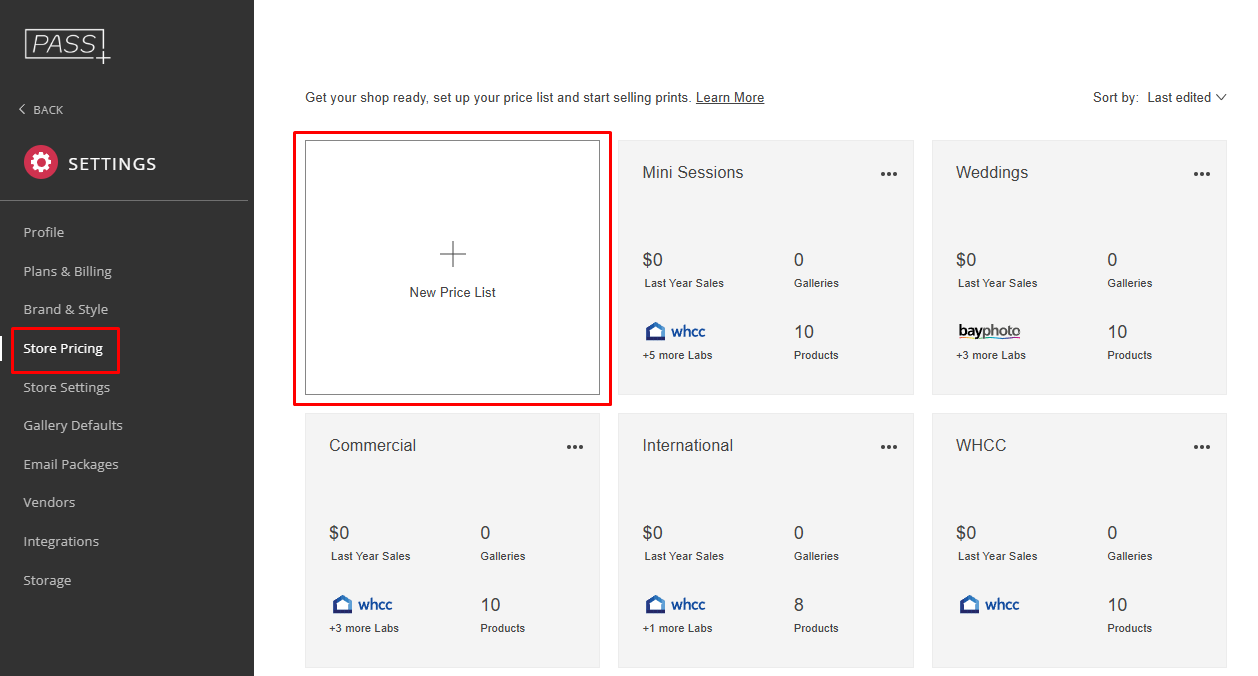
You can find and manage all your Price Lists in Settings > Store Pricing.
Assign Price Lists to Galleries
Learn how to assign your Price Lists to any galleries you choose:
Need Help?
If you have any questions or need additional assistance, please contact: help@passgallery.com